English
Note! All colours on your screen are inverted and you may get some pretty
odd colour combinations.
Colour inversion is currently an experimental feature, so it might not work
correctly in all apps.
The Bluetooth connection
®
You can connect wirelessly to other Bluetooth
®
compatible devices such as
headsets or other phones.
Note! Bluetooth can use a lot of battery power. Don’t forget to turn off
when not using.
Turn Bluetooth on/off
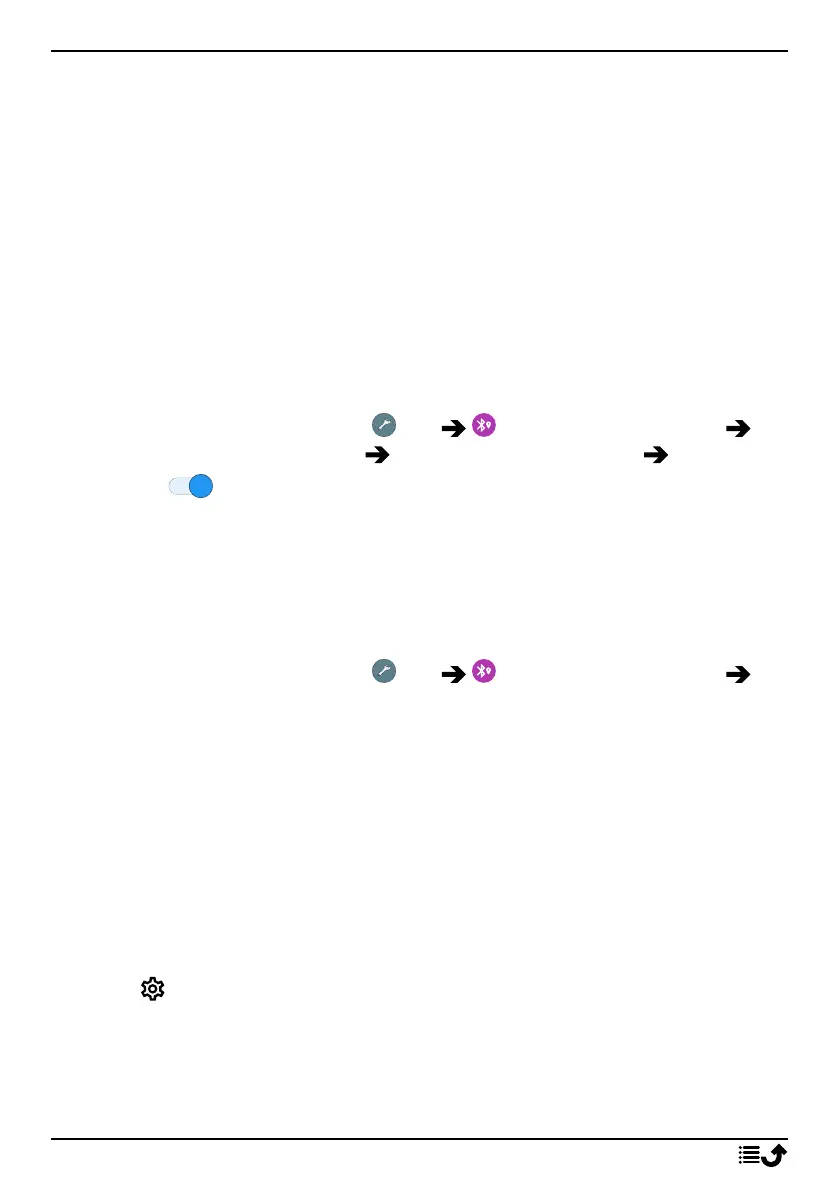
1. From the Home screen, tap Set My other connections
The Bluetooth connection Connection preferences Bluetooth.
2. Switch to enable.
Tip: Your phone has a Bluetooth name that other devices see when you
connect them via Bluetooth. You can change that name by tapping on
Device name. Enter the wanted name and confirm with Rename.
Pair with other Bluetooth devices
1. From the Home screen, tap Set My other connections
The Bluetooth connection.
2. Tap + Pair new device.
3. Select the unit that you want to connect to.
4. Tap Pair to connect. You may be asked to input a password or to
press a button. If prompted, input the password or otherwise ac-
knowledge the connection on your phone or the other device.
5. After you acknowledge the password (or not), the units are connected
and communicating. You can begin using the device.
6. If you need more settings for the unit, tap Previously connected
devices.
7. Tap next to the device name.
Note! Because the devices are now paired, when you turn on Bluetooth on
your device and the other device is on, the connection re-establishes and
they'll stay paired until you unpair them.
37



 To Next Page