RADIO DVD
SET
USB
AUX
SD
04
17
Main Menu
05
24
DVD/VCD/MP4
During DVD mode, press GOTO button
to set the playing time, when the TFT dis-
play : /chapter/audio/subtitle/angle
/title time/chapter time/repeat/time disp.
Press [ ][ ] to select the options, press
ENTER to set the status. Then press NU-
MBER BUTTONS or [ ][ ] to set
the current status.
title
2
27
27
During VCD mode, press GOTO button
to set the playing time, when the TFT dis-
play : /disc time/track time/repeat
/time disp. Press [ ][ ] to select the
options, press ENTER to set the status.
Then press NUMBER BUTTONS or
[ ][ ] to set the current status.
track
2
23
Setting the Playback Time
During MP4 playback, first press GOTO,
and monitor shows : ---, press your desired
track by using number buttons and press EN-
TER to set the status. Second press GOTO
button, and the monitor shows: -:--:--, input
your desired time, then press ENTER.
2
* This function is operated by using remote
control.
the
Note:
Changing audio language
(Multi-audio)
DVDs can provide audio playback with
different languages. With DVDs featuring
multi-audio recordings, you can press
AUDIO to switch between language and
audio systems during playback.
AUDIO 1 AUDIO 2 AUDIO 3......
Selection options switch as follows:
* This function is operated by using remote
control.
the
* This function only operates with DVDs fea-
turing multi-audio recordings.
* The number in the mark on a DVD's
package indicates the number of recorded
languages/audio systems.
2
Note:
6
Changing the subtitle language
(Multi-subtitle)
With DVDs featuring multi-language subtitle
recordings, you can press SUB-T to switch
between subtitle languages during playback.
Subtitles 1
Subtitles 2
Subtitles OFF
Selection options switch as follows:
* This function is operated by using remote
control.
the
* The number in the mark on a DVD's
package indicates the number of recorded
subtitle languages.
2
Note:
5
......
During VCD status, pressing OSD will
display the following:
Single elapsed
Total
elapsed
Total
remain
Single remain
Display off
Note:
Display off
* This function is operated by using the remote
control.
Single
elapsed
Single
remain
During MP4 status, pressing OSD will
display the following:
* Press CLEAR to clear the mistake input.
22
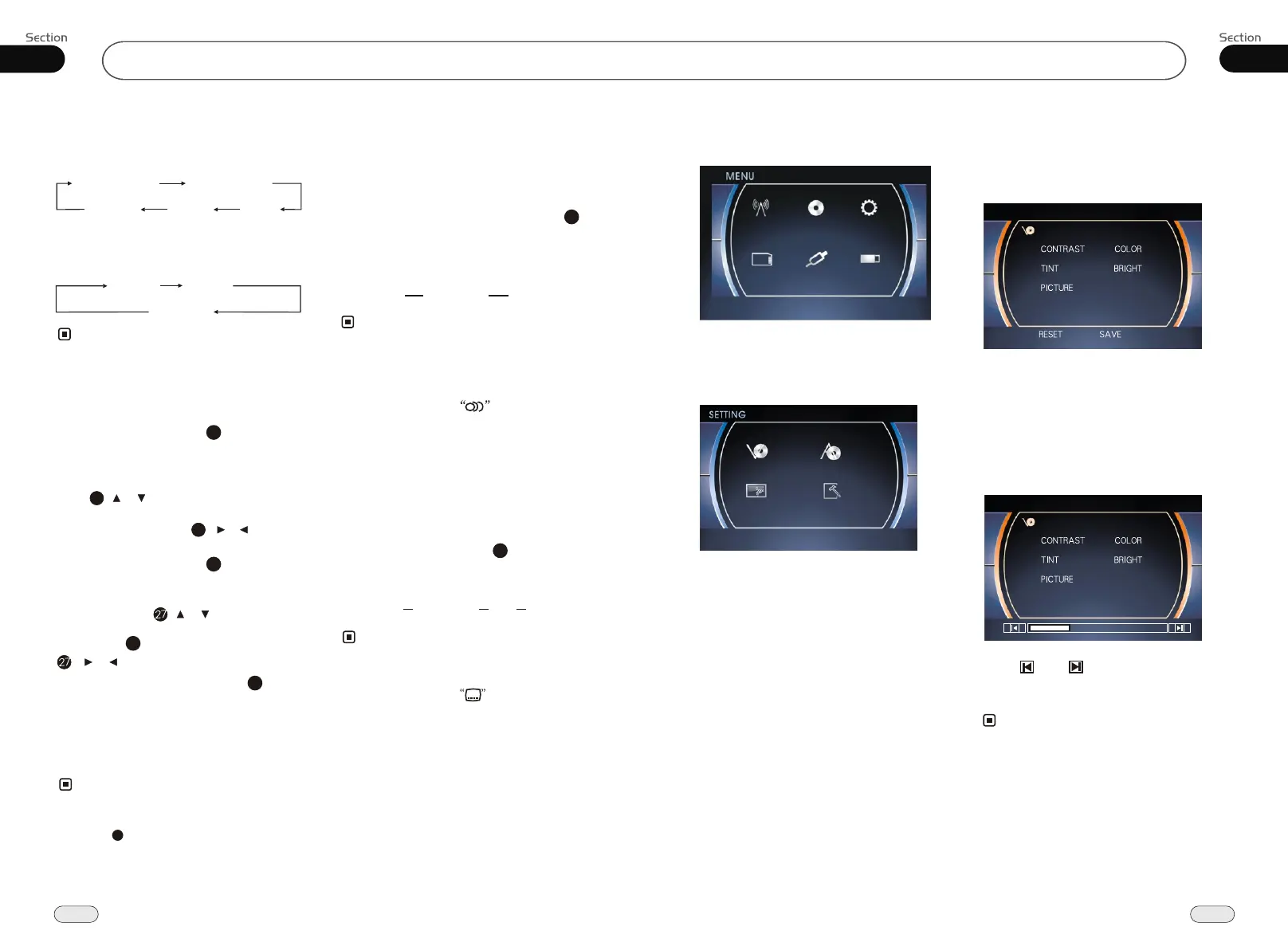
Set up Main Menu
Press SET in the monitor or MENU on the
main unit, or hold and press SETUP on the
remote control to enter the menu as follows:
This menu includes AUDIO,
SOURCE, SYSTEM, EXIT. Press them in
the monitor to set the desired status.
VIDEO,
1.Video Adjust
After selecting VIDEO, the sub menu will
appear as follows:
In this menu you can adjust CONTRAST,
COLOR, TINT, BRIGHT, PICTURE.
Picture Adjust
Press PICTURE in this menu, it will appear
as follows:
Press and to adjust the size, then
press SAVE to save the setup, press EXIT
to exit this menu.
Note:
* Adjusting the other options perform the same
operation.
AUDIO
SYSTEM
SOURCE
VIDEO
EXIT
EXIT
SHARP 20


 To Next Page