EasyManua.ls Logo

DRAKE R8A - Getting Started; GENERAL OPERATING INFORMATION; MICROPROCESSOR RESET; AUTO MODE, and the Default BANDWIDTH;STEP;AGC Settings

DRAKE R8A
43 pages
Print Icon
To Next Page IconTo Next Page
To Previous Page IconTo Previous Page
Loading...
15
Getting
Started
DRAKE
FA
Communications
Receiver
(SCAN)
MEM
SEEK
UsT
TIME
rae
TUNE
A-B
CARR
vro
A)
aac
(B)
(F)
AaB
Pocus
|
(NOTCH)
SQUELCH
aga
NB
(NW)
|
ame)
|
MHz
‘®W)
(Moe)
AUTO
AM
SYNC
kHz
=o
ao
nd
usB
CW
FM
“aa
RITY
12
ON
OFF
TIMER
CLK/FREQ
step
|
(LOCK)
NOTCH
TONE
PASSBAND
OFFSET
RF
GAIN
VOLUME
CENTERED
CENTERED
COUNTER-CLOCKWISE
CENTERED
CLOCKWISE
COUNTER-CLOCKWISE
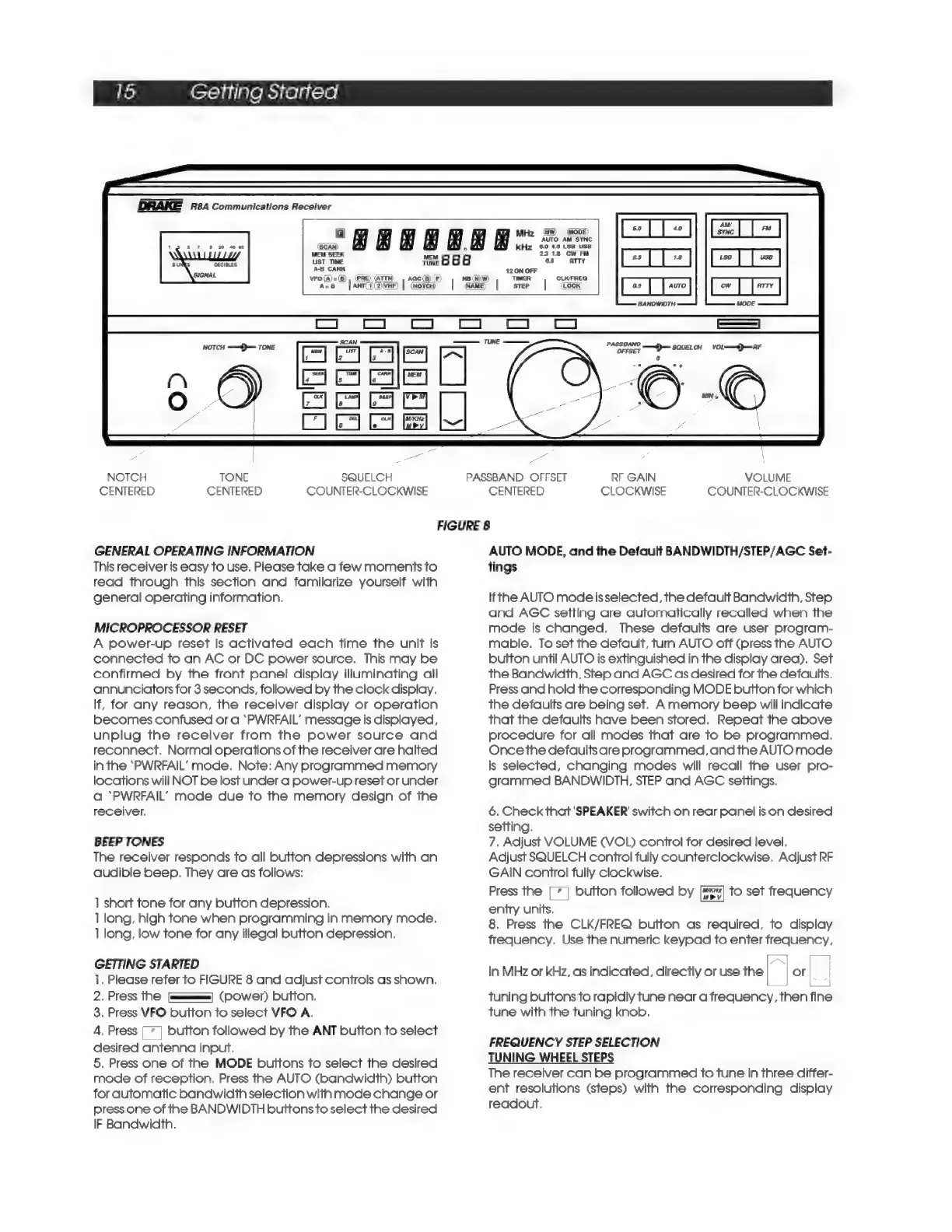
FIGURE
8
GENERAL
OPERATING
INFORMATION
This
receiver
is
easy
to
use,
Please
take
a
few
moments
to
read
through
this
section
and
familarize
yourself
with
general
operating
information.
MICROPROCESSOR
RESET
A
power-up
reset
is
activated
each
time
the
unit
is
connected
to
an
AC
or
DC
power
source.
This
may
be
confirmed
by
the
front
panel
display
illuminating
alll
annunciators
for
3
seconds,
followed
by
the
clock
display.
If,
for
any
reason,
the
receiver
display
or
operation
becomes
confused
or
a
‘PWRFAIL’
message
is
displayed,
unplug
the
receiver
from
the
power
source
and
reconnect.
Normal
operations
of
the
receiver
are
halted
in
the
‘PWRFAIL’
mode.
Note:
Any
programmed
memory
locations
will
NOT
be
lost
under
a
power-up
reset
or
under
a
‘PWRFAIL’
mode
due
to
the
memory
design
of
the
receiver.
BEEP
TONES
The
receiver
responds
to
all
button
depressions
with
an
audible
beep.
They
are
as
follows:
]
short
tone
for
any
button
depression.
1]
long,
high
tone
when
programming
in
memory
mode.
]
long,
low
tone
for
any
illegal
button
depression,
GETTING
STARTED
].
Please
refer
to
FIGURE
8
and
adjust
controls
as
shown.
2.
Press
the
——
(DOwer)
button.
3,
Press
VFO
button
to
select
VFO
A.
4.
Press
{
*
|
button
followed
by
the
ANT
button
to
select
desired
antenna
input.
5.
Press
one
of
the
MODE
buttons
to
select
the
desired
mode
of
reception.
Press
the
AUTO
(bandwidth)
button
for
automatic
bandwidth
selection
with
mode
change
or
press
one
of
the
BANDWIDTH
buttons
to
select
the
desired
IF
Bandwidth.
AUTO
MODE,
and
the
Default
BANDWIDTH/STEP/AGC
Set-
tings
Ifthe
AUTO
modeisselected,
the
default
Bandwidth,
Step
and
AGC
setting
are
automatically
recalled
when
the
mode
is
changed.
These
defaults
are
user
program-
mable.
To
set
the
default,
turn
AUTO
off
(press
the
AUTO
button
until
AUTO
is
extinguished
in
the
display
area),
Set
the
Bandwidth,
Step
and
AGC
as
desired
for
the
defaults.
Press
and
hold
the
corresponding
MODE
button
for
which
the
defaults
are
being
set.
Amemory
beep
will
indicate
that
the
defaults
have
been
stored.
Repeat
the
above
procedure
for
all
modes
that
are
to
be
programmed.
Once
the
defaults
are
programmed,
and
the
AUTO
mode
is
selected,
changing
modes
will
recall
the
user
pro-
grammed
BANDWIDTH,
STEP
and
AGC
settings.
6,
Check
that
'SPEAKER'
switch
on
rear
panel
is
on
desired
setting.
7.
Adjust
VOLUME
(VOL)
control
for
desired
level.
Adjust
SQUELCH
control
fully
counterclockwise.
Adjust
RF
GAIN
control
fully
clockwise.
Press
the
[
*
|
button
followed
by
to
set
frequency
entry
units.
8.
Press
the
CLK/FREQ
button
as
required,
to
display
frequency.
Use the
numeric
keypad
to
enter
frequency,
tuning
buttons
to
rapidly
tune
near
a
frequency,
then
fine
tune
with
the
tuning
knob,
in
MHz
or
kHz,
as
indicated,
directly
or
use
the
|
or
L__J
FREQUENCY
STEP
SELECTION
TUNING
WHEEL
STEPS
The
receiver
can
be
programmed
to
tune
in
three
differ-
ent
resolutions
(steps)
with
the
corresponding
display
readout,

Related product manuals