7
Perform the inclusion:
Click “Start inclusion” button.
You will see “Ready to include” message.
Perform the “Include” action on the Z-Wave device (usually quickly press the button on the Z-Wave device 3
times, see the user manual of the Z-Wave device for device-specific information).
If the operation succeeds, you will see “New device found” message, and the system will perform the
automatic configuration of the new device.
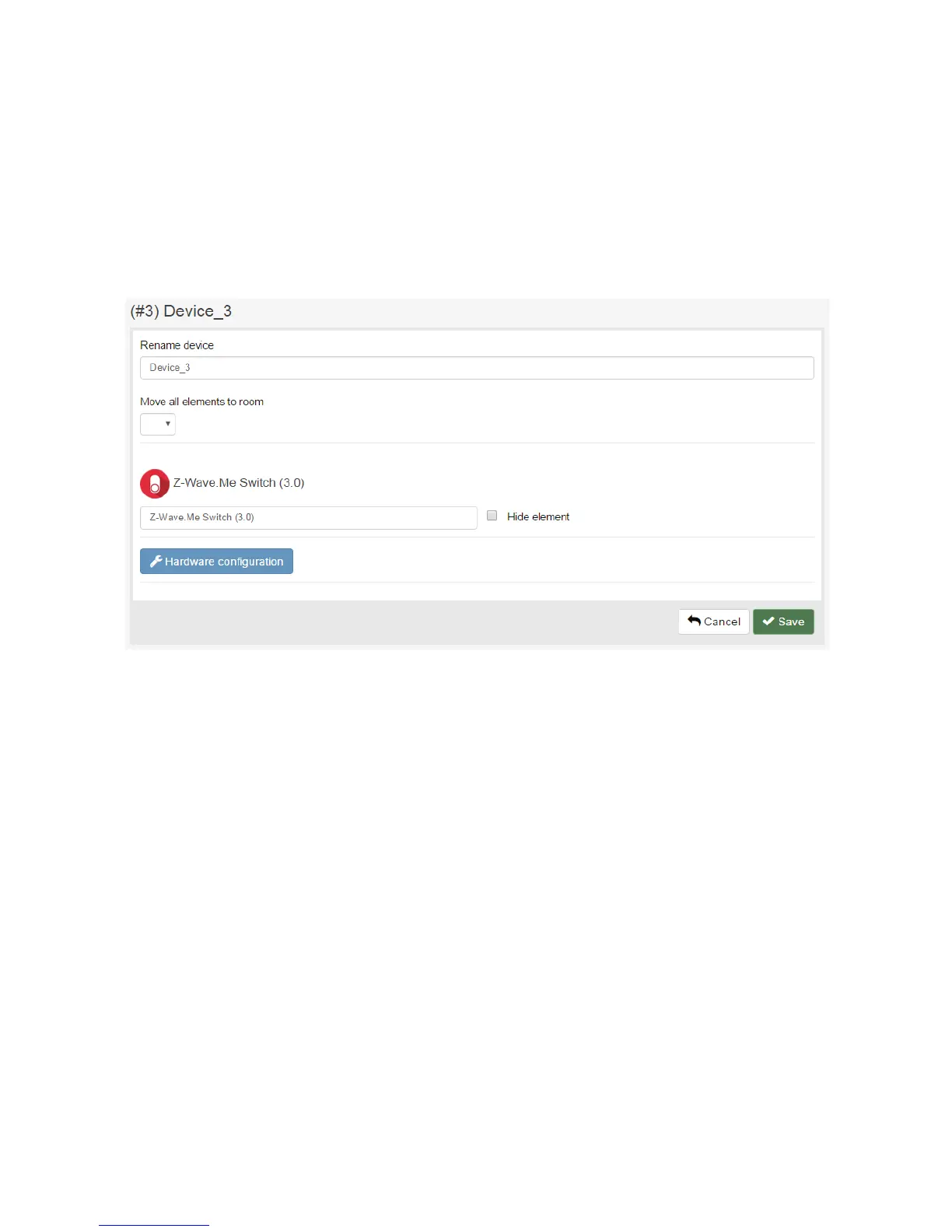
After you add a Z-Wave Device, you automatically get into the “Device” screen:
You can also open the “Device” screen in the following way: click “Manage” button in the “Devices” screen and click
the Z-Wave device.
On the “Device” screen, you see and can adjust the following configuration for the Z-Wave device:
Device name to be shown in the UI.
Elements corresponding to the Z-Wave device.
Hardware configuration of the Z-Wave device.
To remove a Z-Wave device (exclude it from your Z-Wave network), perform the following steps:
Choose "Devices" item in the “Settings” menu.
Click "Manage" button in the "Z-Wave” section.
Click "Remove" icon for the selected Z-Wave device.
Click "Start exclusion" button.
Perform the “Exclude” action on the Z-Wave device (usually quickly press the button on the Z-Wave device 3
times; see the user manual of the Z-Wave device for device-specific information).
If the operation succeeds, you will see “Device excluded” message.


 To Next Page