EasyManua.ls Logo

Durr Dental VistaScan Perio Plus - User Manual

Durr Dental VistaScan Perio Plus
2 pages
Print Icon
To Next Page IconTo Next Page
Loading...
3 / 4
EN Installation and configuration instructions
VistaScan Perio Plus
Only fully-qualified personnel may set-up, install or operate this appli-
ance.
Minimum requirements
Imaging program DBSWIN or VistaEasy by Dürr Dental
Third-party software on request
Computer system See "System requirements for computer systems for
imaging“ (9000-618-148/01)
1 Connecting up the device
The device can be connected to the USB or network.
The connecting cables are contained in the scope of delivery.
Do not connect the device to the USB and to the network at the
same time.
• Connect the connecting cable (USB/network) to the device.
• If necessary, connect the network cable with the network.
Only connect the USB connecting cable to the computer when the
installation assistant asks you to do so.
• Switch the device on.
2 Installation
2.1 Driver installation (only for USB connection)
• Close all programs.
• Place the provided DBSWIN DVD (from Version 5.3) into the DVD drive.
The start window opens.
• If the DVD does not start automatically, execute the file "CD_Start.exe".
• Select the required language.
• Go to the "Driver" tab.
• Click "Duerr Dental Driver Installation".
• Confirm the message by clicking "OK".
The "Dürr Dental Driver Setup" installation assistant starts.
• Follow the instructions of the installation assistant.
2.2 Setting up the network (only for network connection)
• Switch on the network devices (router, PC, and switch).
• Check that TCP port 2006 and UDP port 514 are released in the firewall
being used; if not, release them.
If you are using the Windows firewall, you do not need to check the ports
since you are asked if you want to release them during the driver installa-
tion process.
3 Configuration
For both connection types (USB and network), the configuration takes place
using VistaNetConfig, which is automatically installed during the installation
of DBSWIN or VistaEasy.
• Click Start>AllPrograms>DürrDental>VistaCong>VistaNetCong.
• Click the "Refresh" symbol .
• Activate the connected device in the "Registered" column.
You can also register multiple devices.
3.1 Configuring the device with a USB connection
You can change the device name and query the configuration in the "Vista-
Net device configuration" window.
• Click the "Edit" button
.
• If necessary, change the name.
• Click "Apply" to save the configuration.
Question and Answer IconNeed help?

Do you have a question about the Durr Dental VistaScan Perio Plus and is the answer not in the manual?

Summary

Connecting Up the Device

Installation and Configuration

Driver Installation (USB Connection)

Guide for installing the device driver via USB connection using the provided software.

Network Setup (Network Connection)

Instructions for connecting the device via network, including firewall port checks.

Device Configuration (USB)

Steps to configure the device name and settings via USB using VistaNetConfig.

Device Configuration (Network)

Steps to configure device name, IP address, and query information over a network connection.

Permanent IP Address Configuration

Recommendation and steps for deactivating DHCP and setting a permanent IP address.

Testing the Device

Light Exposure Measurement and Safety Checks

Check Amount of Light Exposure

Using the oscilloscope to measure light exposure and checking against a threshold.

Electrical Safety Check

Guidance on performing electrical safety checks according to regulations.

Overview

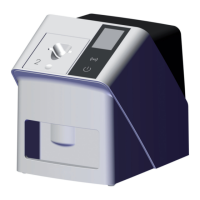
The VistaScan Perio Plus is a dental imaging device designed for capturing X-ray images, primarily for dental diagnostics. It can be connected to a computer via either USB or a network, offering flexibility in clinic setups. The device is intended for use by fully-qualified personnel.

Function Description:

The primary function of the VistaScan Perio Plus is to acquire X-ray images, which are then processed and displayed using imaging software such as DBSWIN or VistaEasy by Dürr Dental. It utilizes a digital imaging plate system, allowing for the capture of high-resolution intraoral images. The device is integrated into a digital workflow, enabling efficient image management and storage.

Important Technical Specifications:

While specific detailed technical specifications like sensor type, pixel size, or resolution in lp/mm are not explicitly listed in the provided excerpts, the manual indicates that the device is capable of capturing images suitable for dental diagnostics. The "INTRA high 20LP/mm (1000dpi)" mode mentioned in the "Testing the device" section suggests a high-resolution capability, with 20 line pairs per millimeter at 1000 dots per inch, which is crucial for detailed diagnostic imaging.

The device supports both USB and network connections. For network connectivity, it requires TCP port 2006 and UDP port 514 to be released in the firewall. The configuration process involves setting up network parameters such as IP address, subnet mask, and gateway. The device's MAC address is displayed during configuration, for example, "00:19:35:00:08:26". It also has configurable advanced network settings like a second IP address (e.g., 192.168.3.125), MTU (1500), and port (2006).

Usage Features:

  • Connectivity: The VistaScan Perio Plus offers dual connectivity options: USB for direct connection to a single computer and network for integration into a larger clinic network. It is crucial not to connect both simultaneously.
  • Driver Installation: For USB connection, a dedicated driver installation process is required, guided by an installation assistant. This ensures proper communication between the device and the computer.
  • Configuration via VistaNetConfig: Both USB and network connections are configured using the VistaNetConfig software, which is automatically installed with DBSWIN or VistaEasy. This tool allows users to:
    • Identify and register connected devices.
    • Change the device name for easier identification within the network.
    • Configure network parameters, including setting a permanent IP address, subnet mask, and gateway.
    • Deactivate DHCP if a static IP address is preferred.
  • Device Testing: The device includes a "Test" tab in VistaNetConfig, allowing users to read in an X-ray image to verify proper connection and functionality. This feature helps confirm that the device is ready for use.
  • Light Exposure Check (Oscilloscope): A unique feature is the "Oscilloscope" option within VistaNetConfig, which measures the amount of light exposure to the unit. This is critical for optimizing image quality and ensuring consistent results. Users can adjust the HV value (e.g., to 650) and monitor measured, maximum, and average light exposure values. The system indicates a successful test if the measured value does not exceed 450, prompting users to reduce room lighting if the value is higher. This helps prevent overexposure and ensures optimal image acquisition conditions.
  • Reset Functionality: The device can be restored to factory settings by holding down the reset button for 15 to 20 seconds while switching it on. This is useful for troubleshooting or reconfiguring the device.

Maintenance Features:

  • Electrical Safety Check: The manual explicitly states the requirement to carry out an electrical safety check in accordance with national and local regulations. This is a critical maintenance step to ensure the safe operation of the device and must be documented.
  • Software Updates: While not explicitly detailed as a maintenance feature, the reliance on imaging software like DBSWIN or VistaEasy implies that software updates for these programs would also contribute to the ongoing maintenance and optimal performance of the VistaScan Perio Plus, ensuring compatibility and access to the latest features.
  • Troubleshooting: The ability to test the device connection and light exposure, along with the option to reset to factory settings, provides basic troubleshooting capabilities that can help resolve common issues without requiring extensive technical support.

Durr Dental VistaScan Perio Plus Specifications

General IconGeneral
BrandDurr Dental
ModelVistaScan Perio Plus
CategoryDental equipment
LanguageEnglish

Related product manuals