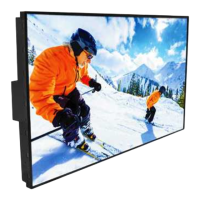
This document describes the DynaScan DS851LR4-1 Professional LCD, an 85-inch high-brightness display designed for various applications.
Function Description
The DynaScan DS851LR4-1 is a professional LCD display primarily used for signage and visual communication. It features an internal operating system, DSM365 (based on Android), which allows for the installation of applications via USB flash drive, SD card, or the internet. The display is capable of receiving external video sources through DP and HDMI inputs and can be controlled via a remote control or a built-in keypad. It also supports daisy-chain applications through its RS-232 output. The display is designed for both landscape and portrait orientations, with specific instructions for portrait mode rotation to ensure proper display.
Important Technical Specifications
Model: DS851LR4-1
LCD Panel Size: 85 inches
Native Resolution: 3840 x 2160
Brightness: 3500 cd/m² (Typical)
Contrast Ratio: 5,000:1
Response Time: 6.5 ms (Typical)
Viewing Angle: 178°/178°
Life Time: 50,000 hours (Typical)
Panel Surface: Haze 0.5%
Power Supply: Internal
Rated Voltage: 200 ~ 240V, 50 / 60Hz
Power On Mode: Typical 950W / Maximum 1600W
AC Out: < 100W
Bezel Width (T/B/L/R): 18.0/18.0/18.0/18.0 mm
Cabinet Color: Black
Monitor Dimension (LxHxD): 1912 x 1093 x 108.6 mm
Monitor Weight (set / package): 76.5 kg / 96.5 kg
VESA Mounting (Dimension): 4 Holes (400x600 mm)
OSD Language: English
Operation Temperature: 0°C ~ 40°C
Storage Temperature: -20°C ~ 60°C
Humidity: 10%~80% RH Non-Condensing
I/O Ports:
- HDMI: IN *2 (HDCP)
- DP: IN *1
- RS-232: IN *1, OUT *1
- Audio: OUT *1
- USB port: IN *1, Upgrade *1
- RJ-45: IN *1
- SD card: IN *1
- Mini USB: IN *1 (ESK only)
Fuse: 12.5A
Active Resolution and Refresh Rate (60 Hz):
- 640 x 480
- 800 x 600
- 1024 x 768
- 1280 x 768
- 1280 x 800
- 1280 x 960
- 1280 x 1024
- 1366 x 768
- 1440 x 900
- 1600 x 1200
- 1920 x 1080
- 1920 x 1200
- 2560 x 1440
- 2560 x 1600
- 3840 x 2160
Usage Features
Installation and Mounting: The display requires proper installation using a VESA Standard wall mount (not included). It is crucial to ensure the mounting location can support the LCD's weight and that the installation angle is within 15 degrees of the vertical axis. For portrait orientation, the display must be rotated clockwise so the left edge becomes the top edge. Adequate ventilation is necessary, and the display should not be installed near flammable materials, heat sources, or in confined spaces.
Powering On/Off: The display is powered on/off using a main power switch located on the back. The remote control functions only when this main switch is in the ON position.
Connecting Video Sources: External video sources (PC or AV devices) are connected via DP or HDMI cables to the DP-IN, HDMI 1-IN, or HDMI 2-IN ports.
Input/Output Terminals: The display offers a comprehensive set of I/O terminals including AC (OUT/IN), Power Switch, USB ports (for flash drives, mouse, keyboard, and firmware upgrade), SD card slot, RJ-45 (network input), HDMI (IN), DP (IN), Audio (OUT), Thermal extension connector (for ETK202), Extension Connector (for ESK302), and RS-232 (IN/OUT) for remote control and daisy-chain applications.
Remote Control: The display can be controlled directly via its IR receiver (within 2.5 meters and a 100-degree angle) or through an optional External Sensor Kit (ESK302) connected to the mini USB port. Ambient light, especially from fluorescent or neon lights, may affect remote control performance.
Built-in Keypad: A built-in keypad provides basic control for OSD navigation, power on/off, and selection.
On-Screen Display (OSD) Menu: The OSD menu allows users to adjust various settings:
- Input Source: Selects main input (HDMI 1, DP, HDMI 2, DSM365) and failover inputs (FailOver 1, 2, 3).
- Picture: Adjusts color temperature (User2, User1, D93, D65, D55), red, green, blue light levels (0-100, supported in User1/User2 modes), contrast (0-100), gamma (Native, 2.2, 2.4, sGamma), and black level (Limited for 16-235 R/G/B, RGB Full for 0-255 R/G/B).
- Time: Sets current date and time, day of week, daylight saving (DST), and enables/disables automatic power on/off scheduling with configurable on/off times.
- Backlight: Controls auto brightness (Off/Auto), high/low brightness levels (0-100), high/low level times, and local dimming (Off, Low, Medium, High). Auto brightness adjusts display brightness based on ambient light.
- Advance: Configures display mode (Landscape/Portrait), screen protection (image burn-in protection interval 0-100 minutes), IR control (enable/disable remote control), volume (0-100), reset to default settings (excluding time and power on/off settings), AC back status (Power On, Standby, Memory), and USBUpdate for firmware upgrades.
- Information: Displays resolution, model, serial number, hardware/software versions, internal (backlight unit) and external (ESK) temperatures, ALS level, over heat protection status, and running time.
DSM365 Operating System: The display integrates DSM365, an Android-based OS, enabling the installation of applications from USB, SD card, or the internet. Users can switch to DSM365 via the Input Source menu. The DSM365 interface includes "APPS" to show installed applications and "SETTINGS" to enter the setting menu.
Maintenance Features
General Safety:
- Do not disassemble the display. Contact certified professionals for maintenance.
- Avoid liquid contact and placing heavy objects on the power cord.
- Ensure proper ventilation and do not cover vents/heat sink.
- Unplug the display immediately and contact service if smoke, strange smells, unusual noise, excessive heat, liquid/foreign object entry, rain/water exposure, dropping, casing damage, structural damage, or operational issues occur.
Cleaning:
- Panel: Use a soft, lint-free, dry cloth. Do not use hard materials, sharp objects, excessive pressure, or cleaning solutions to avoid damage or discoloration.
- Casing: Unplug the power cord and gently wipe with a soft cloth. Avoid benzene, alkaline, alcohol-based, glass cleaners, wax, polisher, or detergent solutions as they may damage the paint.
Preventing Image Burn-in: Avoid displaying stationary or fixed images for prolonged periods to prevent permanent image imprinting (burn-in), which is not covered by the manufacturer's warranty.
Fastener Inspection: Regularly inspect fasteners for signs of loosening or deformation, especially in ceiling-mounted installations, and perform corrective measures as needed. Increase inspection frequency for areas with previous maintenance.
Troubleshooting: The manual provides a troubleshooting guide for common issues such as no image, unresponsive main switch, unstable image, remote control not working, auto on/off malfunction, and RS-232 control issues, offering recommended solutions like checking cable connections, power status, resolution settings, battery condition, and remote control range.



 To Next Page
 General