Windows PC operaon system required for
Opmus installaon.
Note: It is recommended to turn off firewall sengs before PC
soware installaon.
Go to www.e-xteq.com. Click on
DOWNLOAD and click the buon “Soware
update for DCBS”.
Note: If Opmus is already instaled on your computer, skip to
step 5.
Aer the Opmus file is finished
downloading, locate and open it to run the
OpmusSetup.exe file.
Follow the prompts to connue the
installaon process.
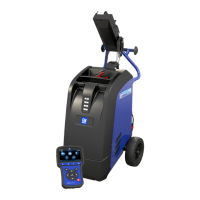
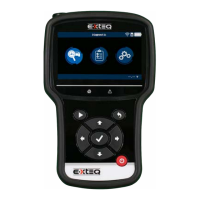
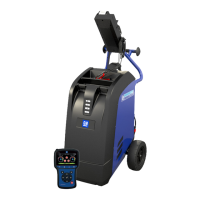
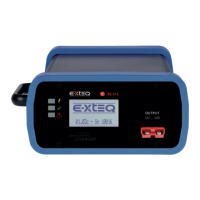
Connect your device to the PC using the
USB cable included in the kit. This will allow
a two-way connecon between your device
and PC.
Aer Opmus has installed, locate and
double click the Opmus icon on your
desktop.
Opmus will ask you to enter your Username
and Password. If this is your first me, you will
have to register for an account on Opmus.
The tool will be recognized by Opmus.
Click on your Device for update. Your device
will complete the update automacally if
any available.
AR_DCBS_UPDATE_OPTIMUS_V4.1
Soware installaon guide (Opmus)
1
2
3
4
5
6
7
8

 Need help?
 General

 To Next Page