EasyManua.ls Logo

Eagle II - User Manual

Eagle II
26 pages
Print Icon
To Next Page IconTo Next Page
Loading...
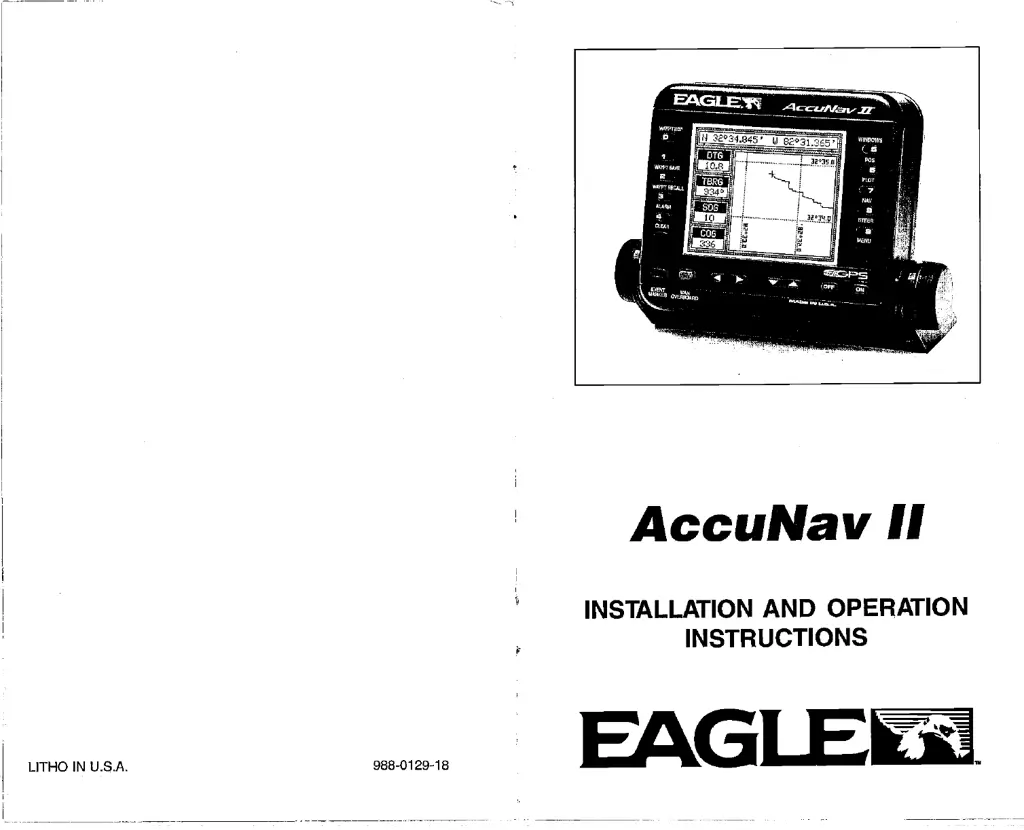
AccuNav
II
INSTALLATION
AND OPERATION
INSTRUCTIONS
LITHO IN U.S.A.
988-0129-18
EAGI
PDF compression, OCR, web-optimization with CVISION's PdfCompressor

Other manuals for Eagle II

Questions and Answers

  • J
    Jonathon RobinsonJul 30, 2025
    Why does my Eagle Gate Opener stop and reverse?
    • A
      Amber CohenJul 30, 2025
      Your Eagle Gate Opener might be stopping and reversing due to several reasons: * The gate operator may not be plumb and level, in which case you should remount the operator or swing arm. * The ERD current sensor might be set too sensitively; try turning the ERD sensor slightly clockwise. * The gate may have encountered an obstruction during travel. Check for and remove any obstructions.
  • T
    townsendjulieAug 9, 2025
    What to do if my Eagle Gate Opener won't close?
    • W
      William JenkinsAug 9, 2025
      If your Eagle Gate Opener won't close, here are a few things to check: 1. If the Radio Receiver's LED remains on, the remote or receiver may have malfunctioned in the 'on' position. 2. If one or more of the global input LEDs remain active, check any Global Inputs for a possible short circuit. 3. If the gate reopened because it encountered an obstruction while closing, only key/keypad and receiver will resume normal operation. 4. If the Loop Detector LED is on, reset the Loop Detector, verify correct wiring, set it to a different frequency, and/or change the sensitivity of the Loop Detector. 5. Ensure switch #8 is functioning. The 'Close Timer' (switch #4) must be set to the 'on' position.
  • F
    franktownsendAug 18, 2025
    How to fix an Eagle Gate Opener that will not open?
    • L
      Larry GomezAug 18, 2025
      If your Eagle Gate Opener isn't opening, consider these potential causes: * A motor overload could be the issue. Reset the thermal breaker on the motor. * If the Radio Receiver isn't 'on' when the remote control is activated, the receiver in the gate operator may have malfunctioned in the 'off' position. * If the green LED is 'off,' turn 'on' the power switch and/or reset the main circuit breaker. * A blown fuse could also be the problem. Check and replace it with a proper fuse.

Summary

Windows Summary

Introduction and Mounting

Introduction

Overview of the AccuNav II's quality, ease of use, and features.

Mounting the GPS Module

Instructions for installing the GPS module on various surfaces.

Power and Module Tests

Power Connections

Details on connecting the AccuNav II to a power source.

GPS Module Self-Test

Procedure for running diagnostic tests on the GPS module.

GPS Simulator

How to activate and use the GPS simulator mode.

GPS Module Installation and Settings

GPS Module Installation

Guidelines for physically installing the GPS module.

Position Correction Factor (PCF)

Adjusting position data to match chart datum for improved accuracy.

Man Overboard Feature

Keyboard and Presets

Keyboard Layout

Description of the function of each key on the AccuNav II.

Preset Function

Restoring factory default settings for the unit.

GPS Fundamentals and Data Display

GPS - How It Works

Explanation of the Global Positioning System principles.

True and Magnetic Position

Understanding the difference between true and magnetic north.

Accuracy and DGPS Setup

GPS Accuracy Explained

Discussion on factors affecting GPS accuracy and civilian vs. military use.

DGPS Beacon Receiver Setup

Configuring the unit to receive and use differential GPS data.

NMEA Interface and Initialization

Select NMEA Data Format

Configuring NMEA output for compatibility with other devices.

Getting Started: Initialization

Initial setup steps for acquiring satellite signals and setting position.

GPS Settings and Alarms

Changing GPS Settings

Adjusting parameters like position, altitude, time, and date.

GPS Alarms Overview

Setting up arrival, XTE, and anchor alarms for navigation safety.

Date and Cold Start

Change Date Setting

Procedure to update the unit's internal date.

Cold Start Procedure

Initiating a cold start for faster satellite acquisition.

Display Information and Route Management

Position;Navigation Displays

Overview of available data screens like position, navigation, and plotter.

Satellite Information Screen

Detailed view of satellite status, signal strength, and errors.

Erasing a Route

Steps to delete a stored route from memory.

Navigation Control and Route Modification

Cancel Navigation

How to stop active navigation to a waypoint or route.

Modifying a Route

Instructions for changing waypoints within an existing route.

Position Screen Details

Explanation of data shown on the main position display.

Steering and Route Following

Steering Screen (CDI)

Visual display for steering boat towards a waypoint.

Following a Route

Steps to activate and navigate along a pre-programmed route.

Navigation and Display Customization

Navigation Screen

Screen showing DTG, BRG, SOG, COG, XTE, and local time.

Customize Screens

How to change the data displayed on various screens.

Plotter and Route Creation

Plotter Overview

Using the plotter to view tracks, position, and destinations.

Creating a Route

Step-by-step guide to creating and naming a new route.

Waypoint Management and Plotter Cursor

Erasing a Waypoint

Procedure for deleting waypoints from memory.

Recall a Waypoint

How to select a saved waypoint for navigation.

Plotter Cursor Usage

Using the cursor to determine coordinates on the plotter.

Plotter Menus and New Waypoints

Plotter Menu - Page 1

Options for clearing tracks and adjusting plotter range.

Enter New Waypoint

Manually entering latitude and longitude for a new waypoint.

Saving Waypoints and Navigation Aids

Saving Present Position as Waypoint

Methods for saving current location as a waypoint.

Goto Cursor Feature

Navigating to a position marked by the plotter cursor.

Display Customization and Waypoint Navigation

Change Display Settings

Customizing the four digital display windows on the plotter.

Waypoint Navigation

General information on navigating to saved waypoints.

Windows, Grid Lines, and Plotter Updates

Windows Feature

Using the windows feature to display multiple data sets simultaneously.

Grid Lines

Enabling or disabling latitude/longitude grid lines on the plotter.

Event Markers and Help

Event Marker Function

Placing icons on the plotter to mark points of interest.

Erasing Icons

Removing groups of icons from the plotter display.

Help Menu

Accessing in-manual help for features and operations.

Eagle II Specifications

General IconGeneral
TypeFish Finder
Operating Frequency200 kHz
Depth RangeUp to 600 feet
DisplayLCD
Used onBoats

Related product manuals