14
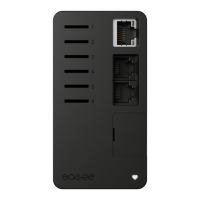
1. Turn on the power. The terminals of the backplates
are now electrically live.
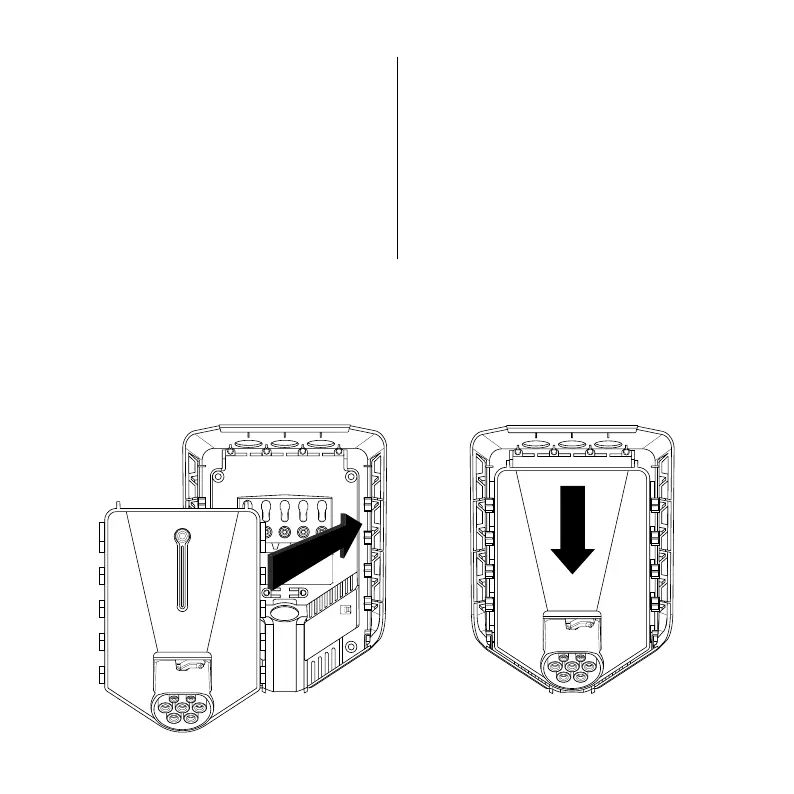
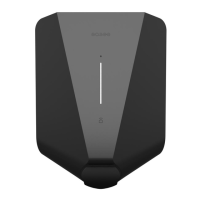
2. Position the Chargeberry to fit into the slots on the
backplate located in the center of the installation.
3. When the Chargeberry is in the track, press it
forcefully down until you hear a click.
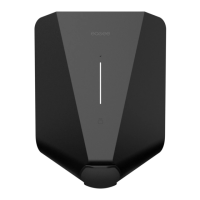
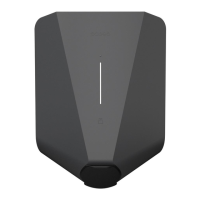
Chargeberry
Attaching5
3
2
”CLICK!”
NOTICE! If the charging circuits include more than one
Charging Robot, the backplate that is configured first
becomes the master unit of the charging infrastructure.
To achieve the best communication flow, the centre
backplate should be configured first.
NOTICE! You must use the same Chargeberry to program
all the backplates that are connected to the same fuse/
cable. Alternatively, you can program the backplates
using the Easee Installer app (available soon). If more
than one Charging Robot is to be installed, wait until
the configuration of all backplates is complete before
attaching the remaining Chargeberries.


 To Next Page