15 | P a g e
2.5. Driver installation (Windows 7 / 8 / 10)
(1) The EasyBadge 2.0 Printer
driver installation will start
after the EasyBadgeSystem-
Setup-WithDriver.exe has been
downloaded and run on your
PC after the EasyBadge
software is installed.
Once complete the printer driver
installation will start. More information
can be found at the start of the quick
start guide included in the download
media.
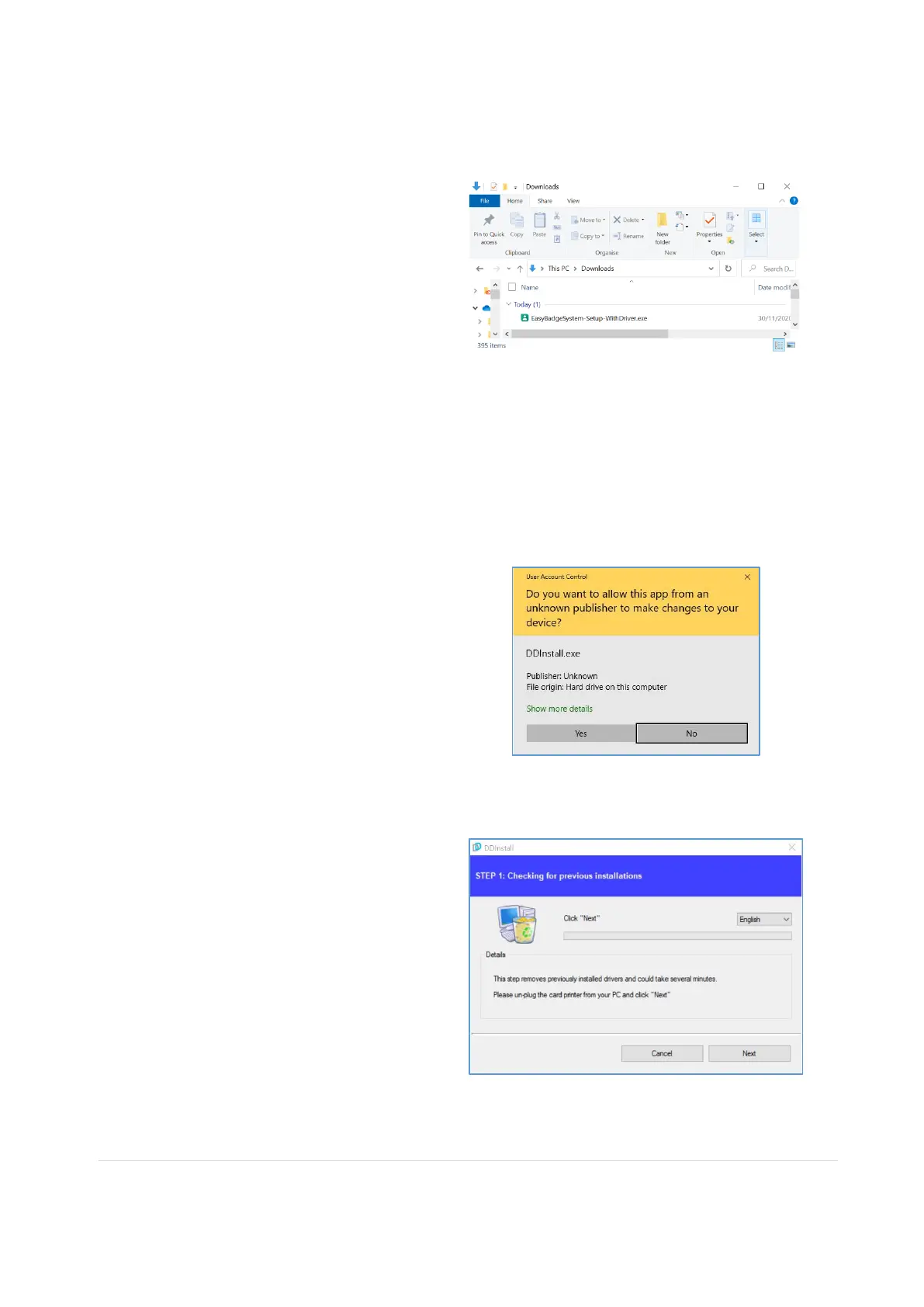
(2) When the driver installation
starts “User Account Control”
window will opened, click “Yes”
Figure 1 Install Win10 driver 2
(3) STEP 1:
Please turn off printer if it is
connected to PC. Please click
“Next”. When you click “Next”,
older driver will be removed
automatically.
This process will take several minutes to remove
older driver.
You can select the languages by selecting the
combo box as shown on the left picture.



 To Next Page