2. Uncheck the “Obtain IP from DHCP server” box.
3. Change the last digits of the IP address to a STATIC IP of your choice. By default most modems don’t
have a STATIC IP range setup for us so we need to setup our own STATIC IP Range, please refer to your
modems manual or the company that has delivered / installed your modem if you don’t know which IP
addresses are free to use as STATIC IP or if you don’t know how to setup a STATIC IP Range.
You might also leave the IP address that’s already in the box but this could cause network IP Conflicts if
the STATIC IP falls within the DHCP range. Use at your own risk!
4. When finished, enter your password (if any) and press “OK”, the camera will reboot with the new IP
settings.
4 Port-Forwarding
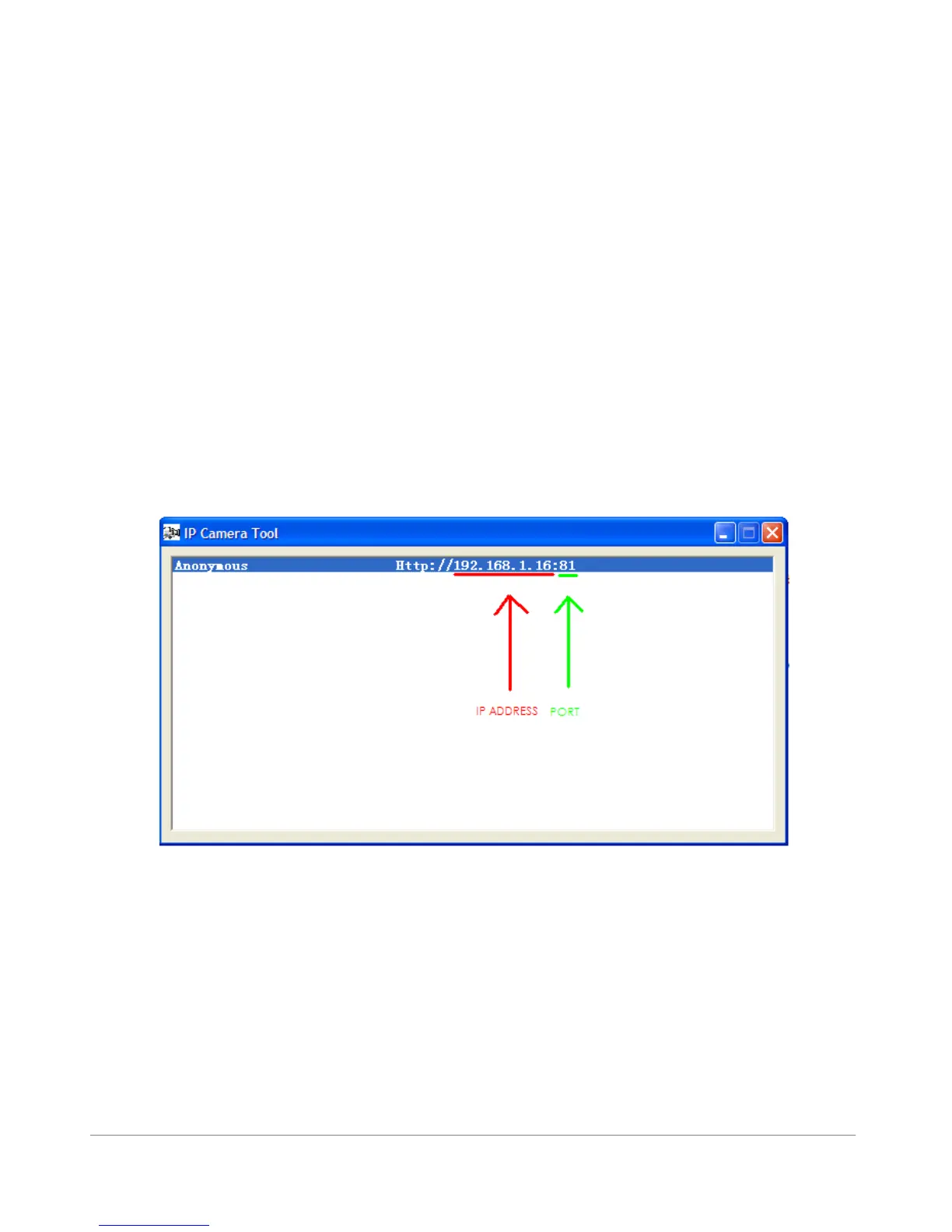
Now we have changed the camera`s IP and Port number, our IPCameraTool should show us the new
information:
Figure 4.0
If we see the correct STATIC IP and Port number we can continue with the “Port-Forward”, this is needed
because when we want to look from outside our LAN (Home) to our camera image, our modem will block
the request since it will think we are an intruder to the network.


 To Next Page