Equipment Interface Status LED
The Equipment Interface has four LEDs to display the
status of the system.
If you’ve wired the system correctly, only the Power
LED should be on.
The LEDs operate as follows:
Power This LED monitors the power supply of the
Equipment Interface.
LED ON Power is connected to the Equipment
Interface and is within the appropriate
voltage range.
LED OFF Power is disconnected or has dropped
below 9V.
System This LED monitors the operation of the
Equipment Interface.
LED ON There is a fault with the Equipment Interface.
LED OFF The equipment interface is operational.
Line This LED monitors the power supplied to the
Thermostat from the Equipment Interface.
LED ON The voltage at the +12V and GND terminal
has dropped below 7V.
LED OFF Adequate power is being supplied to the
Thermostat.
Communication This LED monitors the communication
between the Thermostat and the Equipment Interface
(i.e., the D+ and D- terminals).
LED ON The Equipment Interface and Thermostat
are not communicating with each other.
LED OFF The two devices are communicating properly.
19 Installing The ecobee System
SYSTEM SETUP
Navigating the Thermostat
Once the Thermostat and Equipment Interface are
powered up and working correctly, you can begin
conguring the system.
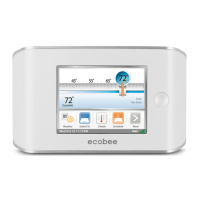
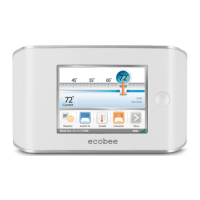
The Thermostat uses touch screen technology, so it’s easy
to navigate – just tap the icons, buttons and lists.
Note: To prevent damage to the touch screen, never use a sharp
object such as a pen.
When the screen shows a list setting an arrow on the right,
it indicates there are more than two options to choose from.
If there is no arrow, then the list item only has two options.
Toggle between options by pressing the list item.
In the various screens, you have three navigation choices:
Press Done to save changes and move to the next screen.
Press Cancel to go back to the previous screen without
saving changes.
At any time, press the Home button (found on the
right-hand side of the touch screen). This cancels any
action and takes you back to the home screen.
If you need to enter data in the form of text, you will be
presented with a keyboard.
Pressing the Caps key will allow you to enter capital
letters; pressing the 123@ key will change the letters to
numbers or commonly used symbols.
LED arrangement
Power
System
Line
Communication
System Set-Up 20





 To Next Page