AUTOMATION
The ecobee EMS can be congured to perform a number
of predetermined actions through the use of the 2 dry
contact inputs and/or the 3 accessory relays outputs. An
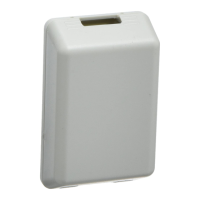
additional 4 sensors can be supported with the ecobee
Remote Sensor module (EB-RSM). The EMS system will
automatically detect when this module is installed.
Setting Up the EI Sensor Inputs
The ecobee EMS system supports 2 dry contact inputs
(IN1 and IN2).
Name
To enable, simply enter a name for this input (i.e. Door
sensor). To disable this input delete the name assigned.
Type
This denes the type of input. In this version only Dry
Contacts are supported.
Congure States
This option allows you to view and edit the states or
Add New State.
State Select whether the circuit or contact is open
or closed.
Congure Actions This section allows you to program
and edit the actions or Add New Action.
Type Select the type of action from the list.
Do Nothing No specic action will occur if this
option is selected.
Switch to Occupied* Switches the system to the
Occupied program when the input is activated.
Unoccupied* Switches the system to the Unoccupied
program when the input is activated.
* The Economizer and/or Occupancy relay outputs, if
congured, will also be switched to the appropriate state
when this input is congured and activated.
Shut down Compressor/Humidier The compressor
(both for AC or Heat pump) or the humidier/
dehumidier will shutdown and remain shutdown
until this input is cleared.
List of Alerts
Below is a complete list of alerts. Depending on the
conguration, some of these may not apply to the system.
To Set-Up Sensor Inputs:
From the Home
screen, Press More.
Press Settings,
select Installation
Settings then
Sensors from the
menu...
To Add a New Sensor state:
Select the Dry
Contact associated
with the Sensor.
Give the Sensor state
a Name then select
Congure States.
Enter the chosen
State, open or
closed, then Select
Congure Actions.
Enter all applicable
info including the
type of action you
would like performed
for this state.
31 Automation Automation 32
Low Battery
Furnace Air Filter
Ventilator Filter
UV Lamp
Humidier Filter
Comms fault
Low Temp. Alert
High Temp Alert
Low Humidity Alert
High Humidity Alert
Heat Not
Responding
Cool Not
Responding
Input 1
Input 2
Maintenance
Reminder
Auxiliary Heat
Run Time
Auxiliary Outdoor
Temperature
The battery in your Thermostat will need
to be changed soon.
Your furnace lter needs to be
cleaned/changed.
Your ventilator lter needs to be
cleaned/changed.
Your UV lamp needs to be changed.
Your humidier pad needs to be
cleaned/changed.
There is no communication between the
Thermostat and the Equipment Interface
module.
The temperature in the area is too low.
The temperature in the area is too high.
The humidity in the area is too low.
The Humidity in the area is too high.
The system has failed to heat the area.
The system has failed to cool the area.
Used if this input is programmed to
generate an alert.
Used if this input is programmed to
generate an alert.
You are due for regular maintenance.
Your auxiliary heat source is running
too often.
Your auxiliary heat source is running
at higher than expected outdoor
temperatures.


 To Next Page
 Loading...