39 Connecting To The Internet
CONNECTING TO
THE INTERNET
To connect the system to the ecobee EMS Web Portal
you must have a broadband Internet connection and a
wireless network.
Setting up WiFi
The ecobee EMS is equipped with a WiFi radio that
connects to a wireless network. You must enable and
congure the WiFi radio to access the wireless network.
When the WiFi radio is turned on, the Thermostat
displays a list of available networks, along with an
indication of the signal strength and whether security
encryption is used.
Once the network has been detected, press on that list
item to continue with the conguration. If the network
is encrypted, you will be asked to enter the password for
that network.
Advanced Conguration
Advanced conguration lets you input the network
parameters manually. Select this list item and choose
the network you wish to connect to or add one to the
list (i.e. if the network does not broadcast its SSID). You
will then be able to view and congure the following:
Dynamic or Static IP addressing
SSID
Password
Type of Encryption
WiFi Channel
IP Address
IP Subnet
Gateway
Primary and Secondary DNS
The ecobee EMS uses TCP Port 8089 to communicate
to the ecobee servers. If you cannot connect to
ecobee.com, contact the network administrator to
determine if this port is blocked.
CREATING AN EMS WEB
PORTAL ACCOUNT
To manage and control the ecobee EMS Thermostat,
you will rst need to create a Web Portal account.
To create an ecobee EMS Web Portal, please visit
www.ecob ee.com/emsaccou nt. Fill out the form in
full, including a valid ecobee EMS 12-digit serial number.
You can use the same username and password as your
current Contractor Portal or ecobee Thermostat account.
If you do so, an additional tab titled EMS will appear the
next time you log in.
Note: You cannot register an ecobee Smart Thermostat
(EB-STAT) to your EMS Web Portal. They are incompatible
and an error will be generated if a Smart Thermostat serial
number is entered into an EMS Web Portal.
Registering an ecobee EMS Thermostat
To register an ecobee EMS Thermostat you will rst need
to create an ecobee EMS Web Portal account.
Once you have logged into your EMS Web Portal and
want to register a Thermostat, click on My Sets and
create a new Set to house the new Thermostat. Once
a set is created, simply select Add a Thermostat and
enter the 12-digit serial number of the ecobee EMS
Thermostat. For more information, please refer to the
on-line help menus in the EMS Web Portal.
Creating An EMS Web Portal Account 40
To register an ecobee
EMS Thermostat:
Log into your ecobee
EMS Web Portal
From the Thermostat
widget’s Manage tab,
create a new set within
the My Sets folder.
Click on the new
set and select Add
a Thermostat.
Fill in all necessary
Information and
click done.
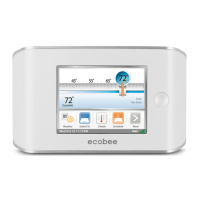
To set up the WiFi radio:
From the Home
screen, Press More.
Press Settings.
Switch WiFi on and
select your network
from the list of
available networks.





 To Next Page