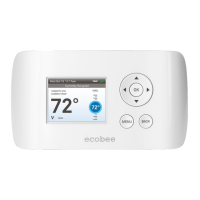
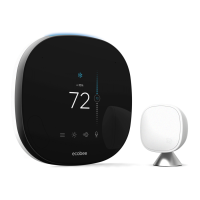
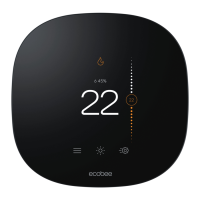
43 Using The ecobee EMS Thermostat
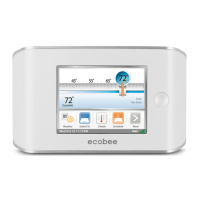
Feature Icons
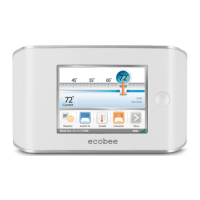
The feature icons allow you to quickly access the various
features of the ecobee EMS. Press any one of these icons
to activate that specic feature.
Register
Use the Register icon to initiate the registration process.
This will prompt you to congure the WiFi radio. For the
EMS system to complete the registration process you
will need to log into the ecobee EMS Web portal and
enter the Thermostat’s 12-digit serial number. Once
successfully registered, the Registration icon is replaced
by the Weather icon.
Weather
The Weather icon displays the current outdoor
temperature for the specic Thermostat location that
was entered during the registration process. Press the
icon to see the full ve-day forecast.
Detail
Press the Details icon to see system details such as
humidity levels and furnace fan settings. If you have a
ventilator, humidier or dehumidier connected, Details
will also display these settings.
Program
Press Program to set the desired temperatures
throughout the day for each day of the week. The image
on this icon will change to show which period of the day
(Occupied, or Unoccupied) is currently in eect.
Resume
If the Thermostat has been manually adjusted, the
Resume button will be displayed. Pressing this button will
cause the system to revert back to the scheduled program
Switch To
Pressing the Switch To icon will switch the system to
the period shown in the icon. If the system is in the
Unoccupied period, it will switch to the Occupied period
and remain there for 2 hours. If the system is in the
Occupied period, it will switch to the Unoccupied period
and remain there until the next scheduled transition.
More
Press this icon to navigate to additional features.
Cleaning the Touch Screen
Press the Clean me icon to deactivate the touch screen.
You can clean the Thermostat touch screen by spraying
water or any mild, non-abrasive household cleaner on
a clean cloth. Wipe the surface of the touch screen with
the dampened cloth.
Note: Do not spray any liquids directly onto the Thermostat.
The touch screen will be deactivated for 20 seconds and
the time to reactivation will count down.
Viewing Details
The Details screen lists various temperature and equipment
details associated with the Thermostat:
Current Temperature
The temperature in the room where the Thermostat
is installed.
System Mode
Displays the mode the system is operating in. Press this
item to display a list of options:
Cool The system will turn on the air conditioner when
the current temperature rises above the set temperature.
Heat The system will turn on the furnace when the
current temperature drops below the set temperature.
Auxiliary Heat Only The system will only use the
auxiliary or back-up heat source to maintain the heat
set point temperature
Auto The system is in Auto change-over mode and will
activate the heating or cooling systems to keep the
building within the desired range of set temperatures.
This option is only available if enabled in the
Installation Settings.
Off The system is o and will only display the current
temperature.
Fan Control
Displays the current furnace fan setting. Press this
item to toggle between:
On The fan runs all the time regardless of programming,
or if there is a call for heat or cool. The fan will also run if
the System Mode is O.
Using The ecobee EMS Thermostat 44
To clean the touch screen:
From the Home
screen, press More.
Press Clean Me.
To access your Details:
From the Home
screen, press Details.


 To Next Page
 Loading...