4
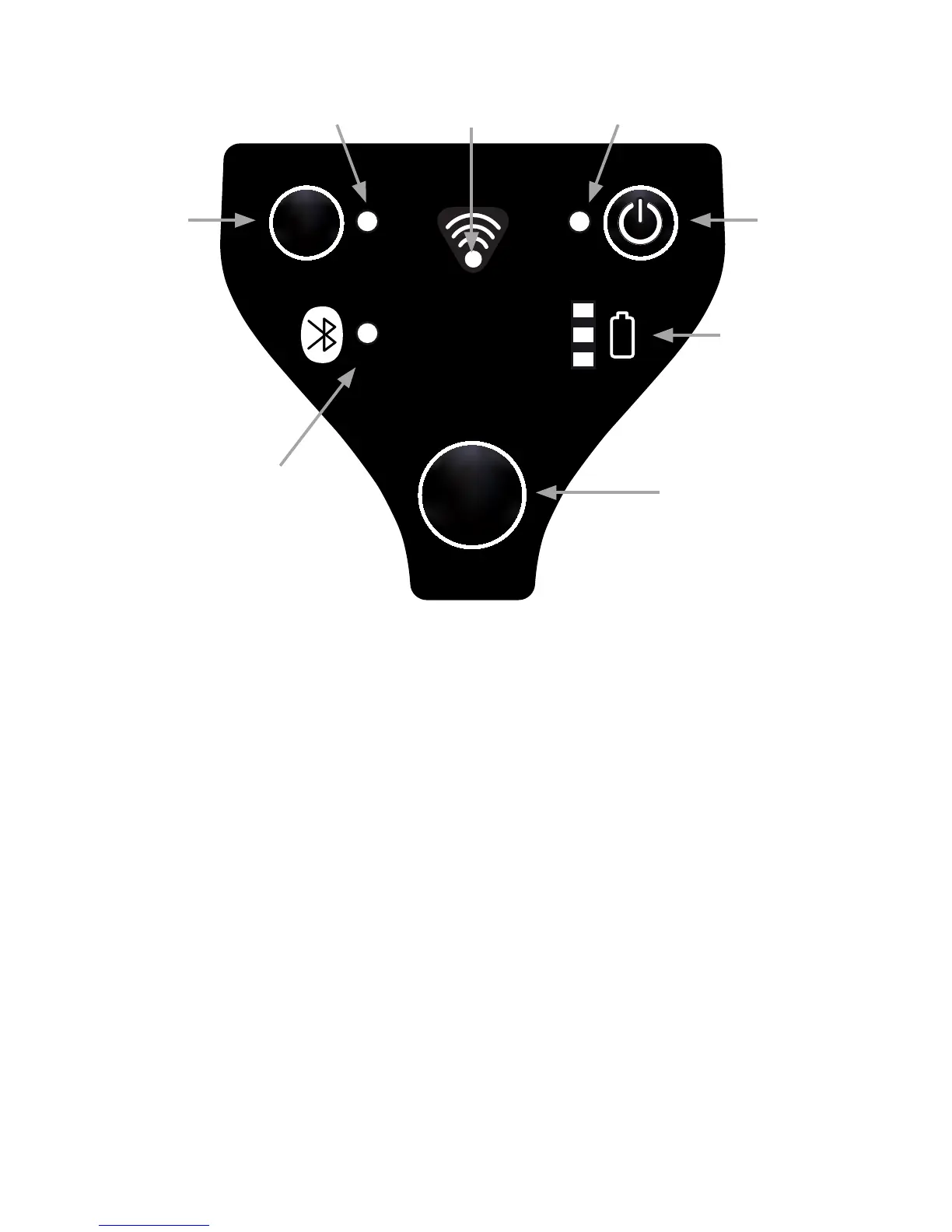
5. Description of Buttons and LEDs
There is only one button on the bottom side of the Ident-Ex – The main trigger.
6. Switching Ident-Ex On and Off with Power Button
To turn on the Ident-Ex, you have to keep the Power Button pressed for 2
seconds. Please note that the Ident-Ex can only be turned off, if the device is in
battery operation. As soon as the device is in the docking station or being char-
ged, it cannot be turned off.
7. Turning off Ident-Ex through time setting
The Ident-Ex has a setting which allows the device to automatically turn off after
a dened timer period (see Switch off time), but only if the device doesn’t have a
Bluetooth connection.
If no Bluetooth connection could be found, the predened time to automatically
turn the device off will start. As long as the device doesn’t get connected via
Bluetooth during the predened time, it will automatically turn off. Again, the
Ident-Ex can only be turned off if it is in battery operation. Turning off the Ident-
Ex 01 through time setting can be disabled by setting the Switch off time = 0.


 To Next Page