2
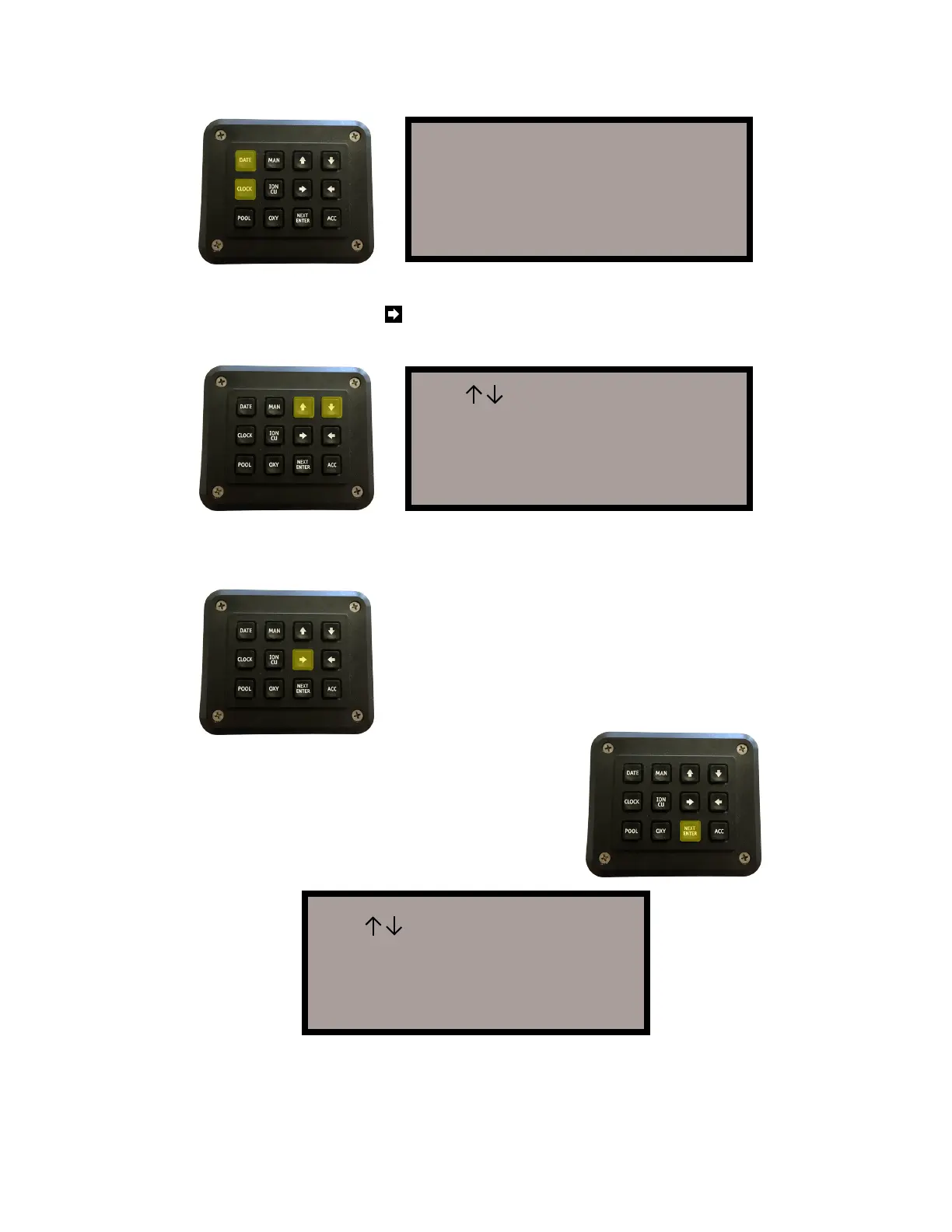
Now, it is time to set up the DATE and TIME of your box. Press “CLOCK” or
“DATE” to setup either or both values. You will get the following screen:
Press “CLOCK” or “TIME” a second time to continue setting up the DATE
and TIME of your box. The arrow key will return you to the “Home Screen.”
Upon pressing “CLOCK” or “DATE” the display will read as follows:
The cursor automatically starts on the day of the week. Press the “UP” or
“DOWN” arrows until the correct day of the week is displayed.
The curser automatically starts under the “hour” clock. Use the “UP” and
“DOWN” keys to set the correct hour. Then press the “RIGHT” arrow key to
switch to minutes. Repeat process until the correct time is displayed. Then
press the “NEXT WEEK” key to complete the setup. The display will then
return to the “Home Screen.” The correct TIME and DATE should be displayed
across the top.
When all values are correct, press the “NEXT
WEEK” key to move onto the next screen
where you can setup the correct time. The
screen is displayed as follows:
Then, press the “RIGHT” arrow key to move the
cursor across the LCD to the month. Continue
this process until the correct year, day, month,
and day of the week is displayed. At any time,
use either the “LEFT” or “RIGHT” arrow keys to
move within the LCD. Use “UP” and “DOWN” to
change any values.
10:18:07P 1/04/2014
Press CLOCK to set
the DATE and TIME
or NEXT to continue
Use >< Keys to set
Day and Date
TU 1/04/2014
Press NEXT when done
Use >< Keys to set
Time
10:18:27A
Press NEXT when done



 To Next Page