4
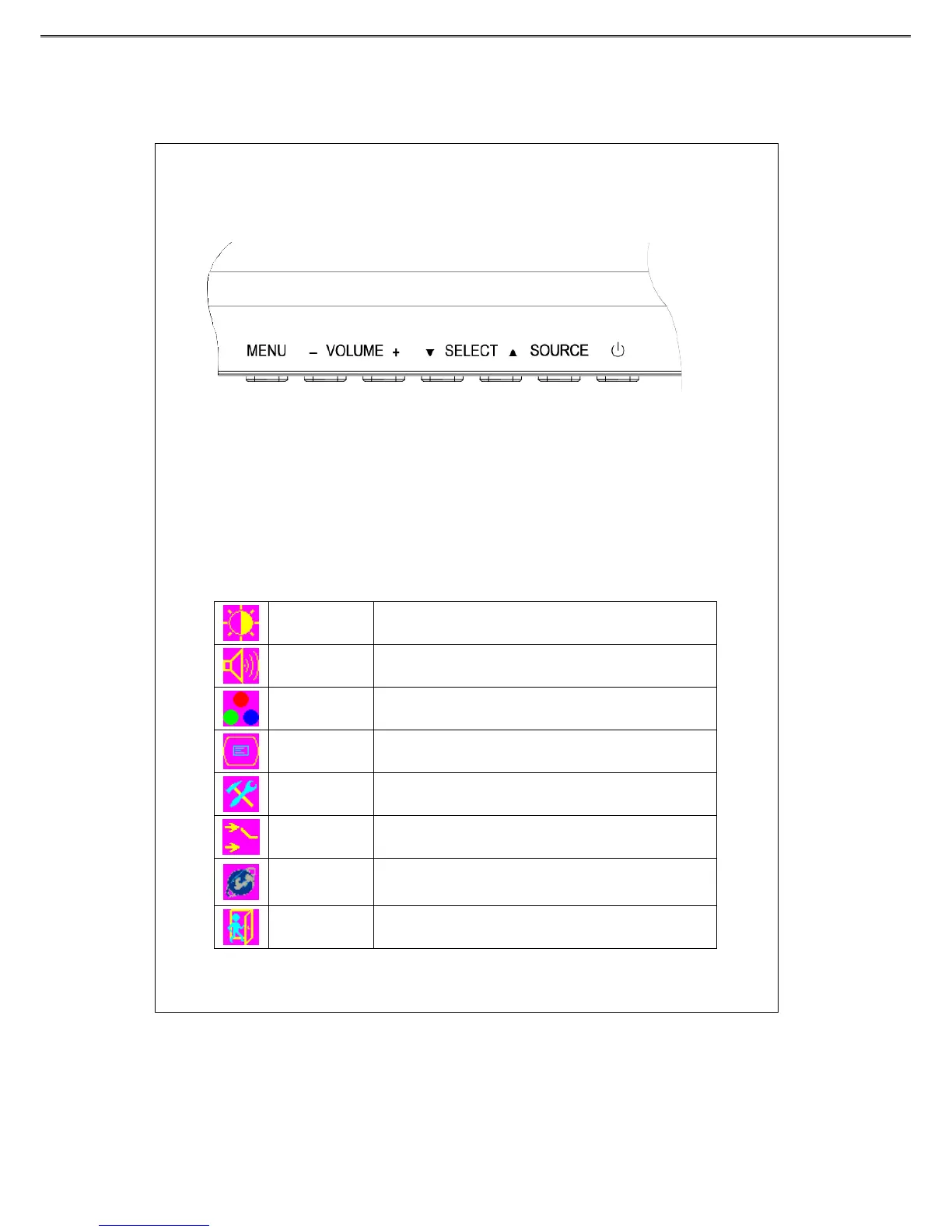
OSD (On-Screen Display) Adjustment Control
Step 1: Press “menu” to activate the OSD on-screen display menu.
Step 2: Press “ ▼”or“▲”
key to move the cursor to select the function.
Step 3: Press “source” to open the input source OSD menu
Step 4: Press “+”or “-”k e y t o m o ve t h e c u r so r to adjust the volume.
Quick Menu Functions
.
You can press “ ▼”or“▲” to adjust
Bright Contrast
To adjust the brightness and contrast of the background.
Volume
To adjust the volume of the speakers.
Color
To adjusts the parameters for red, green and blue
colors on the screen.
Image Config
To adjust the vertical and horizontal positions of the screen.
OSD menu
To set the position of OSD display status automatically.
VGA/DVI
To select the signal source option (D-SUB or DVI)
Language
To select English, Traditional Chinese , French, German, Italian,
Spanish, Polish and Korean for OSD language display on your
own preference. The user can select a preferred language.
Exit
To quit from the OSD Menu.


 To Next Page