27
4 – HELP
This chapter provides suggestions for identifying problems that may arise when using your printer. If you do not manage to solve your problem, please
contact your Edikio by Evolis reseller.
WARNINGS AND DIAGNOSTICS
Although the Edikio printer was designed to work independently and keep user intervention to a minimum, it may be useful for you to know the main
warning messages.
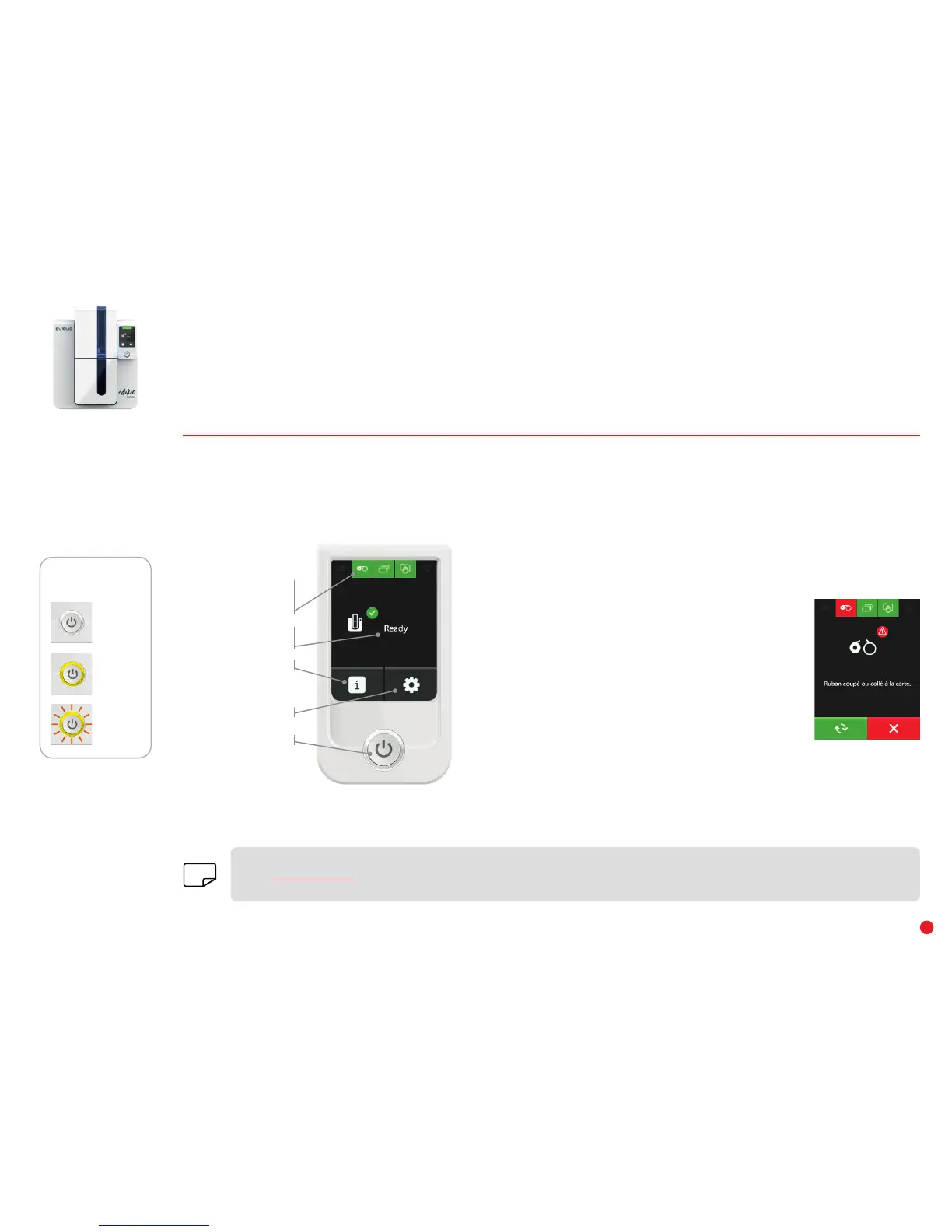
LCD screen message:
The Edikio Duplex printer has an LCD touchscreen. Please refer to the LCD screen user guide on how to operate it.
Go to www.evolis.com and under Drivers & Support, select your Edikio printer model and click on the "Manual and Documentation"
tab. Click on the LCD User Guide to download it.
NOTE
Permanent status of
the ribbon, cards, and
cleaning
Information menu
Setup menu
Control button
Printer activity
OFF
STEADY LIGHT
FLASHING
CONTROL BUTTON
STATUS
WARNINGS AND DIAGNOSTIC MESSAGES DURING PRINTING
If there is a problem during printing, you will be notified of
this through the Edikio Printer Suite software. This application
displays messages to help you resolve any problems.
The warning or diagnostic messages are also displayed
on the LCD screen. They consist of an icon illustrating
the problem, the problem status, and a short diagnostic
message.
There are 2 types of message:
• 2-button message
Press the button with 2 arrows to restart the print job OR
press the button with the cross to cancel printing.
• 1-button message
Press the button with the cross to cancel printing. Printing will automatically be
continued after the problem has been corrected.
Example of
a 2-button message


 To Next Page