EasyManua.ls Logo

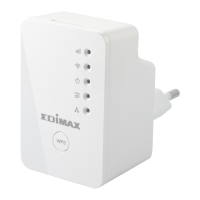
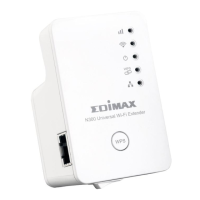
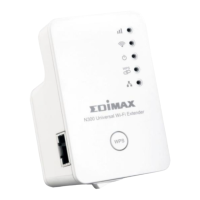
Edimax EW-7438RPn V2 - User Manual

Edimax EW-7438RPn V2
126 pages
Print Icon
To Next Page IconTo Next Page
Loading...
EW-7438RPn V2
User Manual
09-2013 / v1.0

Table of Contents

Other manuals for Edimax EW-7438RPn V2

Questions and Answers

  • L
    liukevinJul 26, 2025
    How to improve poor signal from my Edimax EW-7438RPn V2?
    • D
      Donna WolfJul 27, 2025
      To improve the signal of your Edimax Extender, place it in an open space, roughly midway between your router and the Wi-Fi dead zone, where the extender LED displays “Excellent” signal strength. Also, keep the extender away from other radio devices like microwaves or wireless telephones, and avoid placing it in corners or near metal. Plug the extender directly into a wall socket and minimize obstacles between it and the access point/router.
  • K
    Katrina CruzAug 2, 2025
    Why my Edimax Extender network device can't access the Internet?
    • J
      Joshua CrawfordAug 2, 2025
      Your Edimax Extender network device might not be able to access the internet for several reasons. First, ensure that your broadband router is fully functional. Then, try switching off both your network device and the extender, and then switch them back on again. Also, make sure the extender is powered on by checking the PWR LED. Finally, access the browser-based configuration interface home page and check the “Status” under “Wireless Configuration.” It should display “Connected”; if it shows “Disconnected,” the extender isn't connected to your router/access point.
  • K
    Kimberly MartinezAug 7, 2025
    What to do if I can’t establish a connection to my Edimax wireless extender?
    • D
      ddavisAug 8, 2025
      If you're unable to connect to your Edimax wireless extender, verify the WEP or WPA passphrase settings on your wireless client if encryption is enabled, noting that passwords are case-sensitive. Try moving closer to the extender. You can also try switching the extender off and then back on after 10 seconds. Also, ensure the extender is correctly inserted into a power socket and check the LEDs on the front panel.
  • G
    grichardsonAug 13, 2025
    Why are file downloads very slow on Edimax EW-7438RPn V2?
    • A
      Anthony EvansAug 13, 2025
      If your file downloads are slow or frequently interrupted when using your Edimax Extender, try resetting the wireless extender. If the problem persists, it could be due to technical difficulties or high usage on your local network, so try again later. You might also try changing the channel number.
  • N
    nthompsonAug 19, 2025
    Why is my Edimax EW-7438RPn V2 Extender extremely hot?
    • A
      Allen MonroeAug 19, 2025
      It is normal for the Edimax wireless extender to heat up during frequent use. However, if you smell burning or see smoke coming from the extender, disconnect it immediately, if it is safe to do so, and contact your dealer for assistance.

Summary

I. Product Information

I-1. Package Contents

Lists the items included in the product package.

I-2. System Requirements

Outlines the necessary hardware and software for setup.

I-3. LED Status

Explains the meaning of different LED indicator lights on the device.

I-4. Hardware Overview

Provides a visual guide to the device's physical components and ports.

I-5. Safety Information

Details important safety precautions for using the device.

II. Installation

II-1. Wi-Fi Extender Mode

Guides the user through the setup process for Wi-Fi Extender mode.

II-2. Wi-Fi Adapter;Bridge Mode

Guides the user through the setup process for Wi-Fi Adapter/Bridge mode.

II-3. Wi-Fi Access Point Mode

Guides the user through the setup process for Wi-Fi Access Point mode.

II-4. WPS Setup

Explains how to use the WPS button for a quick connection.

II-5. Reset to Factory Default Settings

Provides instructions for resetting the device to its default settings.

III. Browser Based Configuration Interface

III-1. Login

Details how to access the device's web-based configuration interface.

III-2. Save Settings

Explains how to save configuration changes made to the device.

III-3. Main Menu

Describes the main menu options available in the configuration interface.

IV. Extender Mode

IV-1. Home

Displays basic system and network status information for Extender mode.

IV-2. iQ Setup

Allows reconfiguring basic device settings using the setup wizard.

IV-3. WPS Settings

Configures WPS settings for connections within Extender mode.

IV-4. Wireless Advanced

Provides advanced wireless settings and LED control options.

V. Wi-Fi Adapter;Bridge Mode

V-1. Home

Displays system and network status for Wi-Fi Adapter/Bridge mode.

V-2. iQ Setup

Allows reconfiguring basic device settings for Adapter/Bridge mode.

V-3. Wireless Advanced

Provides advanced wireless settings and LED control options.

VI. Access Point Mode

VI-1. Home

Displays system and network status for Access Point mode.

VI-2. iQ Setup

Allows reconfiguring basic device settings for Access Point mode.

VI-3. Basic Settings

Configures fundamental wireless network settings like SSID and band.

VI-4. WPS Settings

Manages WPS configuration for client connections in AP mode.

VI-5. Wireless Advanced

Provides advanced wireless configuration options for experienced users.

VII. Appendix

VII-1. Configuring your IP address

Guides on checking and setting up IP addresses for accessing the device.

VII-1-3. How to Find Your Network Security Key

Instructions for retrieving your Wi-Fi network password.

VII-2. Connecting to a Wi-Fi network

Steps for connecting a device to the extender's Wi-Fi network.

VII-3. Troubleshooting

Provides solutions for common issues encountered with the wireless extender.

Edimax EW-7438RPn V2 Specifications

General IconGeneral
Frequency Band2.4 GHz
Wireless Speed300 Mbps
SecurityWEP, WPA, WPA2
Ports1 x 10/100Mbps Ethernet port
ButtonWPS/Reset button
Operating Temperature0°C to 40°C
Wireless Standard802.11b/g/n
LED IndicatorsPower, LAN
Operating ModesAccess Point
Operating Humidity10% to 90% (non-condensing)
SetupWeb-based setup
Storage Temperature-20°C to 70°C
Storage Humidity10% to 90% (non-condensing)

Related product manuals