54
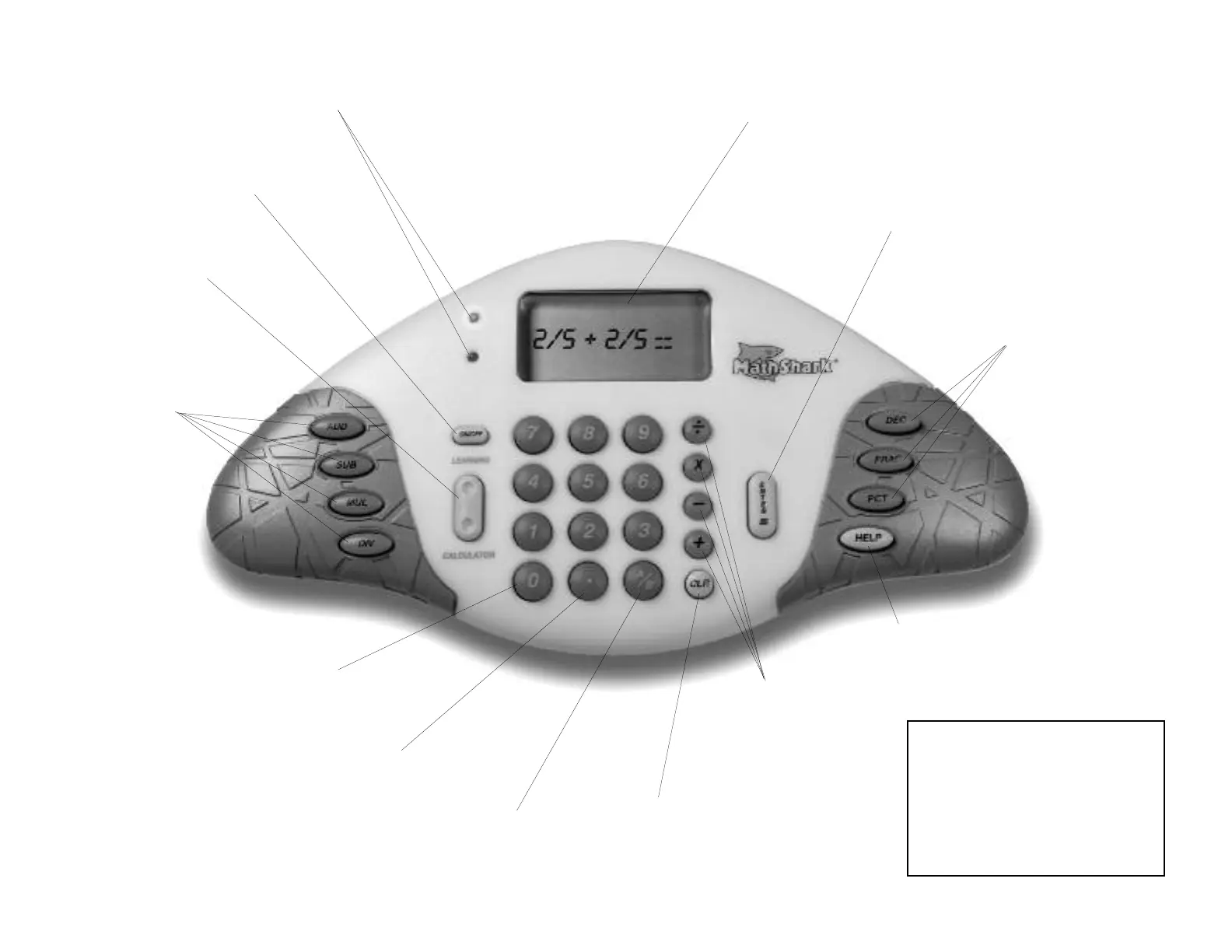
CLR
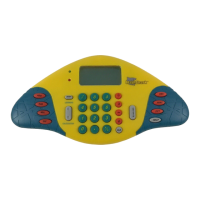
To change an answer, use
the CLR button to erase the
most recent number input.
SKILL
Press one of these buttons
to select a skill in
LEARNING—FRACTIONS,
DECIMALS, or PERCENTS.
SCREEN
Greetings, selection menus, examples, math
problems, skill level, and elapsed time appear on
the screen. Problems in LEARNING will show in
either vertical or horizontal format.
HELP
Help offers tips, steps, or alternate
ways to look at a problem. Visualization
is an important part of mental math.
When applicable, MathShark gives
learners two ways to look at a problem.
The HELP button can also be used to
adjust the display CONTRAST on your
screen. Turn MathShark on, and press
HELP during the opening screen. Use
the + and – buttons to adjust contrast
for maximum visibility. Press ENTER
to return to the main menu.
ENTER
Press this button to enter answers
in LEARNING mode or to find the
answer in CALCULATOR mode.
FUNCTION
Press a key to add,
subtract, multiply,
or divide.
MathShark‘s Special Features
LIGHTS
A flash of the green light means
the answer is correct; a flash of
the red light means it is incorrect.
ON/OFF
Use this button to turn
MathShark ON and OFF.
LEARNING/CALCULATOR
Use this button to choose
a mode.
SKILL
Press one of these
buttons to select a skill
in LEARNING—ADD,
SUBTRACT, MULTIPLY,
or DIVIDE.
NUMERAL BUTTONS
Use these to input answers.
DECIMAL BUTTON
Use this to input
a decimal.
FRACTION BUTTON
Use this to input
a fraction.










 To Next Page