EasyManua.ls Logo

eero Pro 6E - User Manual

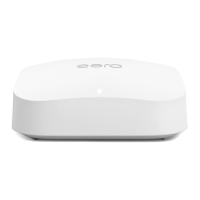
eero Pro 6E
7 pages
Print Icon
To Next Page IconTo Next Page
Loading...
Model
s
S
010001
draft
Confidential and Proprietary
/
26
/202
1
User Manual
>> eero Model S010001 draft <<
eero Pro 6E
Getting started with eero
One of the biggest frustrations with a traditional router has to be the confusing and complex
setup process, so at eero we’ve taken a different approach: make the entire setup experience as
quick and easy as possible. So, whether you’re an old hand at networking or are taking your first
step into home WiFi, eero is for you.
Our app will walk you through the process and do most of the heavy lifting, but here’s a quick
overview of what to expect. If you’re new to WiFi, or just need a refresher, we encourage you to
read this article and refer back to it if you have any concerns during in-app setup.
Before you begin:
Setup components
In the box:
o Ethernet cable
o eero(s)
o Power cord(s)
What you’ll need:
o eero iOS or Android app
o At least one 1st or 2nd-generation eero (eero Beacons cannot be used to start a network)
o Mobile device with a data connection (If you don't have access to a data connection, see
our workaround instructions here.)
o Internet service
o Cable or DSL modem (if required)*
Don’t know what a modem is? Unsure if you have one? Find out here.
Here’s how to get started getting your eero network online:
STEP 1: Download the eero app for iOS or Android:
Download the free eero app – you can find it on the Apple Store or Google Play. eero supports
both iOS and Android (check here for details on the versions we support). You’ll need the app to
set up your eero network. You won’t be able to set up your system on a web browser.
STEP 2: Create an eero account
Question and Answer IconNeed help?

Do you have a question about the eero Pro 6E and is the answer not in the manual?

Summary

eero Pro 6 E Setup Guide

Getting started with eero

Introduction to the eero setup process and overview of what to expect.

Setup components

Lists the necessary eero hardware and additional items required for setup.

Download and install the eero app

Instructions for downloading the eero app for iOS or Android devices.

Create an eero account

Steps to create a new eero account using phone number and email address.

Set up your gateway eero

Guide to connecting and setting up the primary eero device.

Create your eero network

Process of naming your eero network and setting a password (SSID).

Add additional eeros to your network

Steps for setting up extra eero devices or eero Beacons in your home.

Connect devices to your eero network

Final step of connecting your devices to the newly created eero network.

Regulatory and Compliance Information

FCC Radio Frequency Interference Warnings

FCC warnings and instructions regarding device operation and interference.

Unauthorized Modifications Policy

Policy on making changes to the product and potential consequences.

FCC Human Exposure Guidelines

Information on FCC compliance with radiation exposure limits.

FCC User Information

Details for users regarding serviceable components and antenna usage.

Industry Canada Compliance

Digital apparatus compliance with Canadian ICES-003 and RSS standards.

Industry Canada Radiation Exposure

Industry Canada statement on MPE/SAR compliance and separation distance.

Indoor Operation in 5150-5250 MHz Band

Restrictions for indoor use in the 5150-5250 MHz band for interference reduction.

Summary

eero Pro 6 E Setup Guide

Getting started with eero

Introduction to the eero setup process and overview of what to expect.

Setup components

Lists the necessary eero hardware and additional items required for setup.

Download and install the eero app

Instructions for downloading the eero app for iOS or Android devices.

Create an eero account

Steps to create a new eero account using phone number and email address.

Set up your gateway eero

Guide to connecting and setting up the primary eero device.

Create your eero network

Process of naming your eero network and setting a password (SSID).

Add additional eeros to your network

Steps for setting up extra eero devices or eero Beacons in your home.

Connect devices to your eero network

Final step of connecting your devices to the newly created eero network.

Regulatory and Compliance Information

FCC Radio Frequency Interference Warnings

FCC warnings and instructions regarding device operation and interference.

Unauthorized Modifications Policy

Policy on making changes to the product and potential consequences.

FCC Human Exposure Guidelines

Information on FCC compliance with radiation exposure limits.

FCC User Information

Details for users regarding serviceable components and antenna usage.

Industry Canada Compliance

Digital apparatus compliance with Canadian ICES-003 and RSS standards.

Industry Canada Radiation Exposure

Industry Canada statement on MPE/SAR compliance and separation distance.

Indoor Operation in 5150-5250 MHz Band

Restrictions for indoor use in the 5150-5250 MHz band for interference reduction.

eero Pro 6E Specifications

General IconGeneral
Wi-Fi StandardWi-Fi 6E (802.11ax)
Frequency Bands2.4GHz, 5GHz, 6GHz
Memory1 GB RAM
Storage4 GB Flash
MU-MIMOYes
BeamformingYes
Guest NetworkYes
Operating Temperature32°F to 95°F (0°C to 35°C)
CoverageUp to 2, 000 sq. ft.
Ports2 x Gigabit Ethernet ports
SecurityWPA3
Smart Home CompatibilityWorks with Alexa
Supported Devices100+ devices
Parental ControlsYes
Power Supply15W
Operating Humidity20% to 90% non-condensing