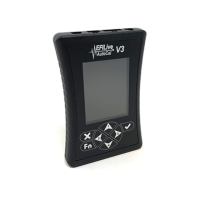
EFILive AutoCal Customer Quick Start Guide
• #1: Desktop shortcut; double click on the EFILive Explorer desktop shortcut to
open the application.
• #2: Computer folder list; folders present on your computer (resembling Windows
Explorer).
• #3: Computer file list; listing of files in the currently selected folder of the #2 pane.
• #4: AutoCal folder list; folders present on the internal flash memory of your
AutoCal device. This folder structure is described further in the next section.
• #5: AutoCal file list; listing of files in the currently selected folder of the #4 pane.
The example shown is indicative of what would be shown if you had read your
stock E38 engine controller to send to your tuner.
• #6: AutoCal connection status; the green tick indicates that your AutoCal device
is connected and recognised by the EFILive Explorer application. If your AutoCal
device was not connected before starting EFILive Explorer click on the AutoCal
icon to connect EFILive Explorer to your device.
Step Three:
Idaho Rob will email custom tunes. Save them in a place for you to retrieve them to be
loaded into the AutoCal.


 To Next Page