15
SETTING UP YOUR HOME WITHIN THE APP
TUYA is designed so it can work with a large number of compatible smart devices within your
home. It can also be set up to work with multiple devices within different houses. As such, during
the setup process the app requires that different areas are created and named to allow easy
management of all your devices. When devices are then added, they are assigned to one of the
rooms you have created.
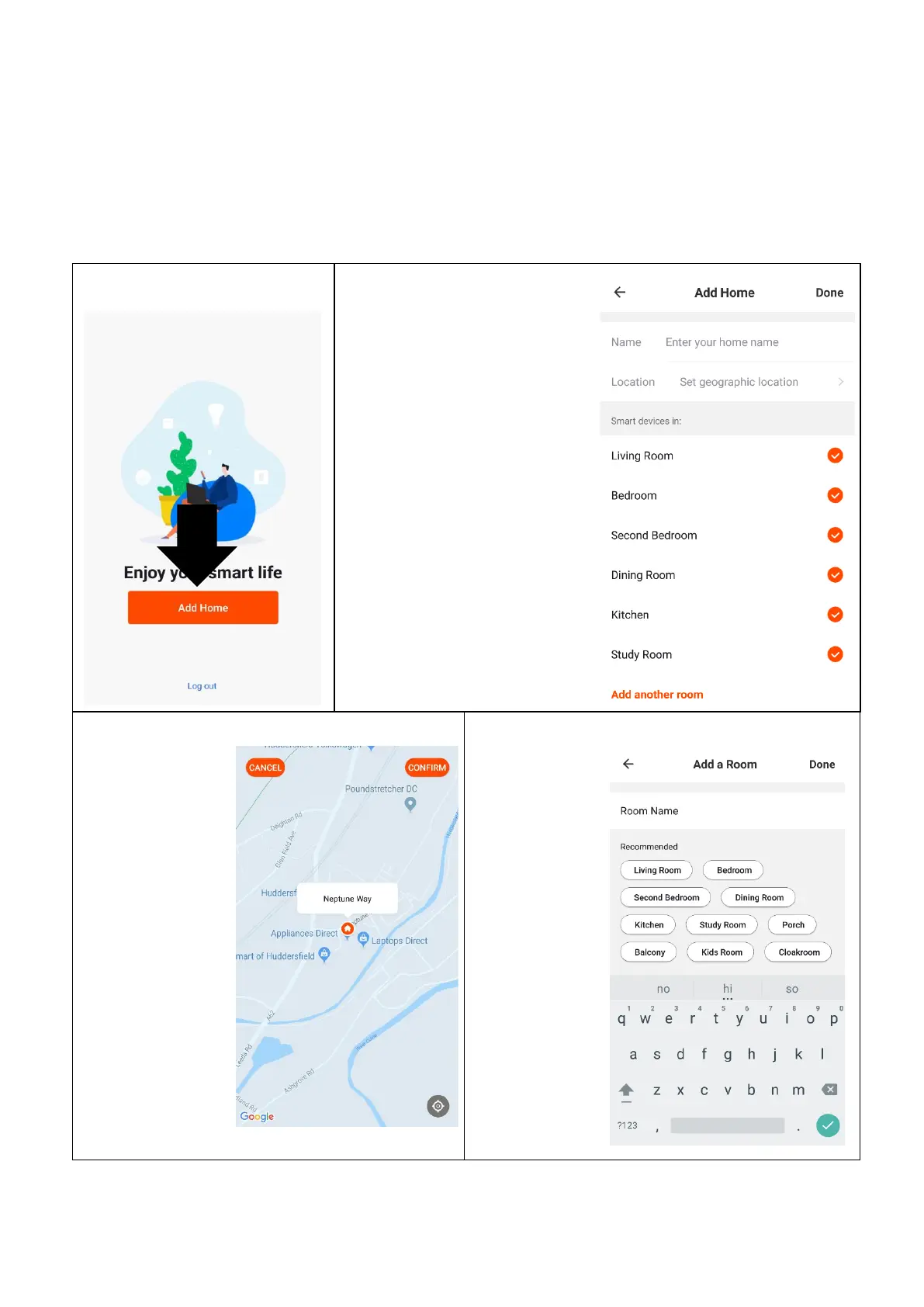
CREATING ROOMS
2. Type in a name for your
home
3. Press on the location
button to select the location
of your home. (See
SETTING YOUR
LOCATION below)
4. New rooms can be added
by pressing the ADD
ANOTHER ROOM option
at the bottom. (See ADD
ANOTHER ROOM below)
5. Untick any rooms that are
not required on the app.
6. Press DONE in the top
right corner.



 To Next Page