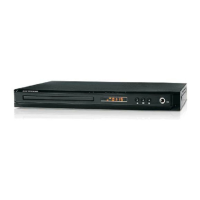
Turn on your TV and set it to the correct Video
input.
If you connected an external Audio system, turn on
your Audio system and set it to the correct Audio
input
Open the tray and place a disc gently into the tray with
the disc's label facing up. Press again
to close the tray.
When the player is playing, press the button
to pause.
Note: The picture is now frozen or in Still Frame
mode.
Press the button to stop in two ways:
a) Press Once: The DVD will stop and you can
resume where you left off by pressing the PLAY
button.
b) Press Twice: The DVD will stop and you will lose
the resume function.
Note: STOP memorizes the last frame displayed. If
the DVD is completely stopped, pressing the PLAY
button will start the disc from the beginning.
Press the button during play.
With each press of the button. you can
select slow motion play for 1/2, 1/4, 1/6 or 1/8 of
The normal speed.
No sound is heard during SLOW mode.
Press PLAY button to resume normal playback.
When the DVD is playing, press the button to
step forward the picture frame by frame.
Press the buttons to select the
desired feature in the menu, and then press the
button to confirm a selection.
When the player is playing a VCD disc, you may have
to press button to select the Left, Right or
Stereo soundtrack output.
1. Press the POWER button.
2. Press the OPEN/CLOSE button.
OPEN/CLOSE
3. Pause
PAUSE
4. STOP Play
STOP
5. Slow Motion Play
SLOW
SLOW
6. Step Function
STEP
7. Cursor Function
DIRECTIONAL
ENTER/PLAY
8. Audio Function
AUDIO
9. Using the Goto Function.
SEARCH
LEFT/RIGHT
Title/Chapter ---/---
Time --:--:--
ENTER
10. Skip Forward/Backward.
Note:
11. Fast Forward/Rewind
Note:
12. On Screen Display Menu
DISPLAY
13. Disc/Title Menu
MENU
TITLE
Note:
Press the button to play at a specific Title,
Chapter or Time.
Press the directional buttons to
highlight the desired selection.
Input title / chapter number
Input time hh:mm:ss
Press the / button to confirm your selection.
Press the button to skip forward.
Press the button to skip backward.
The player may not advance or reverse during
"WARNING" sections of the disc.
Press the button to search forward.
Repeatedly pressing the button will change the
search speed by 2x, 4x, 8x, and 16x the normal
speed.
Press the button to search backward.
Repeatedly pressing the button will change the
search speed by 2x, 4x, 8x, and 16x the normal
speed.
The player may not fast forward or rewind
during "WARNING" sections of the disc.
Press the button to switch the OSD (On-
Screen Display) on or off while the disc is playing. The
OSD provides information about the disc you are
playing. (i.e. elapsed play-time, remaining play-time,
etc.).
There are different OSD indicators for different disc
formats: DVD, CD, MP3, and Picture CD's.
The Disc Menu is a DVD disc feature that allows users
to select content on the screen.
Press the button to return to the DVD Disc
Menu.
Press the button to return to the DVD Disc Title.
Disc Title is the beginning of a DVD Disc.
Certain DVD Discs may not respond to the
“TITLE" function.


 To Next Page
 Loading...