Basic operation
Use [Hute] button
Pressthe [Mute] button to mute the sound, Press the [Mute] button again to resume the sound,
Select picture modes
Pressthe [PICTURE] button to select the picture mode from four options: Standard, Movie, User and Vivid,
In the "User" mode you can adjust the picture mode based upon your personal preference,
Select sound modes
Press the [sound] button to select sound modes from Standard, Speech, User, and Music. In the User Mode,
you can adjust the audio mode based upon your personal preference.
Select screen modes
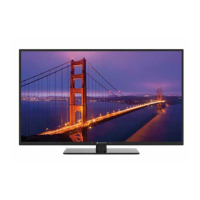
Press the [ASPECT] button to select the aspect ratio between picture width and picture height (High Definition
16:9 pictures will be displayed in original format 16:9, named Wide).The options for SD (Standard Definition
4:3) are Normal, Wide, Zoom and Cinema
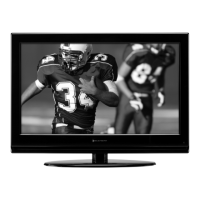
Normal
The original 4:3 aspect ratio (1.33:1 signal)
is preserved, so black bars are added to the
left and right of the image. Standard TV
broadcasts are displayed with a 4:3 aspect ratio.
Wide
When watching a standard broadcast or full-frame
movie in this mode, the display image is stretched
proportionately to fill the TV screen.
When watching a widescreen (1.78:1 signal)
program or movie, the display image fills the TV
screen.
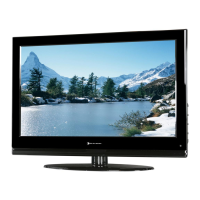
Zoom
Stretches the 4'3 aspect ratio image vertically
and horizontally to fill the screen at 1:1.78
aspect ratio.
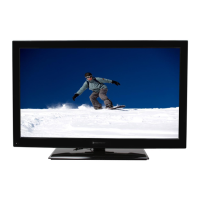
Cinema
Stretches the 4:3 aspect ratio image vertically
and horizontally to fill the screen at 1:2.35
aspect ratio.
15


 To Next Page