HART functionality
52
CONFIGURING THE HART
APPLICATION
Using hot keys Setting up hot key options
The Hot key menu is a user-definable menu that can store shortcuts
for
up to 20 of your most frequently performed tasks. For example, if
you change device tags and damping often, you can add options for
these functions to the Hot key menu for quick access. The Hot key
automatically appears in the toolbar when you are working online. Hot
keys created from generic DDs are not saved.
To add a custom option to the Hot key menu:
1.Connect to a HART device.
2.From the Field Communicator Main Menu, tap
.
3.From the HART Online Menu or any of the submenus, select the
opt
ion you want to add to the Hot key menu.
4.Tap and hold the Hot key (
). The Hotkey Configuration window
shows the new option you are adding.
5.Tap ADD.
6.Tap ALL to add
the Hot key option for all device types, or tap ONE to
add the Hot key option for only the device type to which you are
currently connected.
7.If the message “Mark as read only variable on hotkey menu”
app
ears, choose one of the following:
• YES: The
variable for this option is read-only. You can view but not
change its value.
• NO:
You can view and change the value for this variable.
8.Respond to the message “Display value of variable on hotkey
menu?” b
y choosing one of the following:
• YES: The valu
e of this variable appears on the Hot key menu.
• NO:
The Hot Key menu shows the name of the variable but not its
value.
9.Tap the EXIT button on
the Hotkey Configuration window to return to
the original menu. The new option is added to the Hot key menu.
Using a hot key option
You can access the Hot key menu from any online window.
To use a Hot key option:
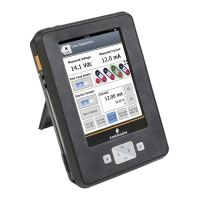
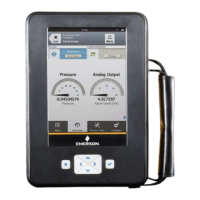
1.Connect the 475 Field Communicator to a HART loop or device.
2.From the Field Communicator Main Menu, tap
.
3.Tap the Hot key (
) from an online menu.
4.Double-tap the desired option from the Hot key menu.



 To Next Page