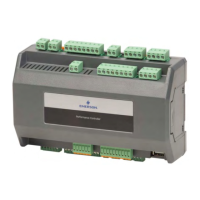
The provided document, "XC PRO CONTROLLER - BIOS UPDATE QUICK USER'S MANUAL," outlines the procedure for updating the BIOS of an XC Pro Controller, a device manufactured by Dixell under the Emerson Copeland brand. This manual primarily focuses on the technical steps required for the update, offering insights into the controller's connectivity, software interface, and the update process itself.
Function Description:
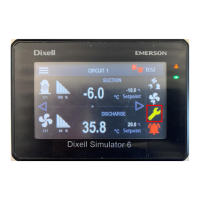
The XC Pro Controller is a sophisticated control unit, likely designed for refrigeration or HVAC applications, given the "CO2 Scroll" in the document's reference number and the presence of parameters like "SUCTION" and "DISCHARGE" temperatures in the display screenshots. It appears to be a programmable controller capable of managing various operational aspects of a system. The controller features a "Visotouch display" for user interaction, allowing access to menus, settings, and real-time data. It supports network connectivity, specifically Ethernet, enabling remote management and updates. The device also includes a "Modbus Server" for communication with other industrial devices and a "USB Status" indicating support for USB devices, likely for data transfer or updates. The BIOS update procedure detailed in the manual is crucial for maintaining the controller's core functionality, ensuring compatibility with new features, and addressing potential software issues. The controller's ability to display "Energy Meter Status" suggests it can monitor and report energy consumption, which is a valuable feature for efficiency management.
Important Technical Specifications (inferred from the manual):
- Manufacturer: Dixell (an Emerson Copeland brand).
- Connectivity: Ethernet (100.0 Mbps, IPv4), USB (USB_A: USB DISK), Modbus (Modbus 485 1 - PortB, Modbus 485 2, Modbus TCP), Wi-Fi (Not connected by default, but listed as a status).
- Operating System/Firmware: Utilizes a BIOS (Basic Input/Output System) and an "Application Release" (e.g., iProRack_5.4_211129). It also mentions "ISAGRAF VM Release," indicating a possible use of ISaGRAF for programming.
- Network Configuration: Supports static IP addressing (e.g., 192.168.0.250) and subnet masks (e.g., 255.255.255.0).
- User Interface: Features a "Visotouch display" and a web-based interface accessible via a browser (e.g., http://192.168.0.250/).
- Security: Requires username ("admin") and password ("Dixell") for web interface login.
- Data Storage: Supports USB disk for file transfer and updates.
- Real-time Data: Displays real-time values such as "SUCTION" and "DISCHARGE" temperatures, along with their setpoints. It also shows system status, including "Remote Update Server" and "Rescue Status."
Usage Features:
- Intuitive Display: The "Visotouch display" provides a graphical interface for monitoring and control, as shown by the screenshots displaying circuit status, temperatures, and setpoints.
- Networked Control: The Ethernet connectivity allows for remote access and management through a web browser, providing a comprehensive "Info" page with details about the controller's model, BIOS release, application release, IP address, and various system statuses.
- Configuration Management: Users can configure network parameters (IP address, subnet mask) directly from a connected laptop. The web interface offers access to "Conf IP & MDB Management" for network settings and "Conf File Management" for handling configuration files.
- Diagnostic Capabilities: The "Ethernet Status" window on a connected laptop provides details like IPv4/IPv6 connectivity, media state, duration, and speed, aiding in network troubleshooting. The controller's "Realtime Log" and "System Status" also contribute to diagnostics.
- Update Mechanism: The controller supports firmware and BIOS updates via a USB stick, simplifying the process of upgrading the device's software. The update process involves preparing a USB stick with specific folder structures ("ipro," "192.168.0.250," "app," "bios") and files ("isadix," "zupdater").
- Password Protection: The web interface is secured with a login, preventing unauthorized access to controller settings and data. The manual explicitly suggests changing the default password for enhanced security.
Maintenance Features:
- BIOS and Application Updates: The primary maintenance feature highlighted is the ability to update the controller's BIOS and application firmware. This is critical for patching vulnerabilities, improving performance, and adding new functionalities. The manual provides a detailed, step-by-step guide for this process, including preparing a USB stick, connecting it to the controller, and reloading the web page to monitor the update status.
- Remote Access for Maintenance: The web interface allows technicians to access the controller's "Info" page remotely, providing crucial details about the device's current software versions and system status without needing physical access to the Visotouch display.
- USB for Data Transfer and Updates: The USB port serves as a convenient interface for transferring update files, configuration files, or potentially log data, streamlining maintenance operations.
- Network Configuration for Troubleshooting: The ability to easily configure the laptop's network settings (IP address, subnet mask) to match the controller's network is a key maintenance feature, enabling direct communication for troubleshooting and updates.
- Session Management: The web interface includes session management, indicating when a session becomes invalid, which is a security and resource management feature.
- Rescue Status: The presence of a "Rescue Status" in the system information suggests a mechanism for recovering the controller in case of critical errors or failed updates, although the manual does not elaborate on its usage.
- Modbus Server Status: Monitoring the status of the Modbus server (e.g., "PortB: Not connected," "Disabled") helps in diagnosing communication issues with other connected devices.

 Need help?
 General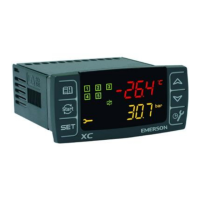



 To Next Page