EasyManua.ls Logo

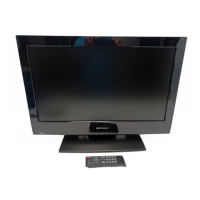
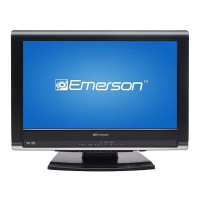
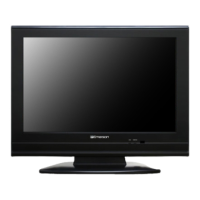
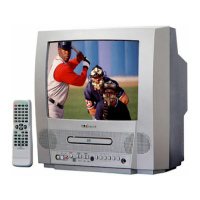
Emerson LD190EM2 - User Manual

Emerson LD190EM2
43 pages
Print Icon
To Next Page IconTo Next Page
Loading...
309-8819
emersonaudiovideo.com
EMERSON AND THE G-CLEF LOGO ARE REGISTERED TRADEMARKS
OF EMERSON RADIO CORP., PARSIPPANY, NEW JERSEY, U.S.A.
EnglishFrançaisEspañol
Need help? Please call toll free or visit our web site below
Besoin d’aide? Appelez notre numéro gratuit ou visitez notre site web à l’adresse
¿Necesita ayuda? Llame por favor sin costo ó visite nuestro sitio web en
EN Owner's Manual
FR Manuel du Propriétaire
ES Manual del Propietario
© 2011 Funai Electric Co., Ltd.
MODEL NUMBER SERIAL NUMBER
1-866-
www.
32” LCD TV / DVD
LD320EM2
26” LCD TV / DVD
LD260EM2
19” LCD TV / DVD
LD190EM2

Questions and Answers

  • N
    Nathan DeleonAug 20, 2025
    How to fix Emerson TV DVD Combo remote control that is not working?
    • T
      tonya14Aug 20, 2025
      If your Emerson TV DVD Combo remote control isn't working, first check the antenna or cable connection to the main unit. Then, inspect the remote's batteries, ensuring they are correctly inserted with the proper polarities (+/- signs). Make sure there are no obstacles between the remote and the infrared sensor on the unit. Aim the remote directly at the sensor, and reduce the distance to the unit. If you have an infrared-equipped device nearby, it may be interfering with the remote signal; move it away, adjust the sensor angle, or disable its infrared communication function.
  • J
    james22Aug 22, 2025
    How to troubleshoot no power on Emerson TV DVD Combo?
    • K
      Kelly BaileyAug 22, 2025
      If your Emerson TV DVD Combo has no power, ensure the AC power cord is properly plugged in. Verify that the AC outlet supplies the correct voltage by testing it with another electrical appliance. If a power failure occurred, unplug the AC power cord for 1 minute to allow the unit to reset.
  • B
    Brittany VasquezAug 25, 2025
    What to do if control buttons don't work on Emerson TV DVD Combo?
    • H
      hmontoyaAug 25, 2025
      If the control buttons on your Emerson TV DVD Combo do not work, press only one button at a time and ensure that no buttons on the remote are depressed and move freely.
  • J
    jaredcookAug 27, 2025
    Why is there no screen image on my Emerson TV DVD Combo?
    • M
      Melissa HernandezAug 27, 2025
      If your Emerson TV DVD Combo has power but no screen image, verify the antenna, cable receiver, or satellite box connections. Ensure all cables to the unit are connected to the correct output jack of your device, like a BD/DVD recorder. Confirm the selected input mode corresponds to the working input jack. If using PC mode, check that your computer isn't in sleep mode. Also, make sure the power is on and the correct input mode is selected.
  • A
    Amy VincentAug 28, 2025
    Why is there no picture or sound on my Emerson TV DVD Combo?
    • A
      Amy SuarezAug 28, 2025
      If your Emerson TV DVD Combo has no picture or sound, check the connections of the antenna, cable receiver, or satellite box. Ensure the selected input mode is connected to the working input jack. If using PC mode, make sure your computer is not in sleep mode. Also, ensure the sound is not muted and the volume is not set to [0] or [Mute]. Try viewing other TV channels, as the issue might be with the broadcasting station or a weak signal. As a last resort, unplug the AC power cord, wait about 1 minute, then plug it back in and turn the unit on again.
  • N
    Nicole CurtisAug 30, 2025
    What to do if my Emerson TV DVD Combo disc cannot be played back?
    • S
      stacywagnerAug 30, 2025
      If your Emerson TV DVD Combo disc cannot be played back, start by cleaning the disc and ensuring it's correctly inserted. Check if the disc is defective by trying another disc. Also, verify that the parental lock is not enabled, or adjust the control level. Ensure the disc is compatible with the unit and handle discs carefully to avoid fingerprints, scratches, or dust.
  • A
    alejandro56Aug 31, 2025
    Why is picture quality poor on my Emerson TV DVD Combo?
    • T
      Tina FarmerSep 1, 2025
      If the picture quality on your Emerson TV DVD Combo is poor but the sound is okay, try watching 'High Definition' wide screen programs for the best picture. If HD content isn't available, switch to 'Standard Definition' programs instead. You can also view other TV channels, as the problem might be due to the broadcasting station or a weak signal.
  • C
    Christina CastroSep 2, 2025
    Why is sound poor on my Emerson TV DVD Combo but picture is okay?
    • D
      davidwadeSep 3, 2025
      If the picture on your Emerson TV DVD Combo is okay but the sound is poor, check if the audio cable is correctly connected. Interference from electrical appliances, automobiles, motorcycles, or fluorescent lights may be the cause. Try moving the unit to another location to see if this resolves the problem.
  • D
    Donald WardSep 4, 2025
    Why do I see noise or trash on the screen of my Emerson TV DVD Combo?
    • B
      Brian JohnsonSep 4, 2025
      If you see "noise" or "trash" on the screen of your Emerson TV DVD Combo, it may be because the unit's capabilities are exceeding those of the digital broadcasting signal. The signal is increased to match the display capabilities, which can result in noise or trash.
  • B
    Brandon Allen MDSep 6, 2025
    Why does initial setup appear every time I turn on my Emerson TV DVD Combo?
    • A
      Amy HallSep 6, 2025
      If the initial setup appears every time you turn on your Emerson TV DVD Combo, connect the RF coaxial cable directly to the unit and run the initial setup. Also, ensure that you complete the channel scan before the unit goes into standby mode.

Summary

Emerson TV Overview

Customer Support

Information on how to get help and contact Emerson for assistance.

Important Safety Instructions

General Safety Warnings

Critical warnings to prevent fire, electric shock, and other hazards.

Wall Mounting Safety

Guidelines for safely mounting the TV to a wall.

Electrical Safety and Environmental Precautions

FCC Compliance and Interference

Information on FCC regulations and radio frequency interference.

Laser Safety

Safety information regarding the laser product classification.

Handling and Storage Precautions

Advice on product handling, storage, and environmental considerations.

Child Safety Guidelines

Child Safety Issues

Potential hazards related to children interacting with the TV.

Safe TV Placement

Guidance on positioning the TV to prevent accidents.

Product Features Overview

TV Features

Details on various television reception and display functions.

DVD Features

Details on DVD playback capabilities and modes.

Manual Symbols

Explanation of symbols used throughout the manual.

Setup and Accessories

Supplied Accessories

List of items included with the TV.

Attaching the Base and Installing Batteries

Instructions for assembling the TV stand and inserting batteries.

Control Panel and Terminals

Control Panel Layout

Diagram and description of buttons on the TV's control panel.

Terminal Ports Overview

Identification of various input and output jacks on the TV.

Detailed Terminal Connections

26-inch and 19-inch Connections

Port details and connection diagrams for 26" and 19" models.

Remote Control Functions

Preparation: Antenna Connection

Preparation: Device Connections

Cable;Satellite Box Connection

Steps to connect cable or satellite receivers to the TV.

AC Power Connection

How to properly plug in the AC power cord.

Initial Setup Guide

Watching TV: Basic Operations

Sleep Timer and Input Selection

Setting sleep timer and switching between input sources.

Channel Selection and Still Mode

Methods for changing channels and freezing the picture.

Watching TV: Display and Sound Settings

TV Screen Display Modes

Options for changing the aspect ratio and screen display.

Sound Functions

Adjusting volume, audio mode, and sound settings.

Watching TV: Screen Information

Using Functions: Menu Overview

Picture, Sound, and Channel Settings

Accessing and adjusting picture, sound, and channel settings.

Features, Language, and DVD Settings

Accessing and adjusting features, language, and DVD preferences.

Using Functions: Picture and Sound Details

Picture Adjustments

Detailed guide for adjusting brightness, contrast, color, etc.

Sound Adjustments

Detailed guide for sound mode, equalizer, and speaker settings.

Using Functions: Channel Management

Autoprogramming Channels

Automatically scanning and memorizing available channels.

Channel List Management

Viewing and managing the list of available TV channels.

Using Functions: Channels and Captions

Adding Channels

Manually adding channels not found during autoprogram.

Closed Caption Setup

Enabling and configuring closed caption display.

Using Functions: Caption Style and Child Lock

Digital Caption Service and Style

Adjusting caption font, color, and digital caption settings.

Child Lock Setup

Blocking programs based on ratings and setting a PIN.

Using Functions: Rating Locks

US Movie and TV Ratings Lock

Blocking content based on MPAA and US TV rating systems.

Channel Lock

Making specific channels or inputs invisible.

Using Functions: PC Settings and PIN Management

PC Settings and Auto Adjustment

Configuring PC screen position, clock, phase, and auto-adjustment.

PIN Code Management

Changing or resetting the parental control PIN.

Using Functions: HDMI CEC and Energy Saving

fun-Link (HDMI CEC) Features

Operating linked devices through HDMI CEC.

Energy Saving Mode and Location Setting

Adjusting power saving modes and location settings.

Using Functions: Software and Language Settings

Current Software Info

Displaying the current software version of the unit.

Language Settings

Selecting on-screen display and DVD menu languages.

Operating DVD: Audio and Parental Controls

DVD Audio Settings

Adjusting DRC, Down Sampling, and Dolby Digital output.

Parental Setting Configuration

Setting parental levels and changing the password.

Other Functions

Language Code List

List of language codes for audio and subtitle selection.

Reset to Default Settings

Restoring the TV to its factory default settings.

Operating DVD: Media Compatibility

Playable and Unplayable Media

Lists of discs that can and cannot be played.

Region Codes and Color Systems

Guidelines on DVD region codes and color system compatibility.

Operating DVD: Playback Controls

Disc Menu and Resume Playback

Navigating disc menus and resuming playback.

Paused and Fast Playback

Using pause, step-by-step, and fast forward/reverse functions.

Operating DVD: Advanced Playback Features

Slow Playback and Zoom

Controlling playback speed and zooming into the picture.

Search Functions

Navigating discs by chapter, title, track, or time.

Operating DVD: Repeat and Program Playback

Repeat Playback Modes

Setting repeat for tracks, titles, or entire discs.

Random and Programmed Playback

Shuffling tracks or creating a custom playback sequence.

Operating DVD: Display and Subtitle Settings

On-screen Display Information

Checking current disc playback status and details.

Subtitle Language Selection

Choosing a subtitle language for DVD playback.

Operating DVD: Audio and Marker Settings

Audio Language and Virtual Surround

Selecting audio languages and enabling virtual surround sound.

Marker Setup

Assigning and returning to specific points on a disc.

Connecting Devices: HDMI and DVI Interfaces

External Device Connection Overview

General guidance for connecting external video sources.

HDMI and HDMI-DVI Connections

Specific instructions for HDMI and HDMI-to-DVI connections.

Connecting Devices: Component and S-Video Interfaces

Component Video Connection

Steps for connecting devices via Component Video jacks.

S-Video Connection

Steps for connecting devices via S-Video jacks.

Connecting Devices: Composite and Digital Audio Outputs

Composite Video Connection

Steps for connecting devices via Composite Video jacks.

Digital Audio Output Connection

Connecting to external digital audio devices.

Connecting Devices: Analog Audio, PC, and Cable Management

Analog Audio Output and PC Connection

Connecting audio systems and using the TV as a PC monitor.

Cable Management

Tips for organizing and managing cables.

Useful Tips: Troubleshooting Guide

Useful Tips: FAQ

Information: Glossary and Maintenance

Glossary of Terms

Definitions of technical terms used in the manual.

Maintenance and Servicing

Guidance on cleaning and when to seek professional service.

General Specifications

Limited Warranty Information

Warranty Coverage and Exclusions

Terms of the warranty, what is covered, and what is not.

Obtaining Assistance

How to contact customer service for warranty claims or support.

Emerson LD190EM2 Specifications

General IconGeneral
Screen Size19 inches
Resolution1366 x 768
Aspect Ratio16:9
TV TypeLED
Built-in DVD PlayerYes
HDMI Ports1
USB Port1
VGA InputNo
Built-in SpeakersYes
Power Consumption30W

Related product manuals