14 15
6
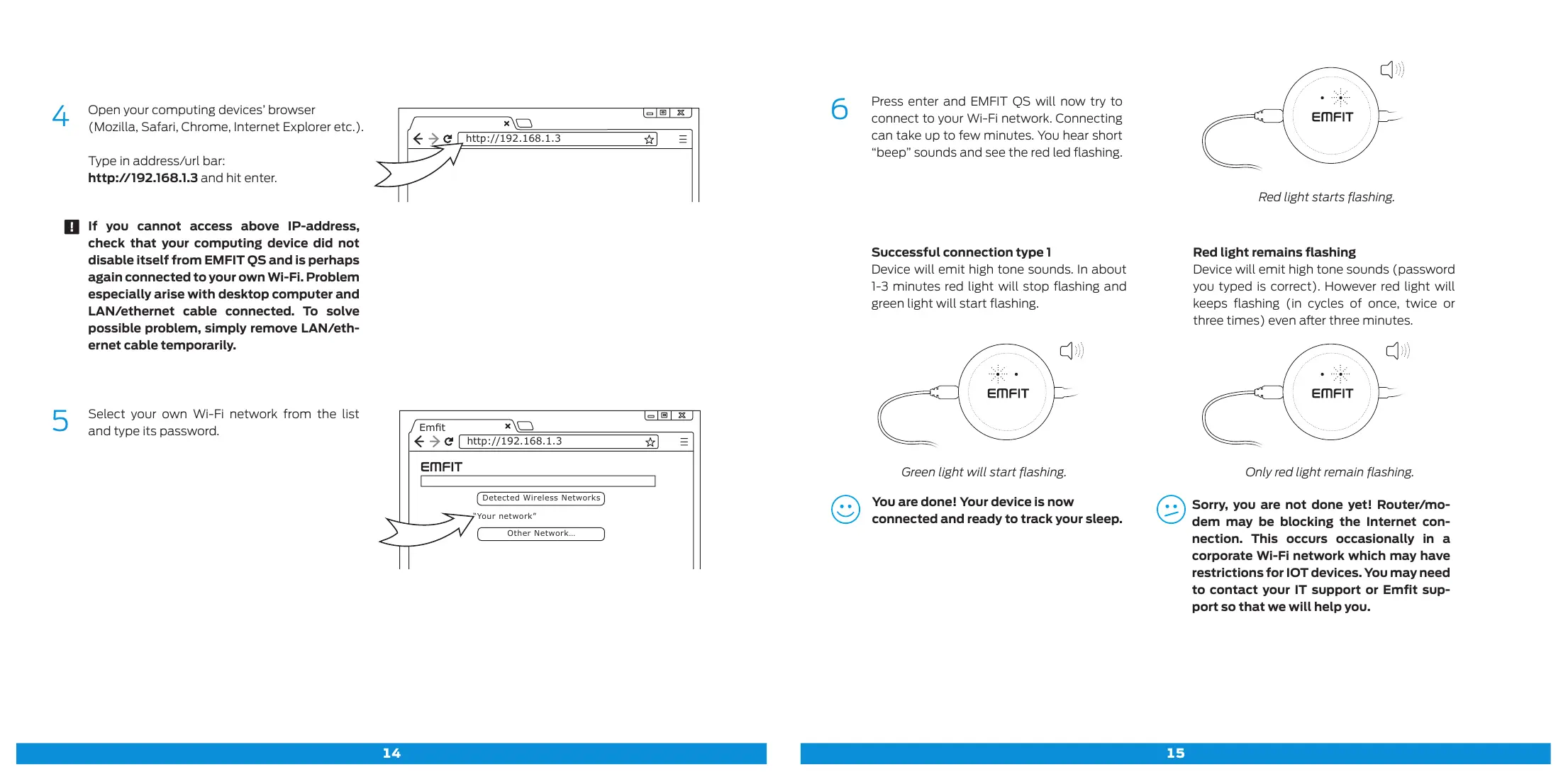
Press enter and EMFIT QS will now try to
connect to your Wi-Fi network. Connecting
can take up to few minutes. You hear short
“beep” sounds and see the red led flashing.
Successful connection type 1
Device will emit high tone sounds. In about
1-3 minutes red light will stop flashing and
green light will start flashing.
9
You are done! Your device is now
connected and ready to track your sleep.
Only red light remain flashing.
Red light starts flashing.
Green light will start flashing.
4
5
Open your computing devices’ browser
(Mozilla, Safari, Chrome, Internet Explorer etc.).
Type in address/url bar:
http://192.168.1.3 and hit enter.
Select your own Wi-Fi network from the list
and type its password.
If you cannot access above IP-address,
check that your computing device did not
disable itself from EMFIT QS and is perhaps
again connected to your own Wi-Fi. Problem
especially arise with desktop computer and
LAN/ethernet cable connected. To solve
possible problem, simply remove LAN/eth-
ernet cable temporarily.
http://192.168.1.3
http://192.168.1.3
Emt
“Your network”
Detected Wireless Networks
Other Network…
Red light remains flashing
Device will emit high tone sounds (password
you typed is correct). However red light will
keeps flashing (in cycles of once, twice or
three times) even aer three minutes.
Sorry, you are not done yet! Router/mo-
dem may be blocking the Internet con-
nection. This occurs occasionally in a
corporate Wi-Fi network which may have
restrictions for IOT devices. You may need
to contact your IT support or Emfit sup-
port so that we will help you.



 To Next Page