16 17
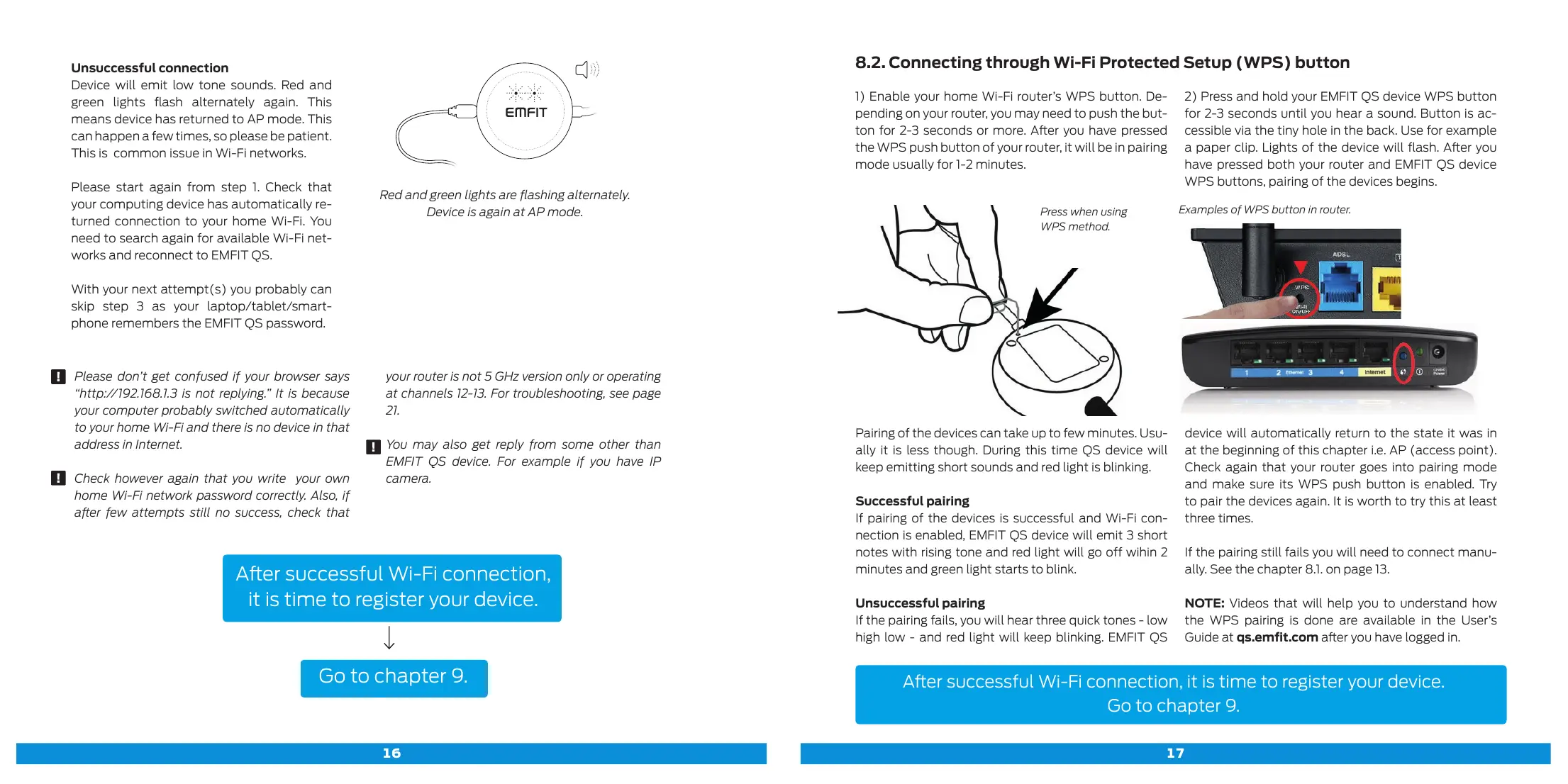
Examples of WPS button in router.
Press when using
WPS method.
8.2. Connecting through Wi-Fi Protected Setup (WPS) button
1) Enable your home Wi-Fi router’s WPS button. De-
pending on your router, you may need to push the but-
ton for 2-3 seconds or more. Aer you have pressed
the WPS push button of your router, it will be in pairing
mode usually for 1-2 minutes.
2) Press and hold your EMFIT QS device WPS button
for 2-3 seconds until you hear a sound. Button is ac-
cessible via the tiny hole in the back. Use for example
a paper clip. Lights of the device will flash. Aer you
have pressed both your router and EMFIT QS device
WPS buttons, pairing of the devices begins.
Pairing of the devices can take up to few minutes. Usu-
ally it is less though. During this time QS device will
keep emitting short sounds and red light is blinking.
Successful pairing
If pairing of the devices is successful and Wi-Fi con-
nection is enabled, EMFIT QS device will emit 3 short
notes with rising tone and red light will go off wihin 2
minutes and green light starts to blink.
Unsuccessful pairing
If the pairing fails, you will hear three quick tones - low
high low - and red light will keep blinking. EMFIT QS
device will automatically return to the state it was in
at the beginning of this chapter i.e. AP (access point).
Check again that your router goes into pairing mode
and make sure its WPS push button is enabled. Try
to pair the devices again. It is worth to try this at least
three times.
If the pairing still fails you will need to connect manu-
ally. See the chapter 8.1. on page 13.
NOTE: Videos that will help you to understand how
the WPS pairing is done are available in the User’s
Guide at qs.emfit.com aer you have logged in.
Aer successful Wi-Fi connection, it is time to register your device.
Go to chapter 9.
Aer successful Wi-Fi connection,
it is time to register your device.
Go to chapter 9.
Unsuccessful connection
Device will emit low tone sounds. Red and
green lights flash alternately again. This
means device has returned to AP mode. This
can happen a few times, so please be patient.
This is common issue in Wi-Fi networks.
Please start again from step 1. Check that
your computing device has automatically re-
turned connection to your home Wi-Fi. You
need to search again for available Wi-Fi net-
works and reconnect to EMFIT QS.
With your next attempt(s) you probably can
skip step 3 as your laptop/tablet/smart-
phone remembers the EMFIT QS password.
Please don’t get confused if your browser says
“http://192.168.1.3 is not replying.” It is because
your computer probably switched automatically
to your home Wi-Fi and there is no device in that
address in Internet.
Check however again that you write your own
home Wi-Fi network password correctly. Also, if
aer few attempts still no success, check that
your router is not 5 GHz version only or operating
at channels 12-13. For troubleshooting, see page
21.
You may also get reply from some other than
EMFIT QS device. For example if you have IP
camera.
Red and green lights are flashing alternately.
Device is again at AP mode.



 To Next Page