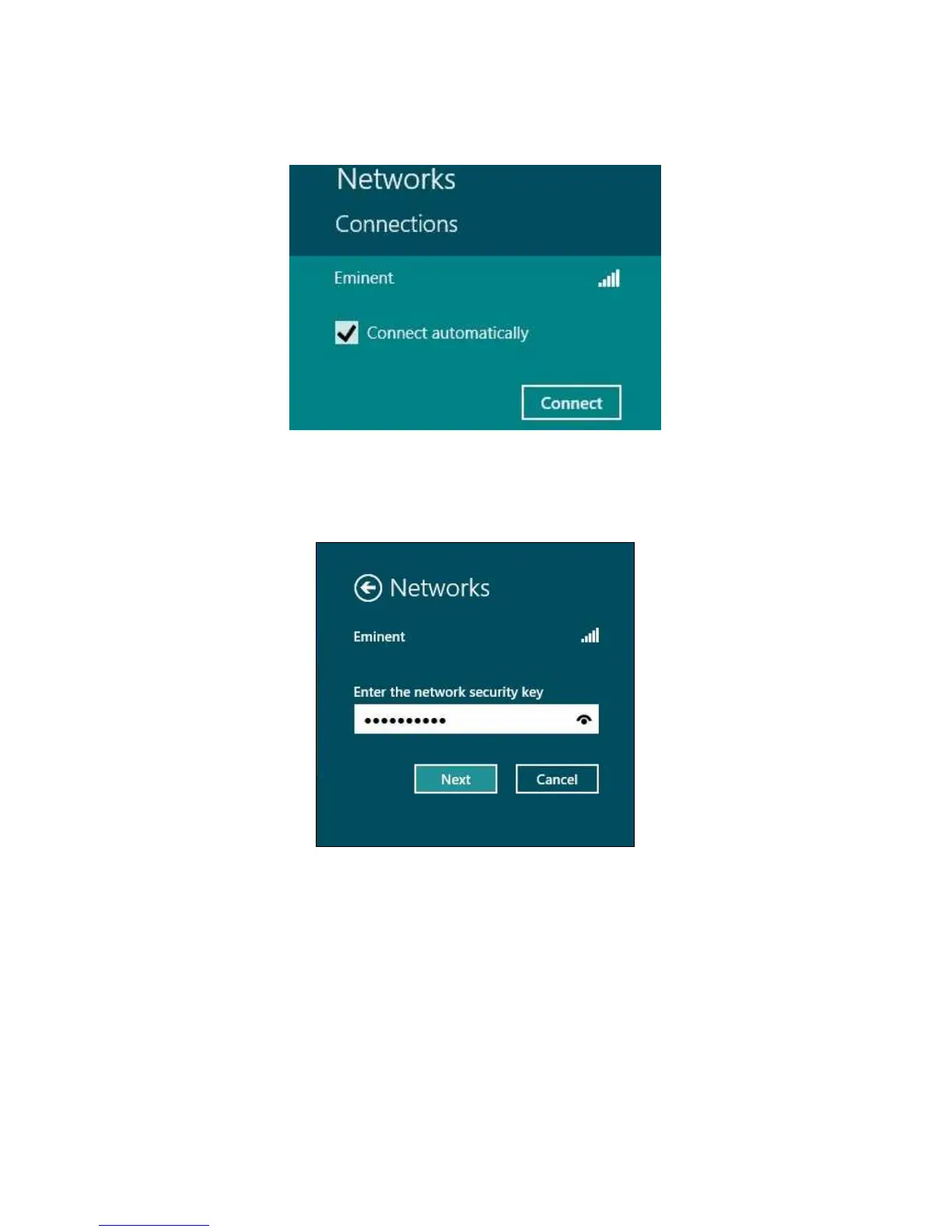
6. Select the network you want to connect to and click ‘Connect’ as shown in the
following image:
Image 14 - Connecting
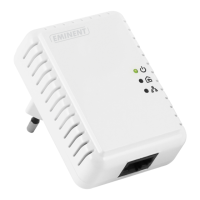
3. If correct, Windows will now ask you to fill out your wireless security key and click
‘Next’. Refer to the following image:
Image 15 - Connecting
4. If your wireless security key has been filled out correctly, Windows will ask you to
share your connection. Typically, most people will use the EM4586 in a home or
work environment, so you can choose the ‘Yes, turn on sharing and connect to
devices’ option, as shown in the following image:



 To Next Page