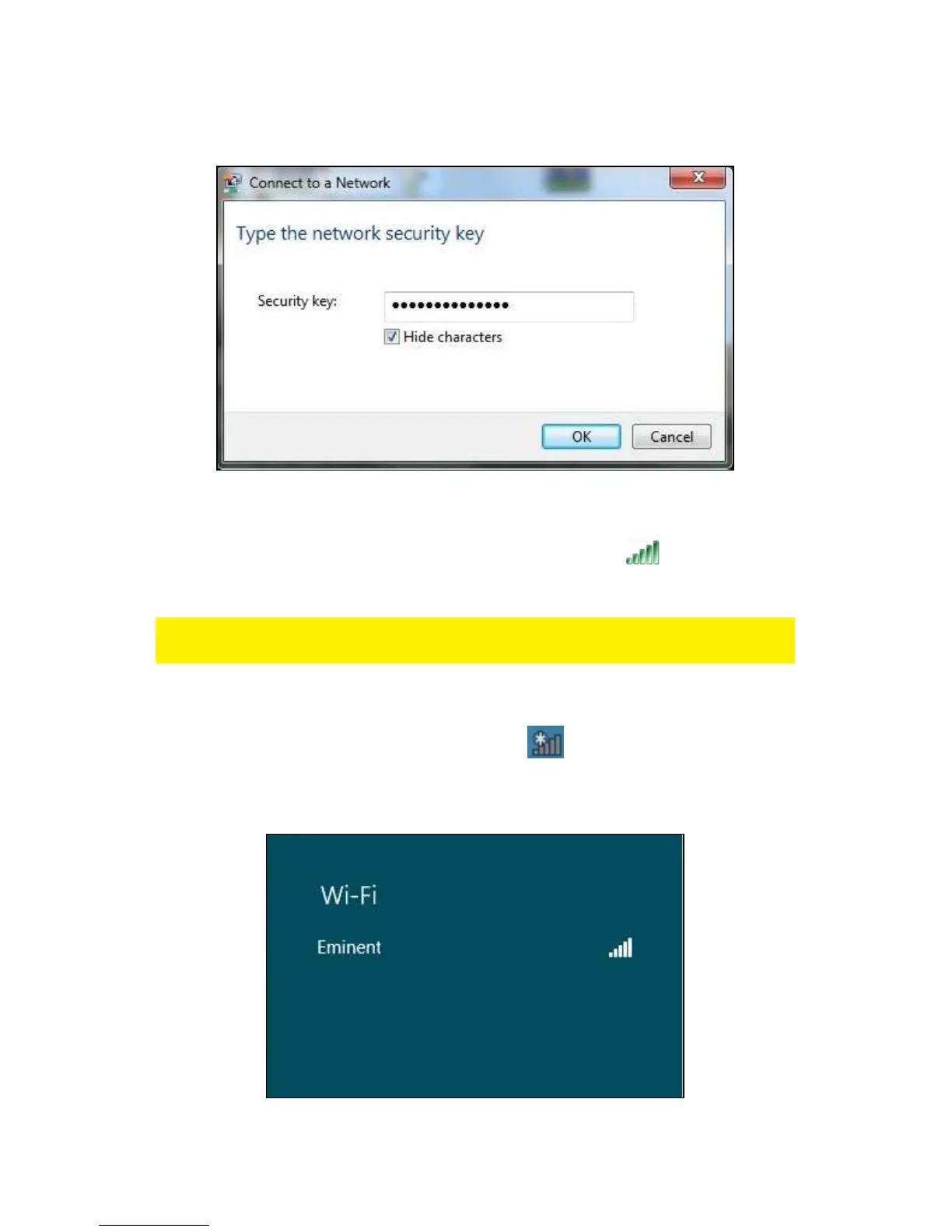
4. If correct, Windows will now ask you to fill out your wireless security key and click
‘OK’. Refer to the following image:
Image 12 - Connecting
5. If your wireless security key has been filled out correctly, your network will be
connected. The following icon will be visible in the taskbar: . This icons tells
you an internet connection has been established. You will now be able to access
the internet.
Hint: If Windows ask a location to add the wireless connection to, you need to choose
‘Home’ or ‘Work’.
2.5 Connecting using Windows 8 (WLAN AutoConfig)
1. If correct, an icon of the wireless connection ( ) will be added to your taskbar.
2. Click the icon after which a list of available wireless networks will be listed as
shown in the following image:
Image 13 – Connecting



 To Next Page