14.3.2.1 Using the ‘Sign in’ option
Note: The following steps were done using a Windows computer.
1. Select ‘App’ in the main menu and press the ‘OK’ button.
2. Select ‘YouTube leanback’ and press the ‘OK’ button.
3. Select ‘Sign in’ and press the ‘OK’ button.
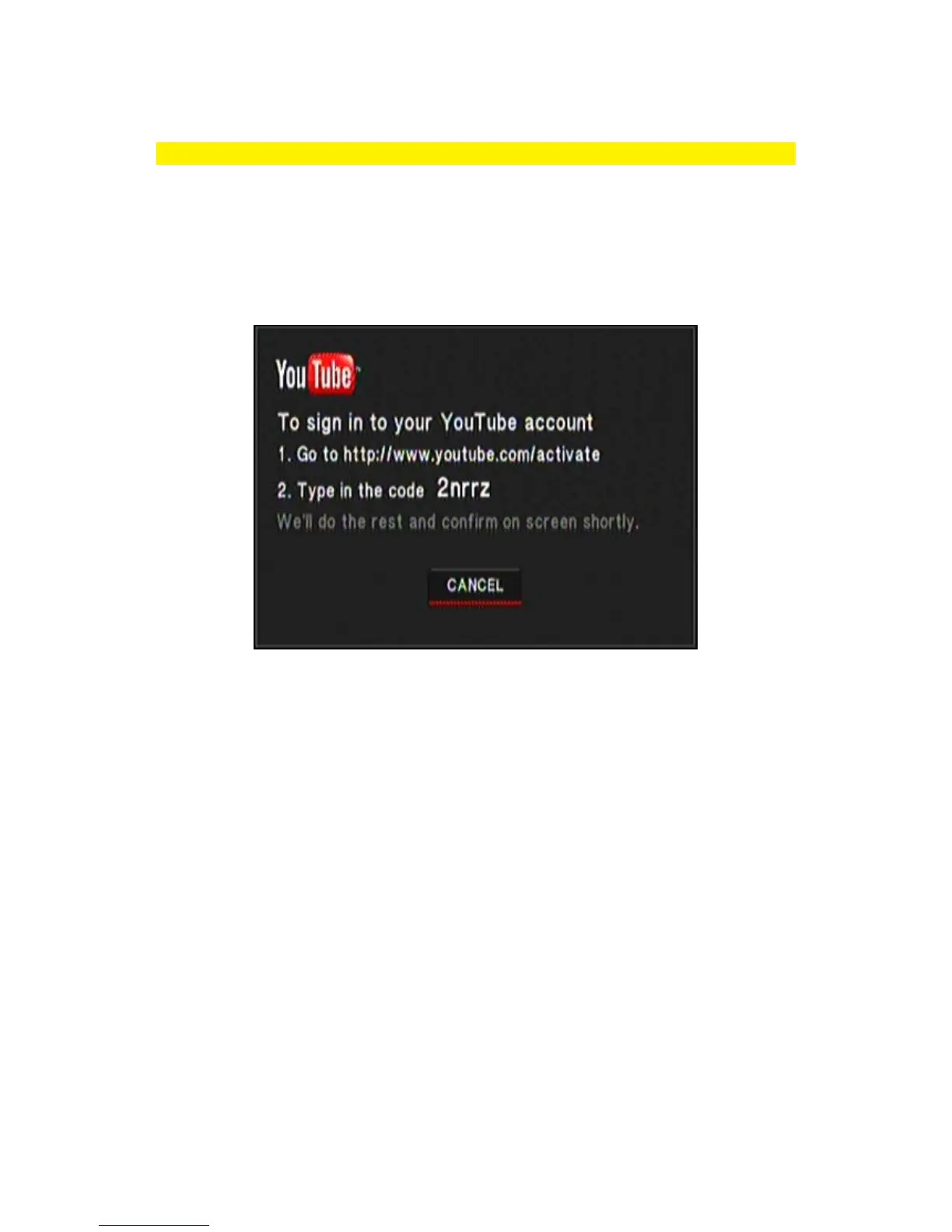
4. If correct, a screen will be shown telling you to login to a specific website. The
screen also shows an activation code, as shown in the following image:
Image 22 – YouTube Leanback sign in
5. Open your computer’s web browser.
6. Fill out the web address as shown in the image and press the ‘Enter’ key on your
keyboard.
7. You need to login to your YouTube account.
8. After logging in, the activation key will be asked. Fill out the activation key and
confirm the activation key. It is possible your YouTube account needs your
permission to continue. If so, you need to grant permission.
9. If correct, you will the see the following image:



 To Next Page