4
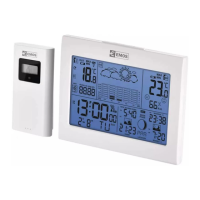
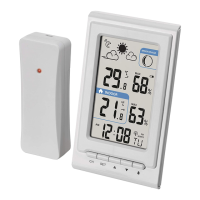
2. Place the two units next to each other. After placing batteries into the station, the station au-
tomatically starts searching for DCF77 signal (hereinafter referred to as DCF); the
icon will
be ashing. No other data on the display will be updated and all buttons will be disabled during
the search. Long pressing the
button cancels the search for DCF signal prematurely and the
station automatically loads the temperature and humidity readings from the sensor. The weather
station will detect the remote sensor signal within 3 minutes. If signal from the sensor is not
detected, repeat the process from step 1.
3. If the outdoor temperature reading disappears from the display, long press the CH button on the
station. The station will start searching for the sensor signal.
4. We recommend placing the sensor on the north side of the house. The range of the sensor
may decrease substantially in areas with a large number of obstacles. The sensor is resistant
to dripping water; however, it should not be exposed to sustained rain. Do not place the sensor
on metal objects as these would reduce transmission range. Use the sensor in vertical position
only. If the weather station display shows the low battery icon in the outdoor humidity eld,
replace the batteries in the sensor.
Note: It may take up to 30 minutes since the insertion of batteries into the units before the station
begins showing the correct measured data and loads DCF time.
Changing Sensor Channel and Connecting Additional Sensors
The station can be paired with up to 3 wireless sensors.
1. Choose the desired channel – 1, 2, or 3 – for the sensor by repeatedly pressing the CH button
on the station.
2. The number will be displayed in eld no. 1
.
3. Then, long press the CH button; the
icon will start ashing.
4. Remove the battery cover on the back of the sensor and move the slider to the sensor channel
of choice (1, 2, 3).
5. Insert batteries (2× 1.5 V AA) into the sensor. Data from the sensor will be loaded into the
station within 3 minutes.
6. If the sensor signal is not detected, remove the batteries and reinsert them.
Displaying Data from Multiple Sensors, Automatic Cycling through Values from
Connected Sensors
Press the CH button repeatedly to display data from all connected sensors one by one. You can also
activate automatic cycling through data from all connected sensors:
1. Turning on cycle mode
Repeatedly press the CH button until the display shows an arrow icon with sensor number . Data
from all connected sensors will be shown automatically and repeatedly on the station‘s display one
after another.
2. Turning o cycle mode
Press the CH button; the arrow icon will disappear.
Radio-Controlled Clock (DCF77)
After placing batteries into the station, the station automatically starts searching for DCF77 signal
(hereinafter referred to as DCF); the icon will be ashing.
No other data on the display will be updated and all buttons will be disabled during the search.
Long pressing the button cancels the search for DCF signal prematurely and the station automat-
ically loads the temperature and humidity readings from the sensor.
DCF signal detected – the
icon stops ashing and the current time and date will be displayed
along with a
icon.
DCF signal not detected – DCF icon will not be displayed.
To repeat the search for DCF signal (3–8 minutes), long press the
button; to cancel the search for
DCF signal long press the
button again. DCF signal will be continuously synchronised every day.
During daylight saving time, the
icon will be displayed next to the DCF icon.


 To Next Page