4
Operation of the Device
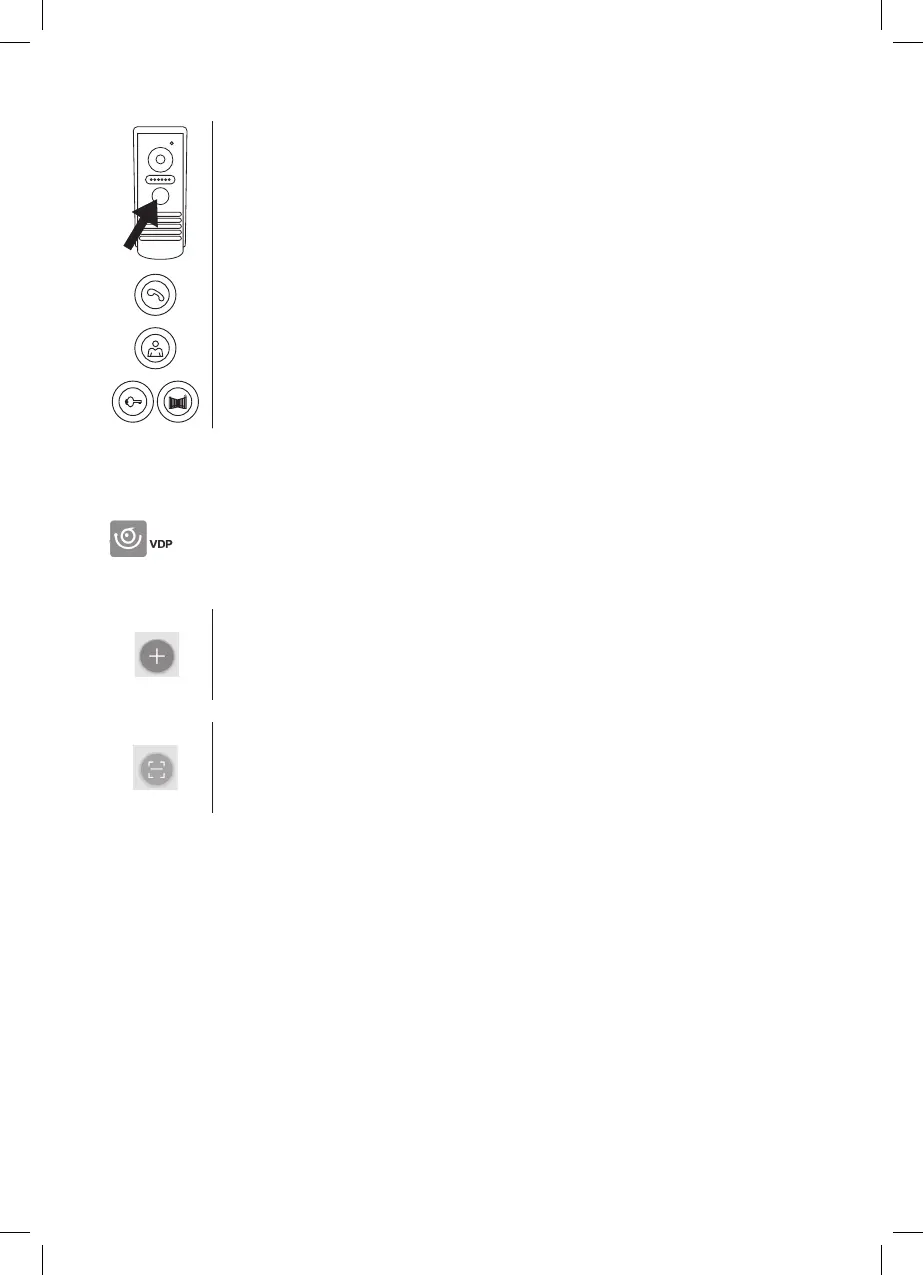
To ring and create an image on the videophone, press the button on the door camera unit shown below.
To accept a call, press this button on the monitor.
To immediately call up the image from the door camera unit, press this button.
To send an impulse to the electrical lock and gate, press one of these buttons.
Operation of Application for Remote Access
1. Downloading the Application
Download the application from Google Play or Apple Store.
Name: VDP
2. Adding a New Device
a) pairing a new device
Click this icon on the main screen.
Choose the model of the device you wish to connect based on the picture.
b) adding a shared device (device is already added and used by another user)
Click this icon on the main screen.
Load the QR code from the display of the user who wants to share access to the device. Access must
already be set for the device.
3. Pairing a Device with a Local Network
a) Connect your mobile phone or tablet to the local network. (for Wi-Fi, only 2.4 GHz).
b) After choosing the correct model of connected device according to the image (monitor with camera unit) enter the access
information for the network (name of Wi-Fi network and password).
c) Choose the smart cong method.
d) After successful pairing, enter name and password (by default: admin/admin).
e) The default password must be changed upon rst connection.


 To Next Page