8
6. Control of the Application
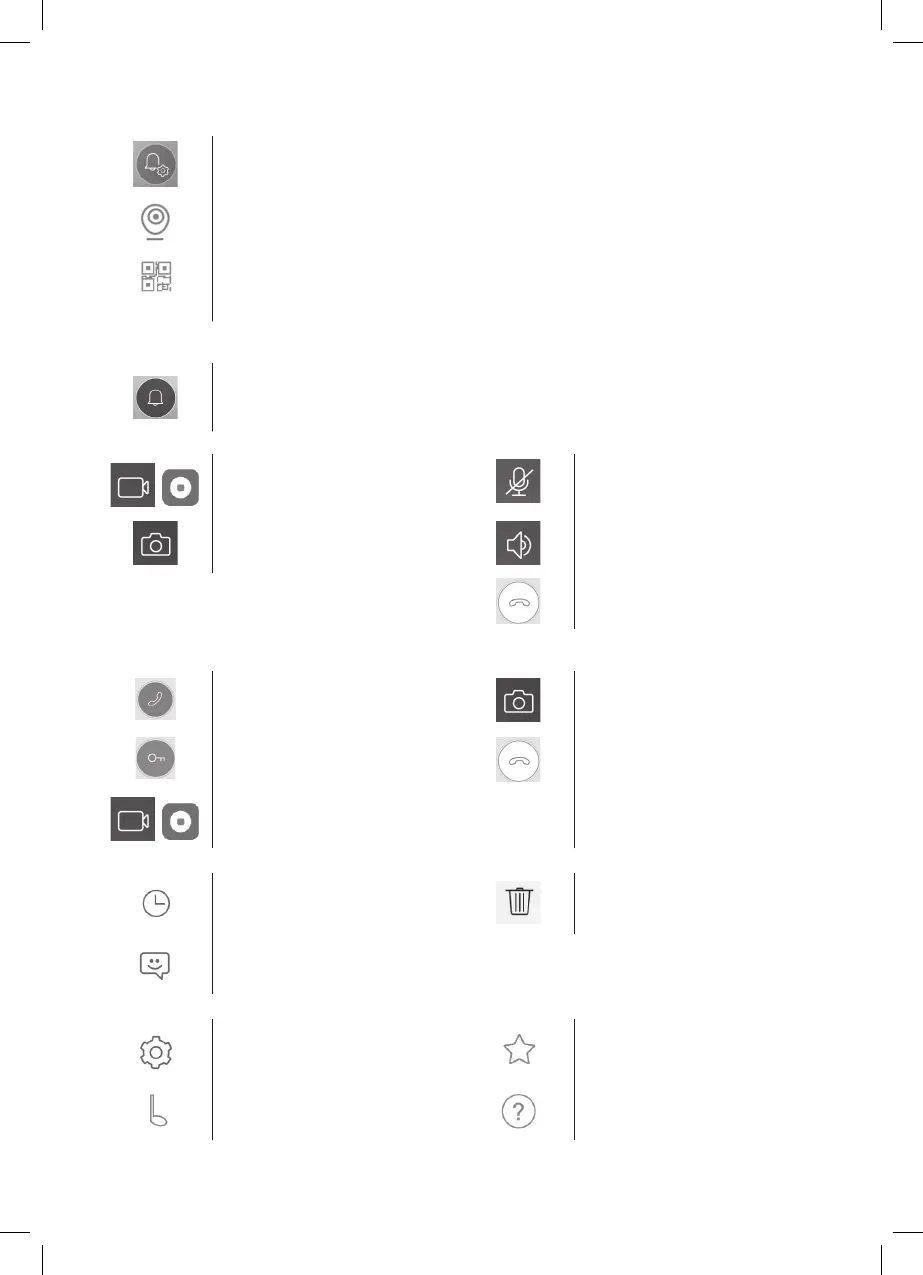
a) Device Settings
access menu change
name device
Here, you can choose a ringtone that will be played upon ringing the bell. Each panel can have a dierent
ringtone to dierentiate which input has been activated.
device sharing
After clicking the button, a QR code will be displayed which will allow you to set up the panel on other
mobile devices. Simply scan the QR code with another mobile device. This allows simple set-up of the
device without the need to go through the entire pairing process again.
b) Preview from Emergency Mode
open preview
Once emergency view is open, you can make video sequence recordings or take photos.
/
turn recording on/o turn microphone on/o
capture image turn speaker on/o
close preview
c) Incoming Call
During an incoming call the pre-set ringtone will play and information will be displayed on the screen.
receive call take a photo capture image
door lock control end call close call
/
turn recording on/o
d) Records
enter menu with records delete individual records
enter menu with alarm messages
e) Application Settings
enter the menu about the application
ringtone selection help center


 To Next Page