14
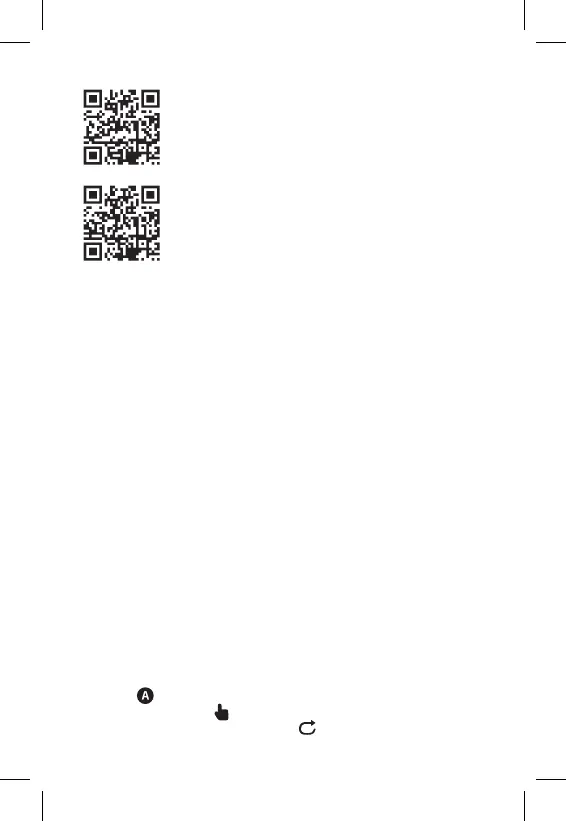
QR code for downloading the Android app
QR code for downloading the iOS app
Description of Registering and Logging into the Application (see g. 4)
To use the mobile application, you must rst register by tapping the Sign Up button.
Enter your country and e-mail address, check o your consent with the end user
licence agreement and tap Get Verication Code.
Enter the verication code sent to your e-mail.
Then, set the password for your account and tap Done.
Choose whether you want to enable Data Analysis/Personalisation and tap Go
to App.
Connecting the Thermostat to a Wi-Fi network for Control via the
Mobile App (see g. 5)
Tap Add Device in the app and enable location access.
Choose add manually and select Small Home Appliances – Thermostat (Wi-Fi)
or Others – Others (Wi-Fi).
Select a 2.4 GHz Wi-Fi network, enter the password and tap Next.
Check o Conrm that the indicator is ashing rapidly and tap Next.
The chosen thermostat should appear in the app within 2 minutes.
Tap the green arrow on the right; the thermostat will be added into the app.
Then tap the thermostat icon in the app to open the main control menu.
Note:
If the thermostat fails to pair, repeat the process.
5 GHz Wi-Fi networks are not supported.
The thermostat can only be controlled via the app by 1 user at a time. If another
user wants to control the thermostat, the previous user must log out.
Description of the Main Menu of the Mobile App.
Tap the thermostat icon in the app to open the main control menu (see g. 6).
1. Thermostat status (ON/OFF) – Anti-freeze mode, temperature xed to 5 °C
2. Work mode setting (detailed information in the WORK MODES chapter of
this manual)
Automatic
Manual – see HOLD mode
Temporary – see Temporary change mode


 To Next Page