5
• The shortest time sequence is 10 minutes. The beginning is always preset from 0:00 o’clock.
• Press the OK button, the temperature value starts ashing.
• By the thumb-wheel set the desired temperature: comfort/cost-saving, No. 1,2.
• (by each turn the icon of the temperature changes. It is shown at the bottom on the left side). Conrm by
pressing OK.
• The time value starts ashing and at the bottom on the left side, the icon of the temperature change, will be
shown. No. 2, (Pict. 2).
• Set the beginning of the second temperature change, conrm by OK, the temperature value will start ashing,
by the thumb-wheel select the desired temperature.
• In this way, gradually set times for another temperature changes during days / day groups.
• To quit press the FUN button.
Note: The temperature mode set in separated days has always a priority to a preset temperature mode which is set
for the day group.
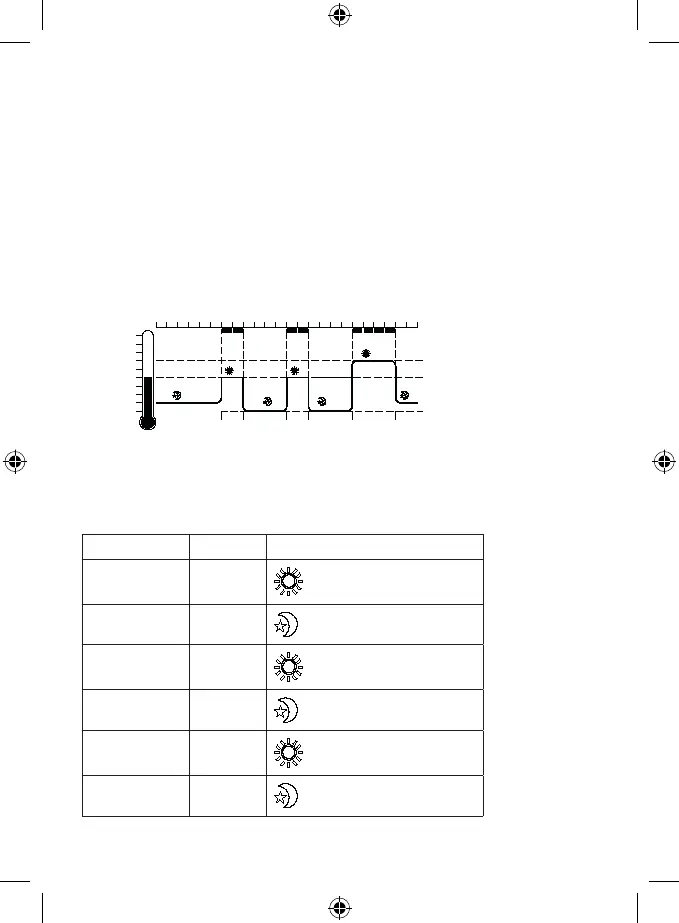
Setting Example:
economical 2
Switching point
0 6 12 18 24
1
Heating
Heating
2
economical 1
1 2 3
4 5
6
1
2
1
2
1
Heating
8 14 22
Comfort 1
Comfort 2
• Comfort 1
• Comfort 2
• Cost-saving 1
• Cost-saving 2
• Switching point
• Heating
Temperature Change Time Temperature
1 6:00 – 8:00
1 20 °C (Comfort temperature No. 1)
2 8:00 – 12:00
1 13 °C (Cost-saving No. 1)
3 12:00 – 14:00
1 20 °C (Comfort temperature No. 1)
4 14:00 – 18:00
1 13 °C (Cost-saving No. 1)
5 18:00 – 22:00
2 22 °C (Comfort temperature No. 2)
6 22:00 – 6:00
2 18 °C (Cost-saving No. 2)


 To Next Page