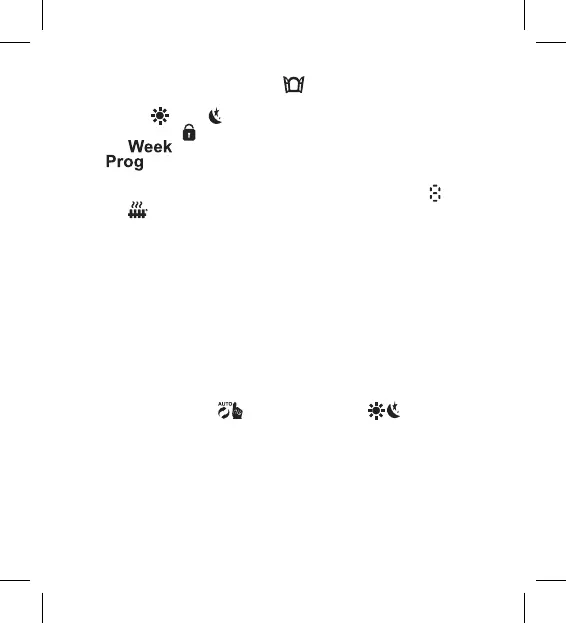
11
13 – Icon for the open window function
.
Indicator on – the head detects an open window and activates the function.
14 – Comfort
or ECO mode active.
15 – Child lock icon
.
16 – The icon indicates that you need to input the current time. The
icon indicates which time period of your weekly mode is currently
active.
17 – The number of the currently active time period in weekly mode
.
18 – The
icon indicates movement and status of the valve. If ashing, the
valve is closing/opening. If the valve is open, the icon stays lit. Once the
valve closes, the icon turns o.
Basic Settings
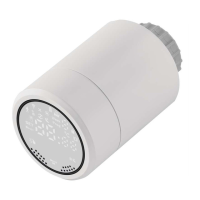
1. Mount the thermostatic head onto the radiator and insert the batteries.
2. Install the EMOS GoSmart app from Google Play/App Store onto your phone.
3. Connect the thermostatic head to your Zigbee gateway which is connected
to the EMOS GoSmart app in line with the following instructions.
Instructions for Connecting the Thermostatic Head to the Zigbee
Gateway
1. Click the „+ Add a New Device“ button in the settings of your Zigbee gateway
(see g. 1).
2. Find „Thermostat“ in the list of devices (see g. 2).
3. Simultaneously hold
„Weekly/Manual“ and „Comfort/ECO“
buttons on the thermostatic head for 5 seconds (see the Description of the
Screen in the previous section of the manual). Conrm that the icon for
connection to the Zigbee gateway is ashing rapidly on the head (see g. 3).
4. The Zigbee gateway should detect the thermostatic head in a few moments.
Once it does, tap the „Done“ button (see g. 4).
5. After conrming the previous step, your phone will ask for conrmation
to add the thermostatic head to your GoSmart app. Continue by tapping
„Done“ (see g. 5).


 To Next Page