Need help?
Do you have a question about the Energizer E282SC and is the answer not in the manual?
Detailed explanation of the purpose and operation of all keys on the phone.
Instructions for removing covers, installing batteries, and inserting SIM cards.
Guides on dialing numbers, using contacts, and ending phone calls.
How to make an emergency call without a SIM card or PIN.
Steps for composing and sending text messages, including options for dual SIM.
Instructions for taking photos, shooting videos, and managing media files.
Important safety guidelines for using the mobile device in various situations.
Rules for device use in aircraft, near explosives, and with accessories.
Precautions regarding charger pins, plugs, and power adapters to prevent injury.
Best practices for handling batteries, charging, and general device maintenance.
Explanation of Specific Absorption Rate (SAR) and compliance with radio wave exposure limits.
Guidelines for safe body-worn operation, maintaining a specific distance from the body.
Table detailing recorded SAR values for head and body across different frequency bands.
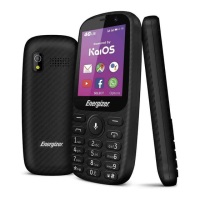
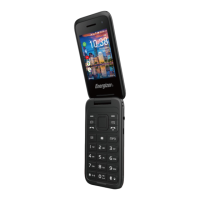
This document describes the Energizer E282SC mobile phone, a flip phone with smart feature capabilities.
The E282SC is a mobile phone designed for communication and basic smart features. It includes a receiver, front camera, and a keypad for navigation and input.
Keypad and Navigation: The phone features a central navigation key for confirming options and accessing various menus. Pressing the navigation key confirms an option, accesses the app list from the Home screen, and allows movement left (Shortcut to Apps), right (Settings), up (Quick Shortcut, Menu), and down (KaiOS Card).
Softkeys:
Dedicated Keys:
Torch: The phone includes a torch function, activated by a long press of the '0' key.
Vibrate Alert: A long press of the '#' key toggles vibrate alert.
Set Up: To set up the device, you first need to remove and install the back cover, then insert the battery.
Removing and Installing the Back Cover: The back cover can be removed to access the battery and SIM card slots.
Removing and Installing the Battery: The battery is inserted after the back cover is removed. Ensure it is correctly inserted before connecting the charger.
Inserting and Removing the SIM Card: The SIM card should be placed with the chip facing downwards and slid into its housing. For dual SIM models, SIM1 and SIM2 both support micro SIM cards. Do not attempt to insert mini or Nano cards, as this may damage the phone. To remove the card, press it and slide it out.
Charging the Battery: Connect the battery charger to your phone and plug it into a socket. Charging may take about 20 minutes to start if the battery is completely drained. Avoid forcing the plug into the socket. Ensure the battery is correctly inserted before charging. The main socket should be easily accessible and near the phone. It is advised to charge the battery to its maximum for the first use (approximately 3 hours). To conserve energy, disconnect the charger once the battery is fully charged and reduce backlight time. The charge is complete when the charging animation stops.
Power On/Off: To power on, hold down the power key until the phone powers on. To power off, hold down the power key from the Home screen and select "Power off."
Dialing: Dial the desired number and press the Call key to place the call. You can also select a contact from your Contacts list using the Navigation Key and then press the Call Key. If you make a mistake, you can delete incorrect digits by pressing the right soft key. To hang up, press the end key.
Emergency Calls: Dial the emergency number and press the Call key. This works even without a SIM card or PIN code.
Voicemail: Press and hold the '1' key to call voicemail.
Receiving a Call: When an incoming call is received, press the Call key to answer and the end key to hang up. To mute the ringtone, press the Volume Key.
Functions During a Call: During a call, you can access contacts, call log, and messages without hanging up.
Create Message: Select "Message" from the main menu to create text or multimedia messages. You can customize messages by adding pictures, recordings, or videos (MMS only). While writing, select "Options" for messaging options. For Dual SIM models, you can send messages from either SIM1 or SIM2.
Create MMS: An SMS automatically converts to MMS when images, videos, audio, slides, or attachments are inserted. Note that SMS messages exceeding a certain character limit (language-dependent) will be charged as multiple SMS. MMS messages with photos or sounds may also be billed as multiple messages. Accented letters can increase SMS size, potentially leading to multiple SMS being sent.
Consult Contacts: Access contacts from the Home screen by pressing the right navigation key and selecting the contact icon, or by pressing the contact key on the home screen. For Dual SIM models, contacts from both SIM1 and SIM2 are available.
Adding a Contact: From the Contact app, you can add a new contact to your phone or SIM card by pressing the left key and choosing Phone, SIM 1, or SIM 2.
Access: Access the call log from the main menu, or by pressing the send key from the main screen. For Dual SIM models, call logs for both SIM1 and SIM2 are available.
Answering/Declining a Call: To answer an incoming call, press the Left Key (Call Key). To decline, press the Right Key (End/Power Key). To mute the ringtone, press the Volume Key.
The phone provides access to a variety of games through the KAIOS store, specifically in the "Games" section.
Your mobile phone is equipped with a camera for taking photos and shooting videos.
Music: Access this feature from the main menu by selecting "Music." Manage music files on both your phone and memory card. Press the central button to play/pause audio. Short press left or right for previous or next audio. Press up or down to adjust volume.
Image: Your images are stored in the "Image" library on your phone or SD card. You can multi-mark, set images as Wallpaper, set as contact icons, or send them via MMS.
Videos: Use this function to play video files. Press the central button to play/pause the video. Short press up or down to adjust volume.
FM Radio: The phone has an FM radio with RDS functionality. Use it as a traditional radio with saved channels or with visual information related to the radio program if stations offer Visual Radio service. You can listen to the radio while running other applications. To use this feature, you must plug in your headset, which functions as an antenna.
Accessing Recorder allows you to make voice or sound recordings. The phone supports AMR and WAV format files. Recordings are automatically stored in the Record file list.
You can access all audio and visual files stored in the Phone or Memory Card within "My files." This includes items such as Alarm, Audio, Photos, Others, and Video.
Inserting and Removing the Memory Card: Place the microSD card with the chip facing downwards and slide it into its housing. Ensure it is correctly inserted. To remove, press and slide it out.
Your mobile phone has a built-in alarm clock with a snooze feature.
Use the navigation key to select +, -, x, and ÷. Press the Right soft key to delete the selection.
Access this from the main menu to view a monthly calendar. Days with events entered will be marked, helping you keep track of meetings and appointments.
Create notes in text format by accessing "Notes" from the main menu.
This feature allows quick conversions. When weight is selected, you can check differences between kg-pound and kg-ounce values. When length is selected, you can convert between km-mile, m-yard, m-foot, and cm-inch values.
Using the Browser, you can surf the Web. To access, press the Centre Soft Key from the Home screen and select Browser.
From the main menu, select the menu icon and choose functions to customize your phone.
Network & Connectivity: Includes options for Airplane mode, Mobile network & Data, Wi-Fi, Bluetooth, Geolocation, Calling Settings, Internet Sharing, and Wireless Emergency Alerts.
Personalization: Includes options for Sound, Display, Search, Notifications, Date & Time, Language, Input methods, and Answer mode.
Privacy & Security: Includes options for Screen Lock, SIM Security, App Permission, Do Not Track, and Browsing Privacy.
Storage: Includes options for Device information, Downloads, Battery, Accessibility, Regulatory & Safety, Account, KaiOS Account, and Anti-Theft.
KaiStore allows you to download applications. It offers apps for smart feature phones such as WhatsApp, YouTube, Facebook, Google Maps, and over 500 other apps. Available categories include Social, Games, Utilities, Lifestyle, News, Shopping, Entertainment, Health, Sports, and Books.
General Security:
Warning Electrical Hazard:
Environmental Precautions:
This product is subject to European Union regulations for the re-use and recycling of used electrical and electronic equipment. It requires the extraction and use of natural resources and may contain hazardous substances. The symbol on the product or packaging indicates it should not be disposed of with other household waste. It is your responsibility to dispose of waste equipment at a designated collection point for recycling. Separate collection and recycling help conserve natural resources and protect human health and the environment. For more information, contact your local city office, household waste disposal service, or the store where you purchased the product.
Battery and Device Care:
Using the receiver, ear buds, speaker, or headset at high volume carries irreversible hearing loss risks. Regulate the volume to a safe level. Over time, you may become accustomed to higher volumes that seem normal but are harmful. If you experience buzzing or muffled speech, consult a hearing specialist. Higher volumes increase the risk of rapid hearing damage. Hearing specialists recommend:
SAR (Specific Absorption Rate): The device meets international guidelines (ICNIRP) and European Directive 2014/53/EU (RED) for radio wave exposure. It is a radio transmitter and receiver designed not to exceed limits for radio frequency electromagnetic fields. Guidelines were developed by an independent scientific organization (ICNIRP) with a substantial safety margin. The SAR limit for mobile devices is 2 W/kg. Tests are conducted with the device transmitting at its highest certified power level. For body-worn operation, the device should be positioned at least 1.5 cm away from the body. Ensure any accessory used is free of metal and maintains this distance. For more information, visit www.energizeyourdevice.com. Additional information on electromagnetic fields and public health is available at http://www.who.int/peh-emf. The telephone has a built-in antenna; avoid touching or degrading it for optimal operation. When used with a headset or USB data cable, the device complies with guidelines.
CE (Conformité Européenne): The device complies with essential requirements and provisions of Directive 2014/53/EU. The certificate of conformity is available upon request from AVENIR TELECOM.
 General
| Display | 2.8 inches |
|---|---|
| Resolution | 240 x 320 pixels |
| RAM | 64 MB |
| Internal Storage | 128 MB |
| Front Camera | No |
| SIM | Dual SIM |

 To Next Page