base
A
8
IOM74 November 2020 R105
COMPUTER CONNECTION
The base requires a connection to a computer for detailed information beyond what is indicated
on the LED displays.
Direct connection may be made to a computer or tablet that has the ability to connect to a static IP address.
To gain access to the Testing Interface connect using a Cat.5 Ethernet cable to the base, near the top right of
the controller. Tablets may require a USB to Ethernet adapter. Any web browser should work.
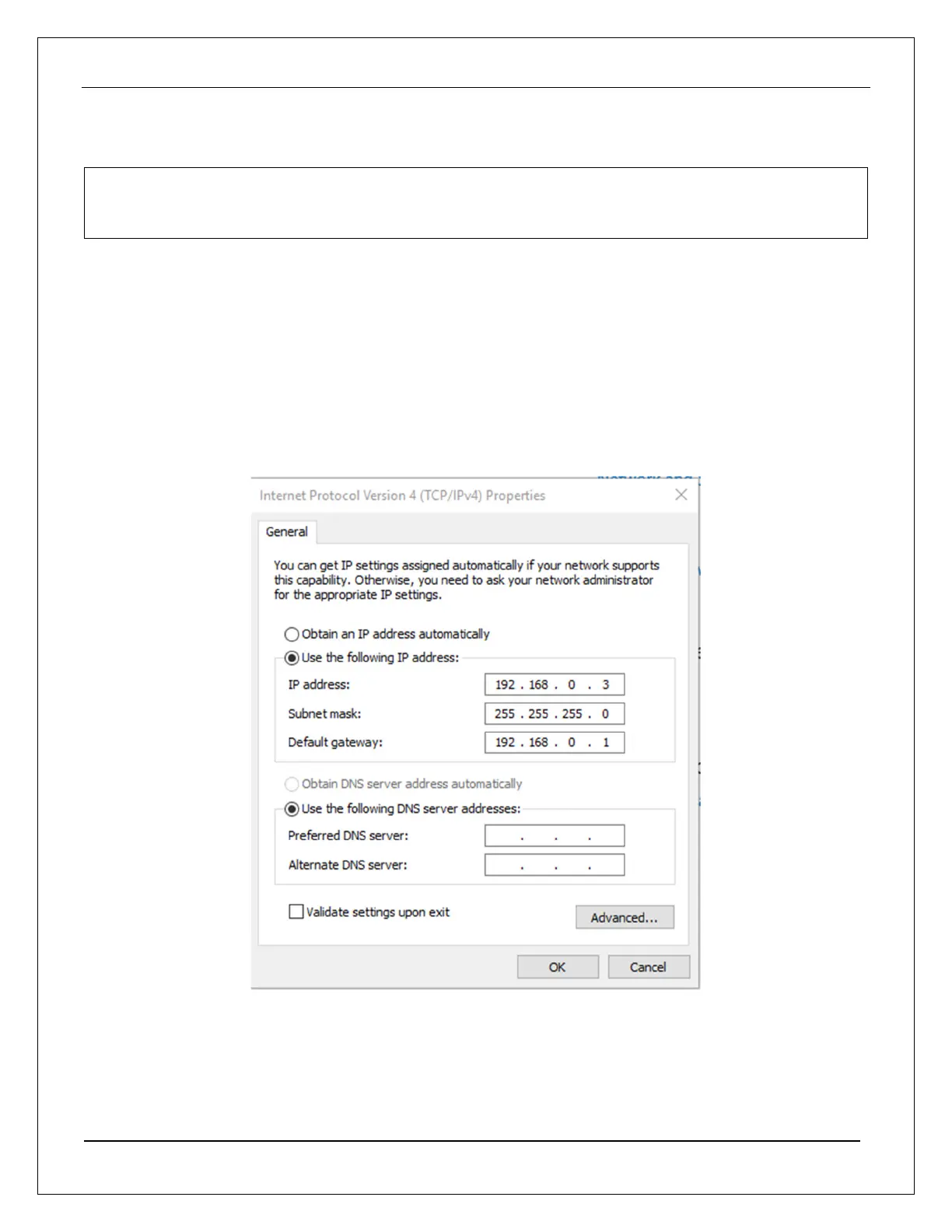
To set the correct IP address in Windows (10, 11): right-click the Start Button and select Search. Type and
select "Control Panel" to open the control panel window. Find and select Network and Sharing Center. Click
Change Adapter Settings and then the Ethernet icon, which will open a status page. Click the Properties
button, then double-click the Internet Protocol Version 4 (TCP/IPv4) located in the list box.
Set the static IP address with the following settings:
Click OK to accept, and then open a web browser and type in the following address to gain access to the
controller interface:
192.168.0.10:8080/webvisu.htm



 To Next Page