Multi-Function Gigabit Wireless-N Client Bridge Version 2.0
53
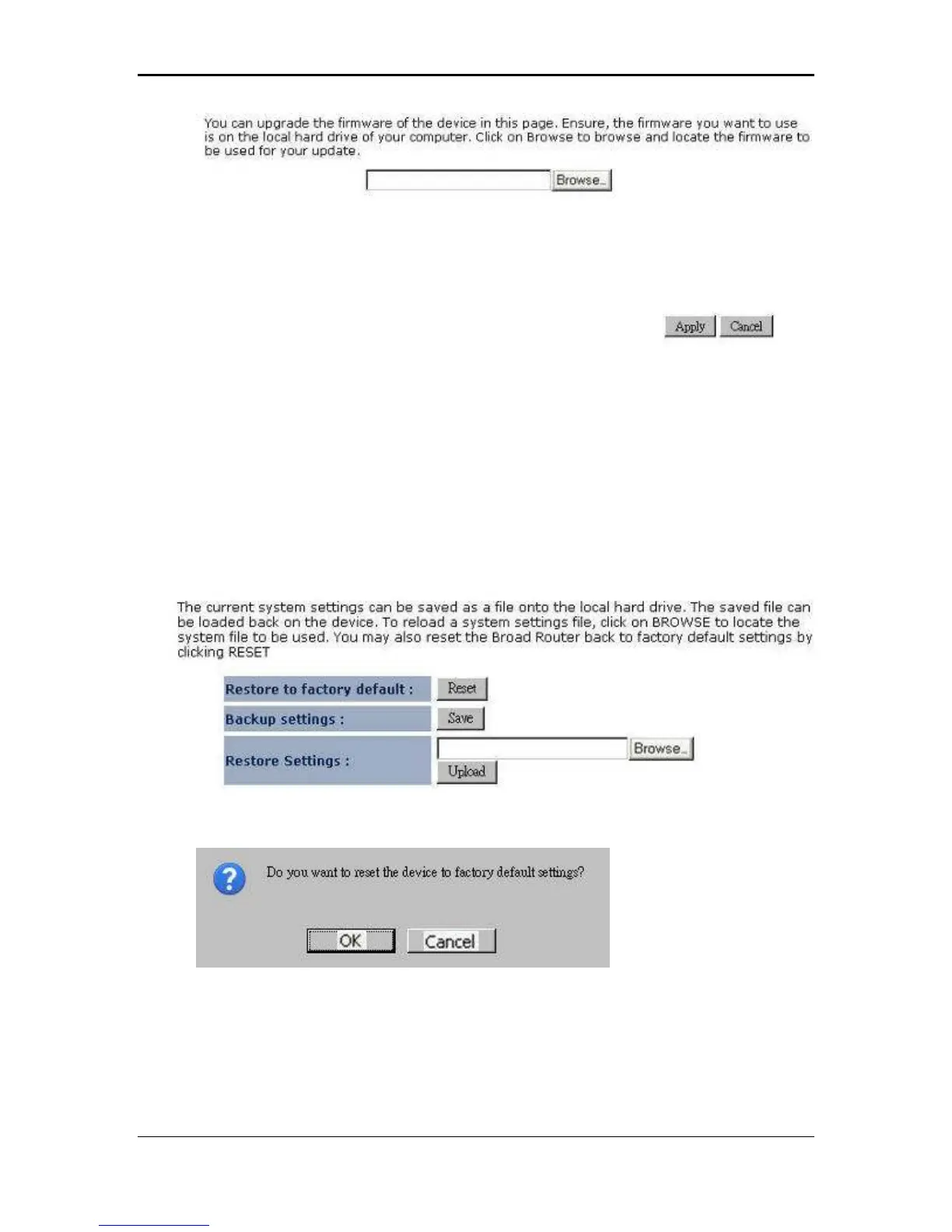
Ensure that you have downloaded the appropriate firmware from the vendor’s
website. Connect the device to your PC using an Ethernet cable, as the firmware
cannot be upgraded using the wireless interface.
Click on the Browse button to select the firmware and then click on the Apply
button.
3.4.4 Restore to Factory Default
Click on the Configure link in the navigation menu
Click on the Reset button to reset the device to the factory default settings.
Once the dialog box appears, click on the OK button to confirm the action.
Note: The current settings will be lost.
Click on the OK button to continue. You will then see the Rebooting page.
Please wait while the system is rebooting.
Note: Do no un-plug the device during this process as this may cause permanent
damage.


 To Next Page