EasyManua.ls Logo

Entrematic LCU40H - User Manual

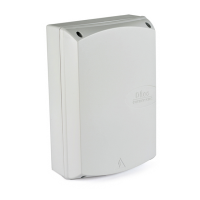
Entrematic LCU40H
46 pages
Print Icon
To Next Page IconTo Next Page
Loading...
Entrematic LCU40H
Control panel installation manual for
automations with one or two 24V motors
(Translation of the original instructions)
www.entrematic.com
IP2246EN • 2018-03-23
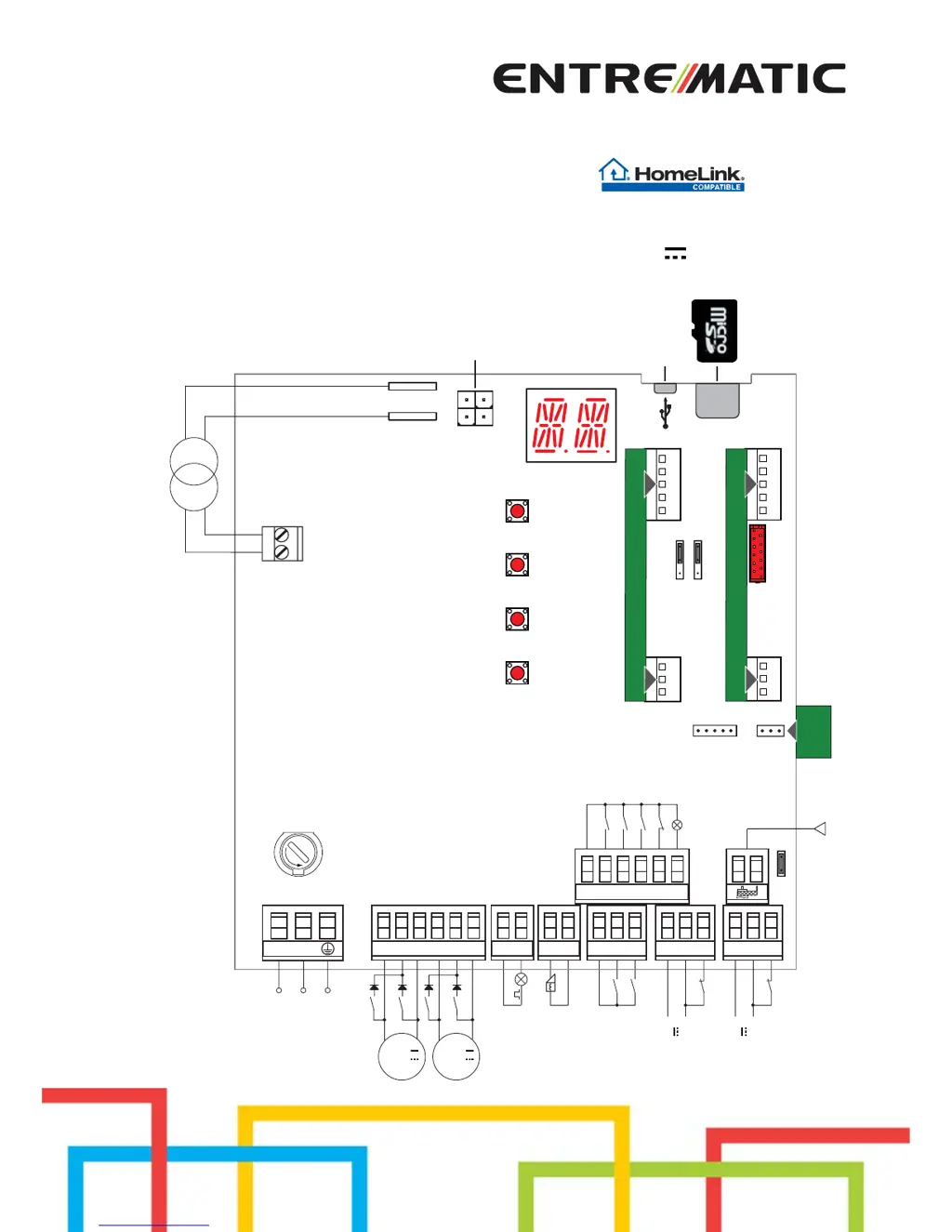
36 35 34 33 32
31
30 2 3 4 9
13
+-LP - +LK
30 5 20
016 018
JR1
J13J14
24V~
COM
A
U
X
2
A
U
X
1
UP
DOWN
TRF
ENTER
ESC
USB
BAT KIT
SCHEDA AD INNESTO
SCHEDA AD INNESTO
F
U
S
E
F1
RDX
6ZENRS
ZENPRS
Trasformatore
Alimentazione
Motore 2
24V
Motore 1
Passo-passo
Apertura parzial
e
Antenna
Chiusura
automatica esterna
Apertura
Chiusura
Stop
Lampada stato
automazione
Lampeggiante
Elettroserratura
AUX1
AUX2
1
30
30
1
-
+
Uscita 24 V
-
+
Uscita 24 V
Arresto di sicurezza
Sicurezza in chiusura
24V
LN
Power supply
Motor 2
Motor 1
Flashing light
Electric lock
Step-by-step
Partial opening
24V output
24V output
Safety stop
Closing safety device
Antenna
Automatic external closing
Opening
Closure
Stop
Automation status
lamp
Transformer

Table of Contents

Questions and Answers

  • M
    Mathew JacksonAug 2, 2025
    What to do if Entrematic LCU40H Control Panel automation does not open or close?
    • M
      Megan MooreAug 2, 2025
      If your Entrematic Control Panel automation isn't opening or closing, start by checking the power supply cable. Then disconnect all accessories from terminals 0-30 to check for short-circuited accessories (a voltage of 24V= must be present), and reconnect them one at a time. If the issue persists, contact Technical Service. Also, check if the line fuse is blown and replace it if needed. Ensure the safety contacts are correctly closed (NC). Verify connections to terminals 6-8 and to the self-controlled safety edge. Make sure the photocells are clean and operating correctly. If automatic closure isn't working, issue any command, and if the problem continues, contact Technical Service. Finally, check the motor connection, and if the issue remains, contact Technical Service.
  • B
    Brittney CruzAug 7, 2025
    Why does my Entrematic Control Panel remote control have limited range?
    • D
      Dr. Patricia KellyAug 7, 2025
      If the remote control for your Entrematic Control Panel has limited range or doesn't work when the automation is moving, the radio transmission might be blocked by metal structures or reinforced concrete walls. Try installing the antenna outside. Also, replace the transmitter batteries.
  • J
    John MooreAug 11, 2025
    How to fix Entrematic Control Panel that does not switch on?
    • M
      Mark TaylorAug 12, 2025
      If your Entrematic Control Panel does not switch on, examine the power supply cable and wiring. In addition, disconnect any loads connected to terminal 30 to address potential overload on output 0-30.
  • C
    Cynthia DavisAug 17, 2025
    What to do if Entrematic LCU40H remote control does not work?
    • J
      jennifer80Aug 17, 2025
      If the remote control for your Entrematic Control Panel isn't working, the storage module might be missing or incorrect. Turn off the automation and plug in the correct storage module. Also, check the correct memorisation of the transmitters on the built-in radio. If there is a fault with the radio receiver that is built into the control panel, the remote control codes can be read by removing the storage module.
  • S
    Sierra ShermanAug 22, 2025
    Why are the external safety devices not activated on my Entrematic LCU40H?
    • K
      Kenneth McdonaldAug 22, 2025
      If the external safety devices for your Entrematic Control Panel aren't activating, it could be due to incorrect connections between the photocells and the control panel. Check that / is displayed. Connect NC safety contacts together in series and remove any jumpers on the control panel terminal board.
  • T
    Tammy LuceroAug 27, 2025
    What to do if Entrematic LCU40H Control Panel automation opens and closes briefly?
    • L
      Louis SmithAug 27, 2025
      If your Entrematic Control Panel automation opens/closes briefly and then stops, there might be friction. Manually check that the automation moves freely and check the / adjustment. Make sure that any limit switches, if present, are working correctly. If the problem persists, contact Technical Service.

Summary

General Safety Precautions

Safety Functions

Describes the control panel's built-in safety features and compliance.

EC Declaration of Conformity

Technical Specifications

Applications

Context for using the control panel with specific automation types.

Installation and Electrical Connections

Maintenance

Product upkeep and regular checks for the control panel.

Standard Installation

Description and guide for the standard installation of the system.

Standard Installation Diagram

Visual diagram illustrating the standard installation process.

Programming

Switching Display ON and OFF

Procedure for powering the control panel display on and off.

Navigation Keys

Explanation of key combinations for control panel operations.

Menu Map

Quick Start-Up Sequences

Automation Type Selection

Steps for selecting the type of automation for initial setup.

Number of Gate Wings Configuration

Setting the number of gate wings for the automation system.

Enabling Configurations

Procedures for enabling specific automation configurations.

Adding Remote Controls

Process for adding and programming remote controls.

Limit Switch Configuration

Configuration options for mechanical and electronic limit switches.

Safety Device Configuration

Setup and configuration for safety devices like photocells and safety edges.

Application Examples

Two Swinging Gates Automations

Wiring and configuration examples for two swinging gate automations.

One Swinging Gate Wing Automation

Wiring and configuration examples for one swinging gate wing automation.

Up-and-over Doors with Two Parallel Motors

Configuration examples for up-and-over doors with parallel motors.

Commands

Inserting Plug-in Boards (AUX)

Procedure for installing optional plug-in boards into the control panel.

SOFA1-SOFA2 or GOPAVRS Safety Edge

Integration and configuration of self-controlled safety edges.

Outputs and Accessories

Jumper Setting

Adjustments

Main Menu Overview

Overview of the main menu options for control panel adjustments.

Automatic Configurations (AT Menu)

Automation Selection (AS)

Pre-sets motor type and parameters for standard automation installation.

Number of Gate Wings (NW)

Setting the number of gate wings for single gate automations.

Predefined Settings (HO, H1, CO)

Loads predefined values for residential and condominium automation settings.

Reset General Settings (RD)

Resets all general settings to their default values.

Activate Additional Parameters (AA)

Activates additional configurable parameters for main menu functions.

Automation Type and Default Settings

Basic Configurations (BC Menu)

Additional BC Parameters

Configurable parameters within the BC menu, available with AT → AA.

Basic Adjustment (BA Menu)

Additional BA Parameters

Radio Operations (RO Menu)

Additional RO Parameters

Special Functions (SF Menu)

Additional SF Parameters

Cycles Counter (CC Menu)

Additional CC Parameters

Energy Management (EM Menu)

Additional EM Parameters

Advanced Parameters (AP Menu)

Additional AP Parameters

Diagnostics

Data Logging Integrated

Description of the control panel's internal system for logging data.

Alarm Counter

How to view recorded alarms and the number of times triggered.

Alarm Log

How to view the log of the last recorded alarms.

MicroSD Information Export

Exporting Information

Process for exporting control panel parameters to a microSD card.

Extended Data Logging

Enabling and viewing extended event and alarm logging on microSD.

Display Signals

Automation Status Display

Explanation of the different status indicators for the automation.

Safety Devices and Commands Display

Explanation of indicators for safety devices and commands.

Alarms and Faults Visualization

Troubleshooting

Entrematic LCU40H Specifications

General IconGeneral
BrandEntrematic
ModelLCU40H
CategoryControl Panel
LanguageEnglish

Related product manuals