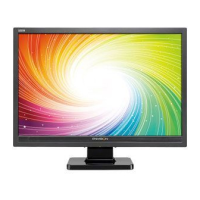
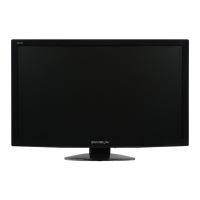
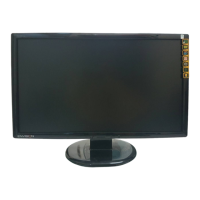
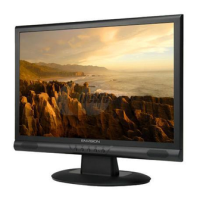
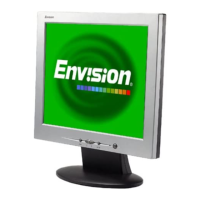
This document provides a comprehensive guide for the Envision monitor, covering its setup, operation, and maintenance.
Function Description
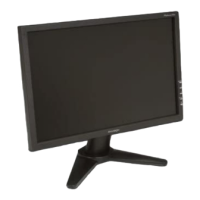
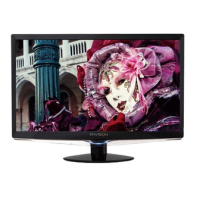
The Envision monitor is a display device designed for use with computers. It supports various display modes and resolutions, offering features for image adjustment, color control, and power management. The monitor is equipped with both D-Sub (analog) and DVI (digital) input ports, allowing connection to a wide range of video cards. It also features VESA DDC2B capabilities for automatic configuration with the host system.
Important Technical Specifications
The monitor model is G2361, featuring a TFT color LCD with a viewable image size of 584.2 mm diagonal. The pixel pitch is 0.265mm(H) x 0.265mm(V). It supports R, G, B Analog Interface & Digital Interface for video input and H/V TTL for separate sync. The display color is 16.7M Colors with a dot clock of 149 MHz.
Horizontal scan range: 30 kHz – 80 kHz
Horizontal scan size (Maximum): 509.18 mm
Vertical scan range: 55 Hz – 75 Hz
Vertical scan size (Maximum): 285.416 mm
Optimal preset resolution: 1920 x 1080 (60 Hz)
Highest preset resolution: 1920 x 1080 (60 Hz)
Plug & Play: VESA DDC2B/CI
Input Connector: D-Sub 15pin & DVI-D
Input Video Signal: Analog: 0.7Vp-p(standard), 75 OHM, Positive & DVI-D Digital Interface (TMDS)
Power Source: 100-240VAC, 50/60Hz
Power Consumption: Active < 45 W, Standby < 1W
Connector Type: 15-pin D-Sub & DVI-D
Signal Cable Type: Detachable
Dimensions & Weight:
Height (with base): 396.08mm
Width: 548.75mm
Depth: 200.62mm
Weight (monitor only): 5.0kg
Weight (with packaging): 6.5kg
Environmental Conditions:
Temperature:
Operating: 0° to +40°
Non-Operating: -20° to +60°
Humidity:
Operating: 15% to 90% (non-condensing)
Non-Operating: 15% to 90% (non-condensing)
Altitude:
Operating: 0~12000 ft
Non-Operating: 0~40000 ft
The monitor is also EPA ENERGY STAR® certified, indicating its energy efficiency.
Usage Features
Setup and Adjustment:
- Stand and Base: The manual provides instructions for setting up and removing the monitor base.
- Adjusting Viewing Angle: The monitor's angle can be adjusted from -5° to 19° for optimal viewing. Users are advised not to touch the LCD screen during adjustment to prevent damage.
- Attaching Cables: Instructions are provided for connecting the power cable, 15-pin D-Sub cable, and optional 24-pin DVI cable to the monitor and computer.
- Wall Mounting: The monitor can be attached to a separately purchased wall mounting arm. Steps include removing the base, assembling the arm, aligning it with the monitor's holes, inserting screws, and reconnecting cables. VESA mounting screw holes may not be available on all models.
- Optimal Resolution: The recommended resolution for this monitor is 1920 by 1080. The manual details steps to set this resolution through the computer's display settings (Start > Control Panel > Display > Settings > Advanced > Monitor > Properties > Driver > Update Driver).
External Controls:
The monitor features several external controls:
- Auto / Source / Exit
- Eco mode (DCR) / -
- 4:3 or wide / +
- Menu / Enter
- Power
OSD Settings:
The On-Screen Display (OSD) menu allows users to adjust various monitor settings:
- Navigation: Use the MENU button to activate the OSD, and '+' or '-' buttons to navigate and change settings.
- OSD Lock Function: The OSD can be locked and unlocked by holding the Menu button while turning the monitor on.
- Eco Mode and DCR Hot Key: Pressing the Eco key continuously cycles through Eco modes of brightness and DCR (Dynamic Contrast Ratio).
- 4:3 or Wide Image Ratio Hot Key: Pressing '+' continuously changes the image ratio (if applicable).
- Source Hot Key: When the OSD is closed, the Auto/Source button allows selecting the input source.
- Auto Configure Hot Key: Pressing the Auto button for 2 seconds performs an auto-configuration.
- Luminance:
- Brightness (0-100): Backlight adjustment.
- Contrast (0-100): Contrast from Digital-register.
- Eco mode (Standard, Text, Internet, Game, Movie, Sports): Pre-set modes for different viewing scenarios.
- Gamma (Gamma1, Gamma2, Gamma3): Adjusts gamma levels.
- DCR (Off, On): Disables or enables dynamic contrast ratio.
- Image Setup:
- Clock (0-100): Adjusts picture clock to reduce vertical-line noise.
- Phase (0-100): Adjusts picture phase to reduce horizontal-line noise.
- H. Position (0-100): Adjusts horizontal position.
- V. Position (0-100): Adjusts vertical position.
- Color Temp.:
- Warm (6500K), Normal (7300K), Cool (9300K), sRGB: Pre-set color temperatures.
- User (Red, Green, Blue): Allows custom adjustment of Red, Green, and Blue gains.
- Color Boost:
- Full Enhance (on/off): Disables or enables full enhance mode.
- Nature Skin (on/off): Disables or enables nature skin mode.
- Green Field (on/off): Disables or enables green field mode.
- Sky-blue (on/off): Disables or enables sky-blue mode.
- AutoDetect (on/off): Disables or enables AutoDetect mode.
- Demo (on/off): Disables or enables demo mode.
- Picture Boost:
- Frame Size (14-100): Adjusts frame size.
- Brightness (0-100): Adjusts frame brightness.
- Contrast (0-100): Adjusts frame contrast.
- H. position (0-100): Adjusts frame horizontal position.
- V. position (0-100): Adjusts frame vertical position.
- Bright Frame (on/off): Disables or enables bright frame.
- OSD Setup:
- H. Position (0-100), V. Position (0-100): Adjusts OSD position.
- Timeout (5-120): Adjusts OSD timeout.
- Transparence (0-100): Adjusts OSD transparency.
- Language: Selects OSD language.
- Extra:
- Input Select (Auto, D-SUB, DVI): Selects input signal source.
- Auto Config (yes/no): Auto adjusts the picture to default.
- Image Ratio (wide or 4:3): Selects wide or 4:3 format for display.
- DDC-CI (yes/no): Turns ON/OFF DDC-CI Support.
- Information: Shows main image and sub-image source information.
- Reset (yes/no): Resets the menu to default.
- Exit: Exits the main OSD.
LED Indicators:
- Full Power Mode: White LED.
- Active-off Mode: Orange LED.
"i-Menu" software by ENVISION allows users to adjust monitor display settings via on-screen menus, offering an alternative to the OSD buttons.
Drivers:
The manual provides detailed instructions for installing monitor drivers on Windows 2000, Windows ME, Windows XP, and Windows Vista operating systems. This typically involves navigating to the display settings, accessing monitor properties, and updating the driver from the provided CD-ROM.
Plug & Play DDC2B Feature:
The monitor is equipped with VESA DDC2B capabilities, allowing it to inform the host system of its identity and display capabilities. This bi-directional data channel enables the host to request EDID information over the I²C protocol.
Preset Display Modes:
The manual lists various preset display modes with their corresponding horizontal and vertical frequencies, including resolutions like 640x480, 800x600, 1024x768, 1280x1024, 1440x900, 1680x1050, and 1920x1080.
Pin Assignments:
Detailed pin assignments are provided for both the 15-pin D-Sub connector and the 24-pin DVI connector, outlining the signal names for each pin.
Maintenance Features
Precautions:
- Placement: Do not use the monitor near water, on unstable surfaces, or block ventilation openings.
- Power Source: Operate the monitor only from the specified power source. Use a grounded plug and outlet. Unplug during lightning storms or prolonged non-use.
- Safety: Do not overload power strips, insert objects into cabinet slots, or spill liquids on the monitor.
- Servicing: Do not attempt to service the monitor yourself; refer to qualified service personnel.
- Compatibility: Use the monitor only with UL listed computers.
- Power Adapter: For models with a power adapter, use only the attached UL, CSA listed adapter (Output 12Vdc).
Cleaning:
- Clean the cabinet regularly with the provided cloth and a soft cleanser. Avoid severe spray cleansers that may cauterize the cabinet.
- Do not let liquid leak into the monitor.
- Unplug the monitor before cleaning.
- Do not scratch the screen with hard objects.
Troubleshooting:
The manual includes a "Problem & Question" section with "Possible Solutions" for common issues:
- Power LED is Not ON: Check power button, power cord, and ENVISION Monitor Drivers.
- No Plug & Play: Check computer & video card, monitor's video cable, and ENVISION Monitor Drivers.
- Picture is Fuzzy & Has Ghosting Shadowing Problem: Adjust Contrast and Brightness, check extension cable or switch box, and ensure monitor is plugged directly into the video card output.
- Picture Bounces, Flickers Or Wave Pattern Is Present In The Picture: Move electrical devices, check refresh rate, and ensure maximum refresh rate is used.
- Monitor is Stuck In Active Off-Mode: Check computer power switch, video card, monitor's video cable, and monitor's pins. Ensure CAPS LOCK key is not pressed.
- Missing one of the primary colors (RED, GREEN, or BLUE): Check monitor's video cable and pins.
- Screen image is not centered or sized properly: Adjust H-Position and V-Position or use hot-key (AUTO).
- Picture has color defects (white does not look white): Adjust RGB color or select color temperature.
- Horizontal or vertical disturbances on the screen: Use win 95/98/2000/ME/XP shut-down mode Adjust CLOCK and FOCUS or perform hot-key (AUTO-key ).
Hg Declaration:
The monitor contains mercury lamps that must be recycled or disposed of according to local, state, or federal laws. Contact the Electronic Industries Alliance at www.eiae.org for more information.

 Need help?

 To Next Page
 General