3 The Wi-Fi button
4 The network status button
5
The B&W copy button
6 The color copy button
7
The stop button
8
The ink light
9
The paper light
10
Scan to PDF by pressing the B&W copy button and the color copy button simultaneously
Parent topic: Using the Control Panel
Adjusting Control Panel Position
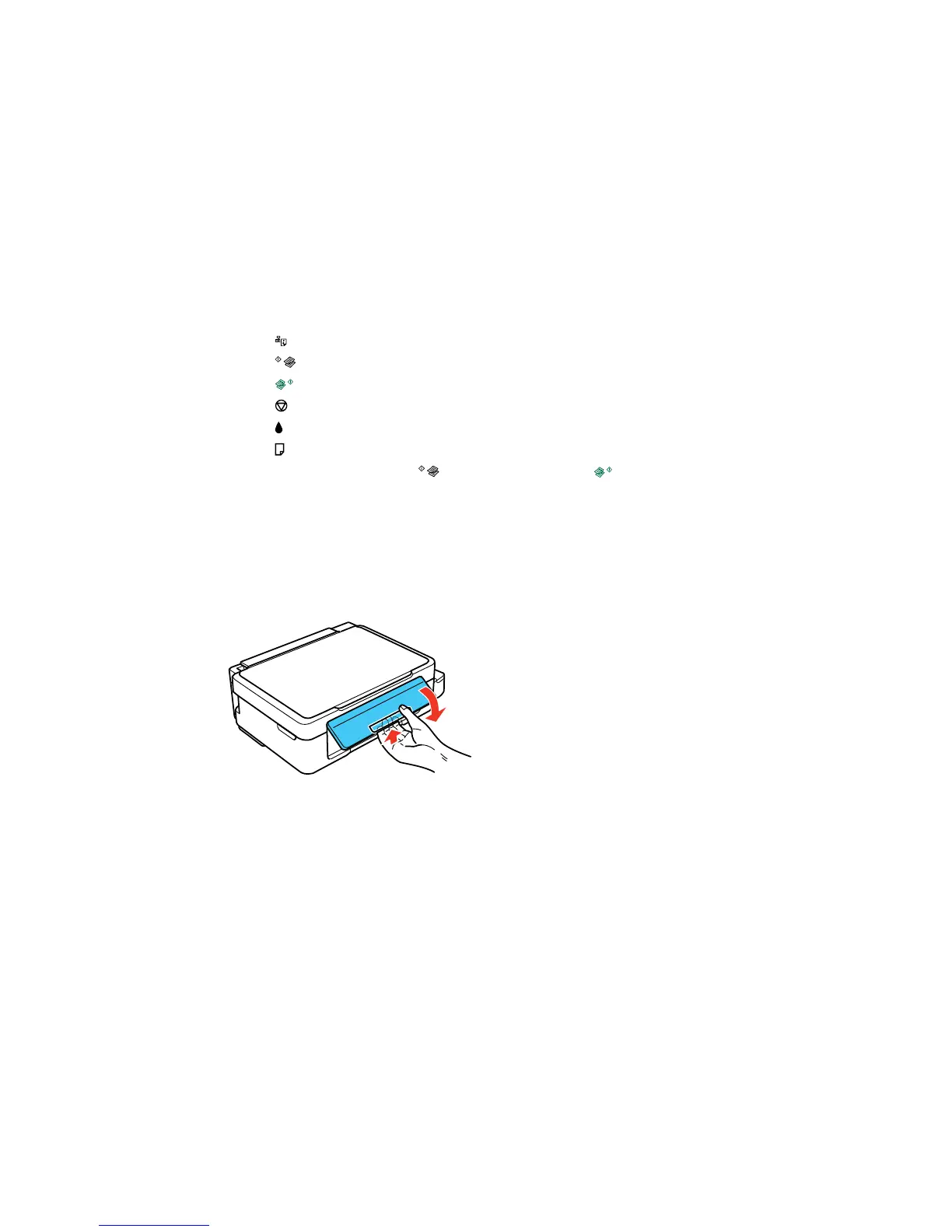
You can adjust the position of the control panel to make it easier to use.
• To raise the control panel, lift it up from the bottom.
• To lower the control panel, squeeze the release bar and gently push the panel down.
Caution: Do not lower the control panel without first squeezing the release bar or you may damage
your product.
Parent topic: Using the Control Panel
14







 To Next Page