EasyManua.ls Logo

Epson ET-3850U - User Manual

Epson ET-3850U
4 pages
Print Icon
To Next Page IconTo Next Page
Loading...
8 Close the ink tank cover, then close the scanner unit.
9 Raise the control panel, then press the power button to
turn on the product. The power light ashes.
Note: If an error code appears, turn o the product and check
that no protective material has been left inside the product.
10 Select your language.
Note: You can change this setting later using the product’s
control panel. For more information, see the online User’s Guide.
11 When an Epson Smart Panel message appears on the
LCD screen, select the option to continue setup without
the app.
12 When the message to see the Start Here sheet appears
on the LCD screen, press and hold the help button for
5 seconds.
13 Follow the on-screen instructions to start ink charging. Ink
charging takes about 10 minutes.
Note: When the power light stops ashing, ink charging is
complete. Once initial setup of the printer is complete, you can
top o the ink tanks with any remaining ink. See the online User’s
Guide for instructions.
Caution: Do not unplug or turn o the product, or raise the
scanner unit while the product is charging or you’ll waste ink.
Note: After some ink is used for charging, the rest is available for
printing.
14 Press the OK button to proceed with initial setup.
15 Follow the on-screen instructions to adjust the print
quality of your product.
Note:
You need to load paper before you can adjust the print quality.
See “Load paper” on this sheet for details.
Select Adjust Later if you want to adjust the print quality later.
For more information, see the online User’s Guide.
Caution: After setup, periodically inspect the ink levels to ensure they
do not fall below the lowest lines on the tanks. Prolonged use when
ink is below the lowest line could damage the product. See the online
User’s Guide for relling instructions.
IMPORTANT: Before using this product, make sure you read
these instructions and the safety instructions in the online User’s
Guide.
Note: As part of the ReadyPrint™ program, Epson monitors ink usage
remotely to provide you with additional ink before you run out of it. The
product must be connected to the Internet to function and monitor ink
usage.
1
Unpack
Note: Do not open the ink bottles until you are ready to ll the ink
tanks. The ink bottles are vacuum packed to maintain reliability.
1 Remove all protective materials from the product.
Caution: Do not touch the at white cable or the ink tubes and
their translucent cover.
2 Connect the power cord to the back of the product and to
an electrical outlet.
Caution: Do not connect to your computer yet.
2
Choose a setup method
The Epson Smart Panel
®
app can help you set up your printer
through an interactive, step-by-step process using your
smartphone or tablet.
If you do not want to
use a mobile device for
setup, skip to the “Fill ink
tanks” section below.
To use your mobile device
for setup, continue to
step 1.
or
1 Download the Epson Smart Panel app
from your device’s app store. Do not
launch the app yet.
2 Press the power button to turn on the product.
Note: Do not connect your product to your computer yet.
3 Launch the app and follow its instructions to set up your
product.
For information on connecting your product to a computer, using
voice-activated printing, or solving problems, or for details on
reaching Epson support, see the sections on the back of this
sheet.
3
Fill ink tanks
Warning: Keep the ink bottles out of the reach of children and do not
drink the ink.
Caution: This product requires careful handling of ink. If ink spills, wipe
it o immediately with a damp towel to avoid permanent stains. If ink gets
on your clothes or belongings, it may not come o.
Note:
Use only Epson
®
570 ink provided to you under the ReadyPrint
program.
Use the ink bottles included with the printer to set up the product. Part
of the ink will be used to charge the print head. These bottles may print
fewer pages compared with replacement ink bottles.
1 With the scanner unit raised, open the ink tank cover, then
open the cap for the black (BK) ink tank.
Note: Refer to the color-coded sticker to identify the color of each
tank.
2 Unpack the black (BK) ink bottle. Hold the ink bottle upright
and slowly turn the bottle cap to remove it.
Caution: Do not shake or squeeze the ink bottle. Do not touch the
top of the ink bottle after its cap is removed.
3 Insert the ink bottle into the lling port.
Note: Do not force the bottle into position; each bottle is keyed for
each color.
4 Wait for the ink to ll the tank.
Do not squeeze the bottle or
allow it to contact any other
surface.
Note: Ink ows into the tank and
stops automatically when the ink
tank is lled to the upper line. If
ink does not ow from the bottle,
lift and reinsert the bottle.
5 When the ink tank is full, remove the ink bottle and securely
close it with the bottle cap. If any ink remains in the bottle,
close the bottle and store it for later use.
Note: Do not leave the ink bottle inserted; otherwise the bottle may
be damaged or ink may leak.
6 Securely close the black ink tank cap.
7 Repeat the previous steps for the other colors.
ET-3850U
Start Here

Question and Answer IconNeed help?

Do you have a question about the Epson ET-3850U and is the answer not in the manual?

Overview

This document provides a comprehensive guide for the Epson ET-3850U printer, covering its setup, usage, maintenance, and troubleshooting.

Function Description:

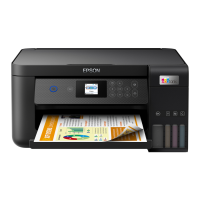
The Epson ET-3850U is a multifunction printer designed for home and office use. It supports printing, scanning, and copying. A key feature is its "ReadyPrint" subscription program, which monitors ink usage and automatically orders new ink when needed, aiming to prevent users from running out of ink. The printer is also designed for easy setup and connectivity, including wireless, wired, and USB options, and supports mobile and voice-activated printing.

Important Technical Specifications:

  • Model: ET-3850U
  • Product Type: Multifunction printer
  • Connectivity: Wireless (Wi-Fi), Wired (Ethernet), USB.
  • Mobile Printing: Supports printing from Android™ (v4.4 or later) devices and iOS devices. Compatible with Epson Connect™ for remote printing and Epson Smart Panel app for mobile control.
  • Voice-Activated Printing: Integrates with voice-activated assistants for printing various content types, including creative projects and everyday items.
  • Paper Handling: Supports various paper types and sizes, including ADF and loading envelopes.
  • Ink System: Features an EcoTank ink system, which uses refillable ink tanks instead of traditional cartridges. This system is designed to provide a large ink supply, reducing the frequency of ink replacements.
  • Compliance: Complies with 47CFR, Part 2 and 15 for Class B Personal Computers and Peripherals, and/or CPU Boards and Power Supplies used with Class B Personal Computers.

Usage Features:

  • Easy Setup: The printer offers a simplified setup process, including a "Smart Panel" interactive, step-by-step guide accessible via a smartphone or tablet. This guide helps users connect the printer to a network (wireless or wired) and install necessary software.
  • Unpacking and Initial Setup: The manual provides clear instructions for unpacking the printer, removing protective materials, and filling the ink tanks. It emphasizes the importance of using the correct ink for each tank and ensuring the ink is fully inserted.
  • Ink Tank System: The EcoTank system allows users to fill ink tanks directly from bottles, eliminating the need for traditional cartridges. The manual details the process of opening the ink tank cover, removing the cap, inserting the ink bottle, and closing the cap and cover. It also provides warnings about not leaving ink bottles inserted if the ink is not flowing and about potential damage from incorrect ink insertion.
  • Paper Loading: Instructions are provided for loading paper into the cassette, including guidance on adjusting the paper guides for different paper sizes and types. The printer supports various paper types, including glossy and plain paper.
  • Software Installation: The setup process includes installing the necessary software and drivers. Users can download software from the Epson support website or use the provided CD. The software facilitates wireless, wired, and USB connections and enables printing from various devices.
  • Mobile and Voice-Activated Printing: The printer can be controlled and used for printing directly from mobile devices via the Epson Smart Panel app. It also supports voice commands through compatible assistants, allowing users to print documents, photos, and creative projects without direct interaction with the printer.
  • ReadyPrint Program: The printer is compatible with the Epson ReadyPrint™ subscription program, which monitors ink levels and automatically orders replacement ink when needed. This feature aims to ensure users never run out of ink.
  • Network Connectivity: The printer supports both wireless and wired network connections. The manual provides detailed steps for connecting to a Wi-Fi network or an Ethernet cable, including troubleshooting tips for network setup issues.
  • User Interface: The printer features a control panel with an LCD screen and buttons for navigation and operation. The manual explains how to use the control panel to select language, adjust print quality, and perform other functions.

Maintenance Features:

  • Ink Refilling: The EcoTank system is designed for easy ink refilling. The manual provides step-by-step instructions for refilling the ink tanks, emphasizing the importance of using genuine Epson ink and ensuring the correct color is used for each tank. It also advises against leaving ink bottles inserted after the tank is full to prevent damage.
  • Ink Tank Cover and Scanner Unit Maintenance: Instructions are provided for opening and closing the ink tank cover and the scanner unit for maintenance tasks, such as refilling ink or clearing paper jams.
  • Print Quality Adjustments: The manual guides users on how to adjust print quality settings, including "Load paper" for paper type and "Adjust Layer" for print quality. This helps optimize print output for different media and preferences.
  • Troubleshooting: The manual includes a "Need help?" section that addresses common issues such as network setup problems, print quality issues, and error messages. It provides solutions and directs users to the online User's Guide for more detailed information.
  • Recycling Program: Epson offers a recycling program for end-of-life hardware and ink bottles, encouraging users to return products for proper disposal.
  • Cleaning: While not explicitly detailed as a maintenance feature, the manual implies that maintaining print quality might involve cleaning the print head or other components, as it refers to "print head nozzle check" and "print head cleaning" in the context of print quality issues.

Epson ET-3850U Specifications

General IconGeneral
BrandEpson
ModelET-3850U
CategoryPrinter
LanguageEnglish

Related product manuals