Need help?
Do you have a question about the Epson ET-8550 and is the answer not in the manual?
Remove all protective materials from the product and inside the scanner unit.
Connect the power cord to the back of the product and to an electrical outlet.
Turn on the product and select your language on the LCD screen.
Open the ink tank cover and the cap for the black ink tank.
Unpack the ink bottle and insert it into the filling port.
Wait for ink to flow automatically into the tank and remove the bottle when full.
Start ink charging via LCD and wait approximately 7 minutes.
Follow on-screen instructions to adjust print quality after ink charging.
Ensure ink charging is done, lower the front cover.
Pull out the paper cassette, slide edge guides, and insert paper.
Select the paper settings on the product's control panel.
Ensure the printer is NOT connected to the computer via USB.
Insert CD or download software package and follow setup instructions.
Choose Wireless, Direct USB, or Wired Network connection.
Download Epson Smart Panel app and follow instructions to set up product.
Troubleshoot unsuccessful network setup, check SSID and password.
Address lines or incorrect colors by running nozzle check and cleaning print head.
Check product power status and USB cable connection.
Locate and access the online User's Guide for detailed instructions.
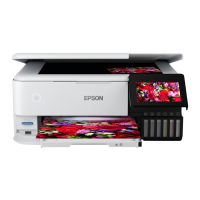
This document serves as a "Start Here" guide for the Epson ET-8500 and ET-8550 printers, outlining the initial setup process from unpacking to software installation and basic troubleshooting.
The device is a multifunction printer designed for both printing and scanning, with a strong emphasis on wireless connectivity and ease of use, particularly with mobile devices. It features an EcoTank system, which uses refillable ink tanks instead of traditional cartridges, aiming to provide a more economical and environmentally friendly printing solution.
The Epson ET-8500/ET-8550 is primarily a printing and scanning device. Its core function is to produce high-quality prints from various sources, including computers and mobile devices, and to digitize physical documents and images through its scanning capabilities. The printer supports both wired and wireless network connections, offering flexibility in how users can interact with it.
For printing, the device utilizes a six-color ink system (Black, Photo Black, Cyan, Yellow, Magenta, Gray), which suggests it is designed to produce vibrant and detailed color prints, including photographs, with enhanced grayscale reproduction. The EcoTank system means that ink is supplied via large, refillable tanks, which users fill from ink bottles. This design choice aims to reduce the frequency of ink replacement and lower the cost per print compared to cartridge-based systems. The printer also supports various paper types and sizes, including loading paper into two cassettes and a rear paper feed slot, and even printing on CD/DVD/Blu-ray Discs.
Scanning functionality allows users to convert physical documents and photos into digital files. While the guide doesn't detail specific scanning features, the presence of a scanner unit implies standard flatbed scanning capabilities.
Connectivity options are robust, including:
The device also supports modern printing methods such as:
The setup process is designed to be user-friendly, with clear, step-by-step instructions provided in the "Start Here" guide.
The guide touches upon several aspects related to maintaining optimal printer performance and addressing common issues:
In summary, the Epson ET-8500/ET-8550 is a versatile, high-capacity printer designed for ease of use, particularly with its EcoTank system and strong mobile integration. Its setup is guided, and ongoing maintenance is simplified by clear instructions and readily available support resources.
 General
| Print Technology | Inkjet |
|---|---|
| Maximum Print Resolution | 5760 x 1440 dpi |
| Number of Ink Colors | 6 |
| Connectivity | USB, Ethernet, Wi-Fi, Wi-Fi Direct |
| Automatic Duplex Printing | Yes |
| Scanner Type | Flatbed color image scanner |
| Display | 4.3" color touchscreen |
| Scan Resolution | 1200 x 2400 dpi |
| Paper Sizes Supported | A4, A5, A6, B5, Letter, Legal, 10 x 15 cm, 13 x 18 cm |
| Functions | Print, Copy, Scan |
| Mobile Printing | Apple AirPrint, Google Cloud Print, Mopria |
| Borderless Printing | Yes |
| Print Speed (Black) | 16 ppm |
| Print Speed (Color) | 12 ppm |


 To Next Page