EPSON Expression 800
6 -
EPSON Expression 800
1/99
Selecting a Driver and Settings
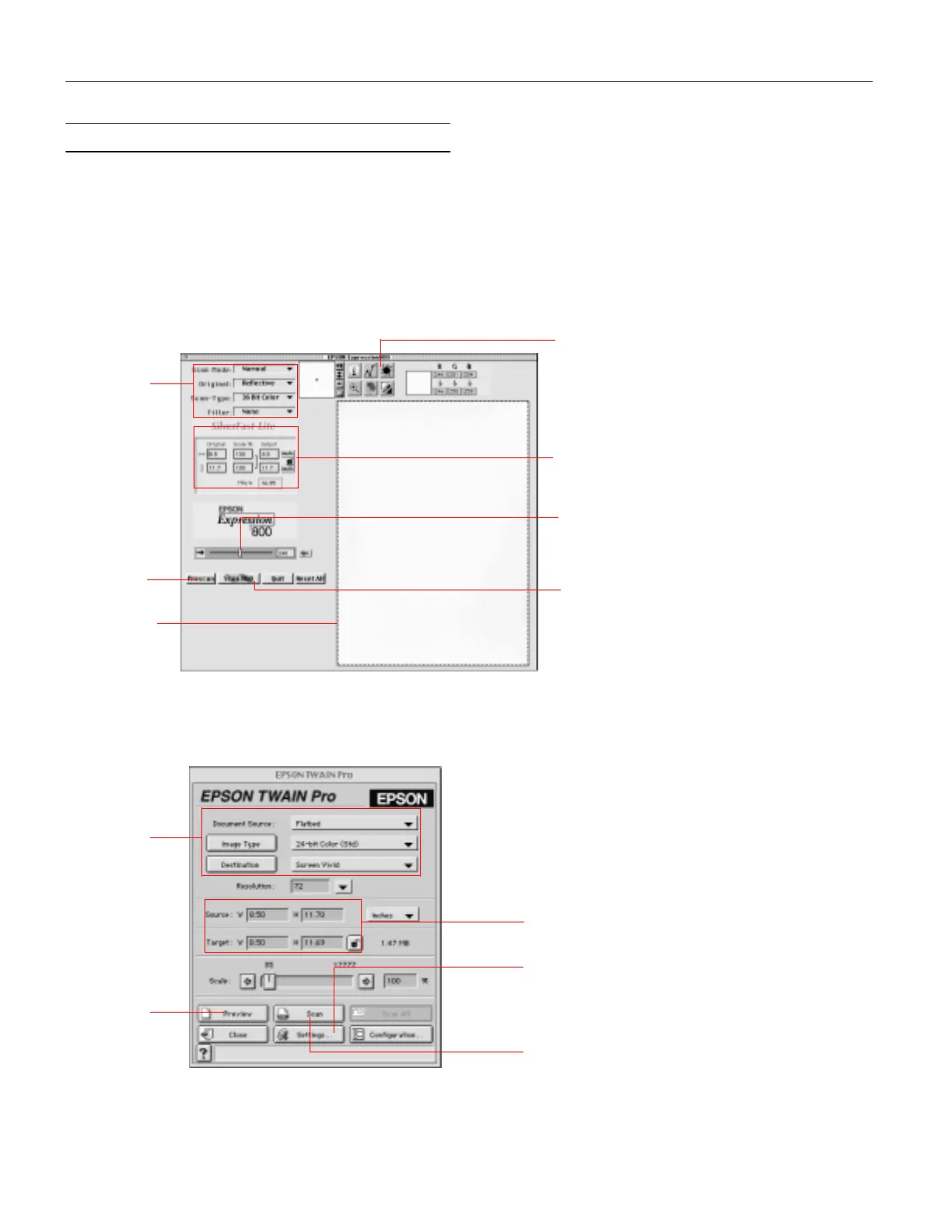
Here is a brief overview of the scanning steps using LaserSoft
®
SilverFast
™
Lite and EPSON TWAIN Pro. In both of the
following illustrations, the Macintosh interface is shown; the
Windows steps are the same.
If you select
Expression 800 (32-bit)
(Windows) or
Expression800
(Macintosh) as your scanner source, you see
the SilverFast Lite window:
If you select
EPSON TWAIN Pro(32-bit)
(Windows) or
EPSON TWAIN Pro
(Macintosh) as your scanner source, you
see the EPSON TWAIN Pro window.
2
Preview your
image
3
Adjust the
frame border
(dotted line) to
crop the image
1
Select the
basic settings
4
Use Auto
Adjust to
optimize image
quality
5
Size or
scale the
image
6
Set the
Resolution
7
Scan the image
into your
application
1
Select the
basic settings
2
Preview
your image
3
Size or scale the
image
5
Scan the image into
your application
4
Customize your
settings and use
color management













 To Next Page