EasyManua.ls Logo

Epson PERFECTION V700 PHOTO - User Manual

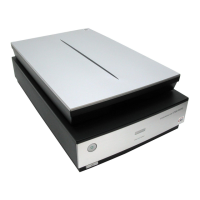
Epson PERFECTION V700 PHOTO
157 pages
Print Icon
To Next Page IconTo Next Page
Loading...
User’s Guide
Overview of Your Scanner Features
These features help you create the best
possible scans, no matter what shape your
original is in.
Guide to the Scanner Parts
Check this section to identify the parts of
your scanner.
Placing Originals on the Scanner
Follow the steps here to place your original
documents or photos on the scanner.
Scanning Your Originals
Follow the step-by-step instructions here to
scan your original documents or photos
using any of the available scanning methods.
Scanning Special Projects
Follow the instructions here for specific
scanning projects you may need to create.
Maintenance
Follow the guidelines here to maintain and
transport your scanner.
Solving Problems
If you have a problem using your scanner or
its software, check here for solutions.
Technical Specifications
Check here for technical details about your
scanner and its accessories.
Safety
Copyright and Trademarks
Operating System Versions

Other manuals for Epson PERFECTION V700 PHOTO

Questions and Answers

  • J
    jodismithAug 12, 2025
    What to do if the Carriage Unit does not operate on my Epson PERFECTION V700 PHOTO?
    • C
      Christopher JohnsonAug 12, 2025
      If the carriage unit on your Epson scanner isn't operating, start by ensuring that the carriage lock has been released. Also, check that the upper housing is correctly installed. If these steps don't solve the problem, it may be due to a Carriage Mechanism or CR Motor failure, or potentially a Main Board failure, all of which would require replacing the respective components.
  • R
    ryan83Aug 16, 2025
    Why Epson Scanner main unit does not operate when powered-on?
    • A
      alexander04Aug 16, 2025
      If your Epson scanner's main unit isn't operating when powered on, it could be due to a disconnected connector; ensure all connectors are properly connected. If the issue persists, it might indicate a CR Motor or Main Board failure, requiring replacement of the affected part.
  • O
    osimmonsAug 19, 2025
    Why TPU Carriage Unit does not operate on Epson PERFECTION V700 PHOTO?
    • D
      david71Aug 20, 2025
      If the TPU carriage unit on your Epson scanner is not operating, check the following: 1. Ensure the OPTION Connector CN7 on the main unit and the DRV Board Connector CN2 are connected with the TPU Unit cable. 2. Verify that the TPU Carriage Lock has been released. 3. Confirm the TPU Lower Housing is correctly installed. If the issue continues, it may be due to a failure of the TPU Carriage Mechanism, TPU CR Motor, DRV Board, or Main Board, each requiring replacement.
  • M
    Melissa WilliamsAug 25, 2025
    How to fix Epson Scanner image quality error?
    • M
      Mr. Charles WilliamsAug 25, 2025
      If you're experiencing issues with the quality of your scanned images, it might be due to a few reasons. First, check if the document glass is clean, as white spots on the image often indicate it needs cleaning. If cleaning doesn't resolve the issue, it could be due to ISN Board or Main Board failure, requiring replacement of the Carriage Unit or the Main Board, respectively.
  • K
    Karen CobbAug 27, 2025
    How to resolve Epson PERFECTION V700 PHOTO interface error?
    • R
      Robin FosterAug 27, 2025
      To resolve an interface error on your Epson scanner, first, verify that your host computer supports USB 2.0 or IEEE 1394. If it does, ensure the TWAIN Driver for the scanner is correctly installed; reinstall it if necessary. Also, check the USB 2.0 or IEEE 1394 cables for damage and replace them if needed. If the problem continues, the Main Board may need to be replaced.
  • J
    Jose WalkerAug 31, 2025
    What causes the fluorescent lamps not to light up on my Epson PERFECTION V700 PHOTO?
    • S
      Sarah MooreAug 31, 2025
      If the fluorescent lamps on your Epson scanner aren't lighting up, the Carriage FFC might not be connected to the Connector CN5 on the Main Board; ensure it's properly connected. If the issue persists, it could be due to a Carriage Unit or Main Board failure, requiring replacement.
  • E
    Emily BrownSep 4, 2025
    What to do if the Fluorescent Lamps of the TPU do not light up on Epson PERFECTION V700 PHOTO Scanner?
    • A
      Amy KempSep 4, 2025
      If the fluorescent lamps of the TPU on your Epson scanner do not light up, check these connections: 1. Ensure the OPTION Connector CN7 on the main unit and the DRV Board Connector CN2 are connected with the TPU Unit cable. 2. Verify the Lamp Connector is connected to Connectors CN2 and CN3 on the TPU Inverter Board. 3. Confirm Connector CN1 on the TPU Inverter Board and Connector CN3 on the SUB_B Board are connected with the cable. 4. Check that the DRV-SUB_B FFC is connected to Connector CN1 on the SUB_B Board and Connector CN4 on the DRV Board. If problems persist, consider replacing the TPU Inverter Board, DRV Board, or Main Board.
  • R
    Robert HaneySep 7, 2025
    Why the TPU LEDs do not light up on Epson PERFECTION V700 PHOTO Scanner?
    • D
      Dale CookSep 7, 2025
      If the TPU LEDs on your Epson scanner do not light up, ensure the DRV-SUB_B FFC is connected to Connector CN1 on the SUB_B Board and Connector CN4 on the DRV Board. Also, check that Connectors CN2 and CN4 on the SUB_B Board are connected. If the LEDs still don't light up, it may indicate a failure of the SUB_C Board and the SUB_D Board, or a DRV Board or Main Board failure, requiring replacement of the respective components.

Summary

Overview of Your Scanner Features

Color Restoration

Restores faded colors and enhances sharpness in scanned photos.

Dust Removal

Virtually cleans dust marks from originals during scanning.

DIGITAL ICE Technology and DIGITAL ICE Lite Technology

Advanced technology to remove stubborn dust and scratch marks.

Backlight Correction

Reduces shadows caused by excessive background light in photos.

Placing Originals on the Scanner

Placing Documents or Photos

Step-by-step instructions for positioning documents and photos on the scanner.

Scanning Your Originals

Starting Epson Scan

Guides on how to launch the Epson Scan software for scanning.

Selecting an Epson Scan Mode

Describes the different scanning modes (Full Auto, Office, Home, Professional).

Scanning Special Projects

Text Enhancement

Sharpens text and increases accuracy when scanning documents.

Maintenance

Cleaning the Scanner

Procedures for keeping the scanner clean for optimal performance.

Solving Problems

Scanner Problems

Troubleshooting common issues related to scanner operation and status lights.

Scan Quality Problems

Solutions for various issues affecting the quality of scanned images.

Technical Specifications

Safety

Important Safety Instructions

Essential safety precautions to follow when using the scanner.

Epson PERFECTION V700 PHOTO Specifications

General IconGeneral
I/O portsUSB
Dimensions (WxDxH)503 x 308 x 152.5 mm
Power requirements220-240V 50-60Hz
Film scanningNo
Color scanningYes
Input color depth48 bit
Maximum scan size216 x 297 mm
Scanner typeFlatbed scanner
Sensor typeCCD
Compatible operating systemsMicrosoft Windows 98 SE/ME/2000 Professional/XP Home Edition/XP Professional x64 Edition Mac OS X 10.2
Power consumption (typical)32 W
Operating temperature (T-T)5 - 35 °C
Operating relative humidity (H-H)10 - 80 %
Pallet width1200 mm
Pallet height1000 mm
Pallet length (UK)1950 mm
Quantity per pallet20 pc(s)
Quantity per pallet (UK)24 pc(s)
Quantity per pallet layer5 pc(s)
Quantity per pallet layer (UK)6 pc(s)
Package depth625 mm
Package width250 mm
Package height450 mm
Package weight9488 g
Quantity per pack1 pc(s)
Country of originChina
Weight and Dimensions IconWeight and Dimensions
Weight6600 g

Related product manuals